
Steps
Open the History tab
Go to the month or year you want. Choose a date in the calendar or heatmap.
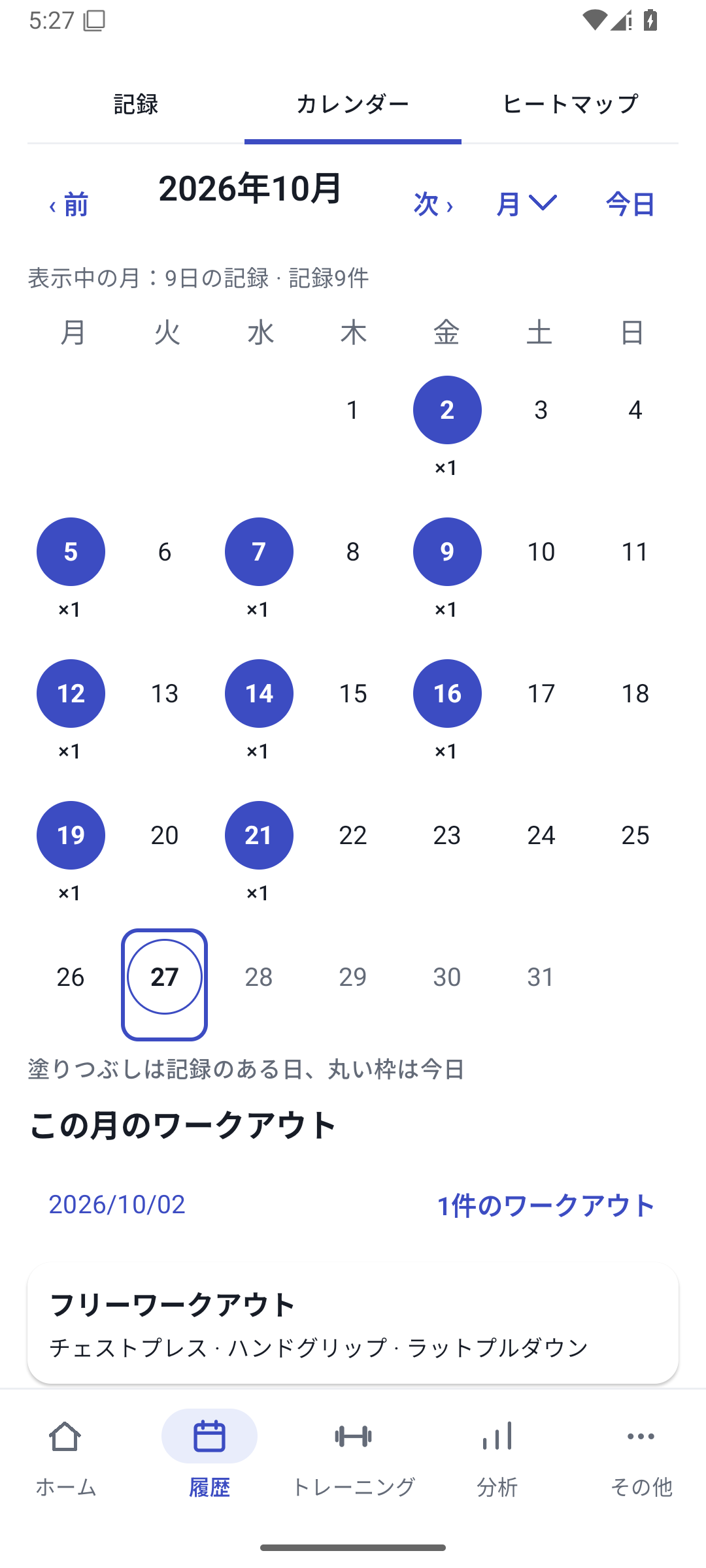 Enlarge image
Finding days with records in the monthly calendar. Open a session
If a day contains several records, expand the session you want.
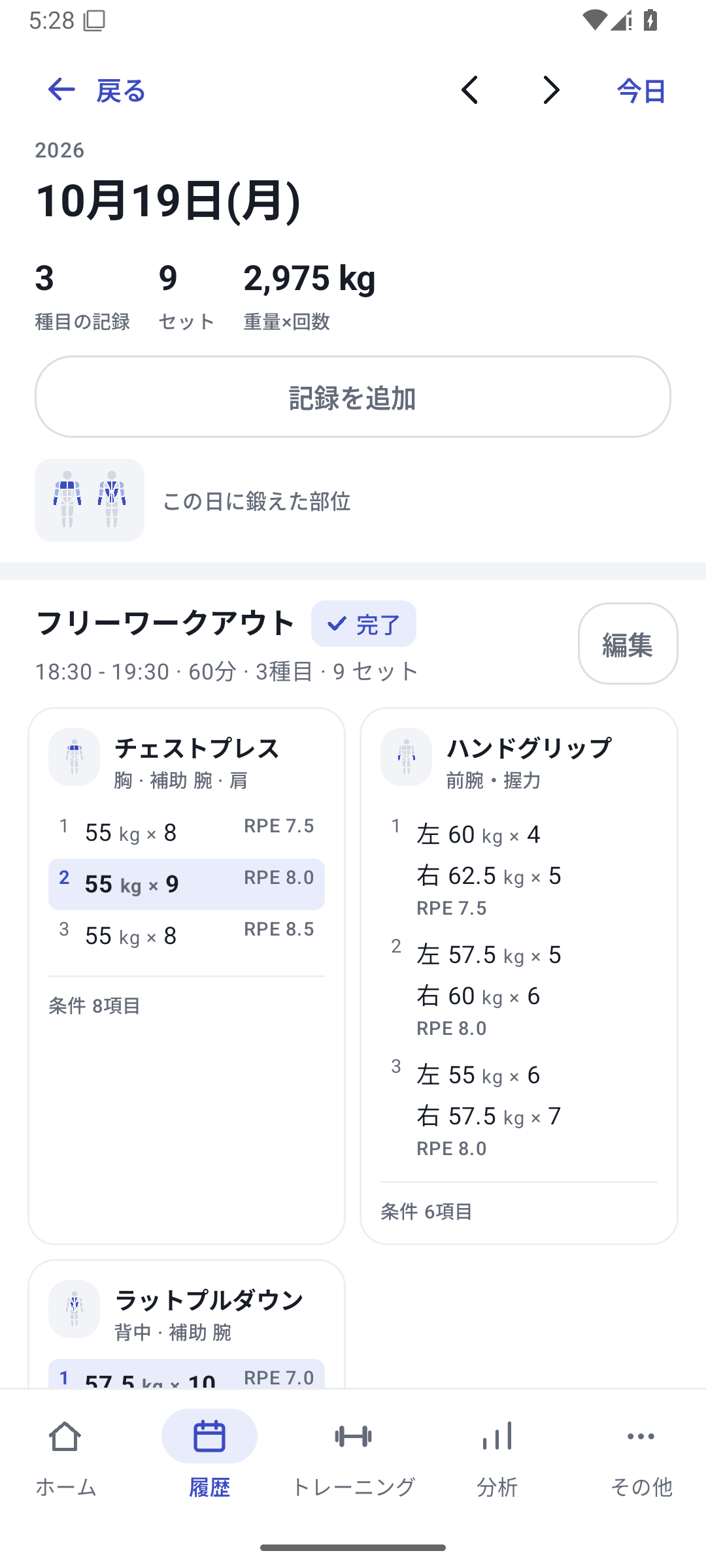 Enlarge image
A day's sessions, exercises and completed sets. View exercise details
Open an exercise from that day to read each set's values, machine, and conditions.
Compare neighboring training days
Move to earlier or later days with records. For a longer view, choose “View graph” for the exercise.
Review weeks, months, and years
Change the period in the history summary. Distinguish training days from session counts.
Open a day and inspect its sets
If you trained in the morning and evening, daily details show the sessions separately. Open an exercise to see weight, reps, RPE, and saved conditions. Date-only records are handled without adding times that were never recorded.
Move between training days using date navigation or swiping. Before correcting a record, check the date and session after navigating, then open Edit.
Distinguish training days from sessions
Weekly, monthly, and yearly summaries let you review whole periods. Training twice on one day means two records, not two training days. When reviewing frequency, check whether the count refers to days or sessions.
You can also return to History from totals and recent records on Home. Go beyond changes in totals to see what you actually did.
Case: a month around a routine change
You change upper-body training from once to twice a week. Check the distribution of training days in the heatmap, follow frequency in weekly summaries, and open days containing chest press. Reading seat settings and RPE on days when reps increased helps explain the numbers.

Related features
The screens use sample records to explain the controls.
Updated: October 27, 2026