Keep photos linked to records
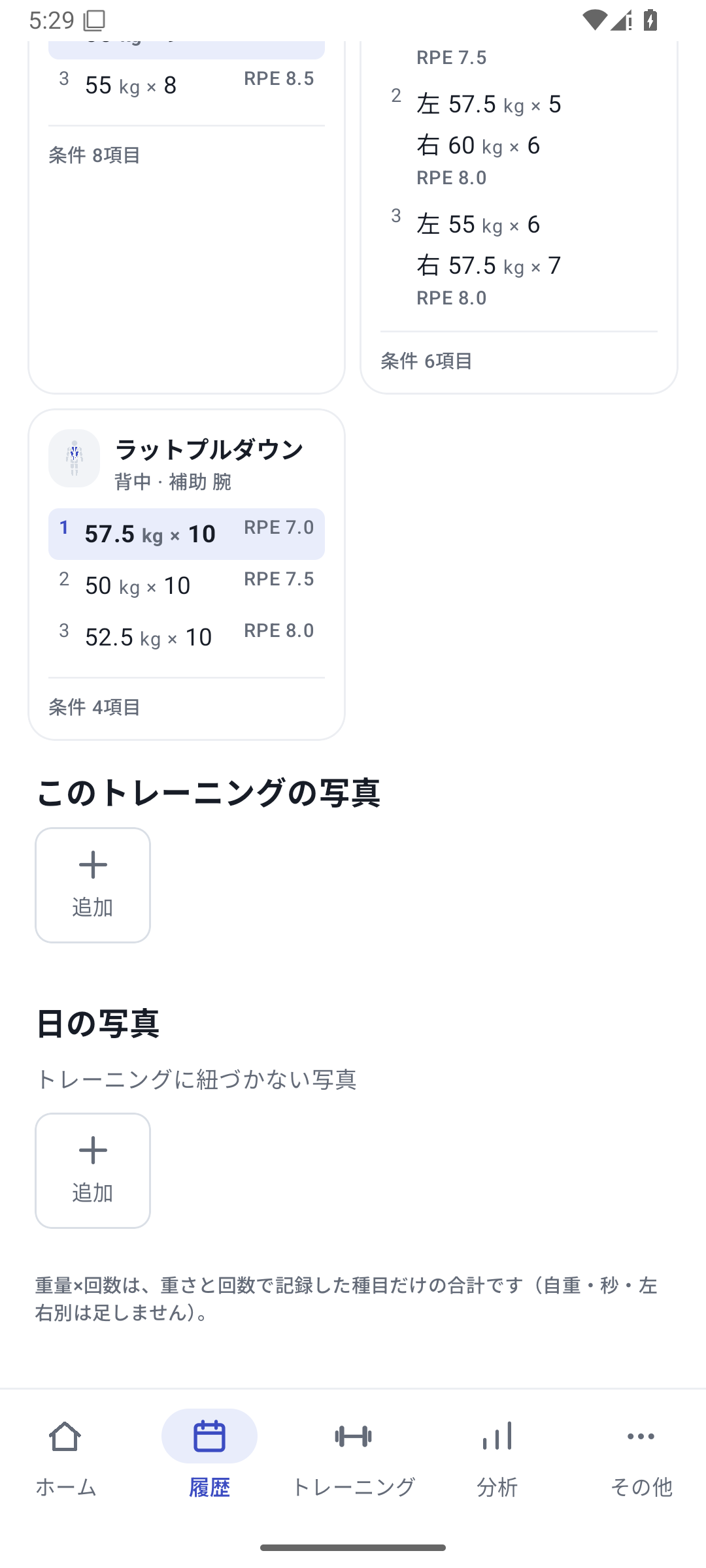
Choose images from photo sections in daily details, after finishing, or similar screens and add notes. You can attach 5 photos per workout and up to 5 per day for photos not linked to a workout. Briefly noting the subject and conditions lets you compare them with that day's numbers later.
 Enlarge image
How to use it in a workout
Open the day's photo section
Open the relevant day in History and go to Add photo.
Save the image and note
Choose a photo with the device's image picker and add a note, such as a technique cue you want to remember.
Review from History
Open records and photos for the same date and read them alongside exercise values.
Manage storage
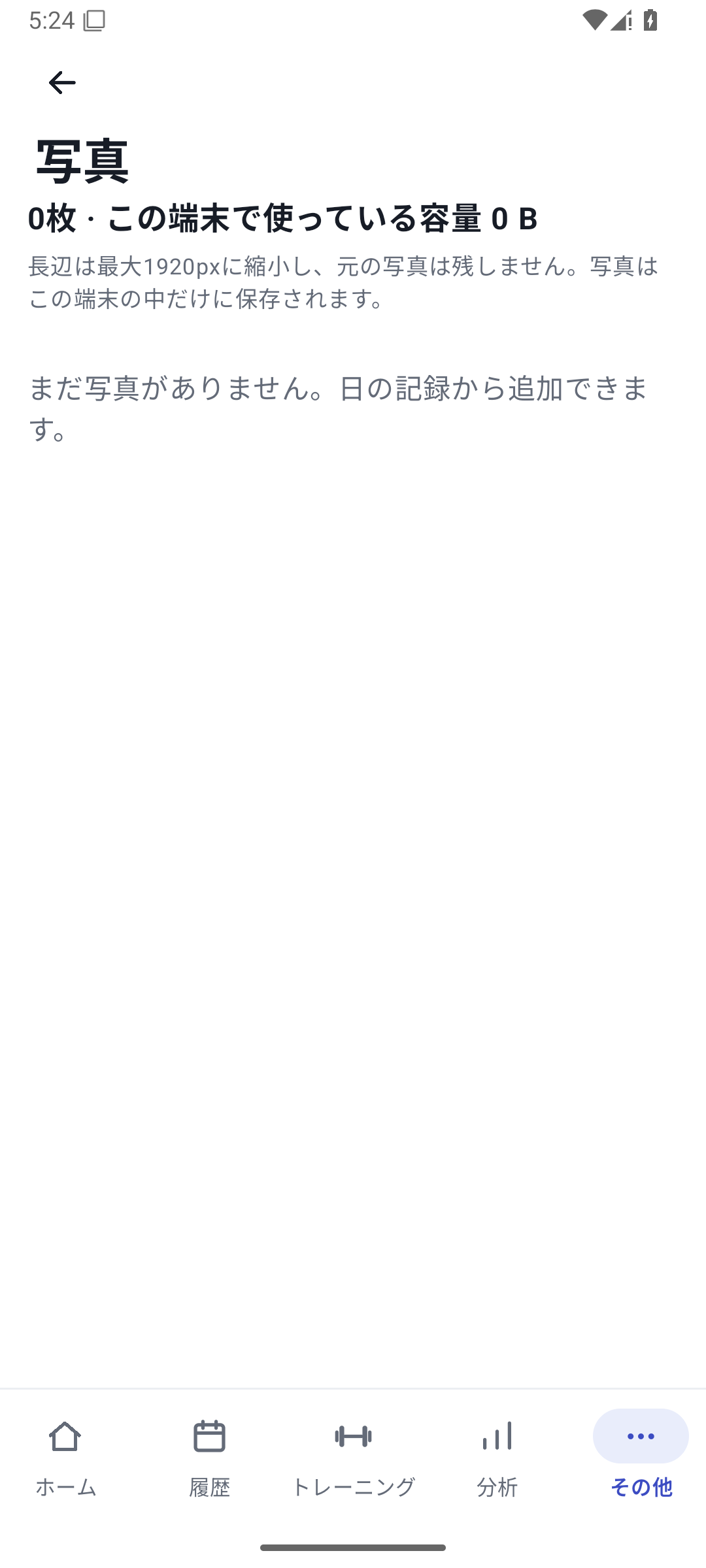
In “More” → Photos, check storage and the images, then select and delete unwanted photos. Decide first whether to keep originals or backups.
Case: review photos from the same angle alongside records
Add “Keep depth consistent” to a side-view squat photo. Compare it with that day's weight and reps, and use the same angle next time. A note about your movement cue can also help in the next session.
Originals and in-app images
Photos are resized for storage in the app. Keep high-resolution originals in your photo app or elsewhere if needed. Deleting in RENMA is not the same as organizing the original photo service. Select and confirm the photos to remove in the storage screen.
Backups that include photos
Use a backup to move photos to another device. If an image cannot be read, check skipped items and the recovery report when saving or restoring. This does not automatically recover lost originals from external services.
Adding, viewing, and basic photo organization are available with Free. When sharing images outside the app, choose what to share, including any people or names in the frame.
Related how-to guides
The screens use sample records to explain the controls.
Updated: October 27, 2026