Steps
Add bodyweight
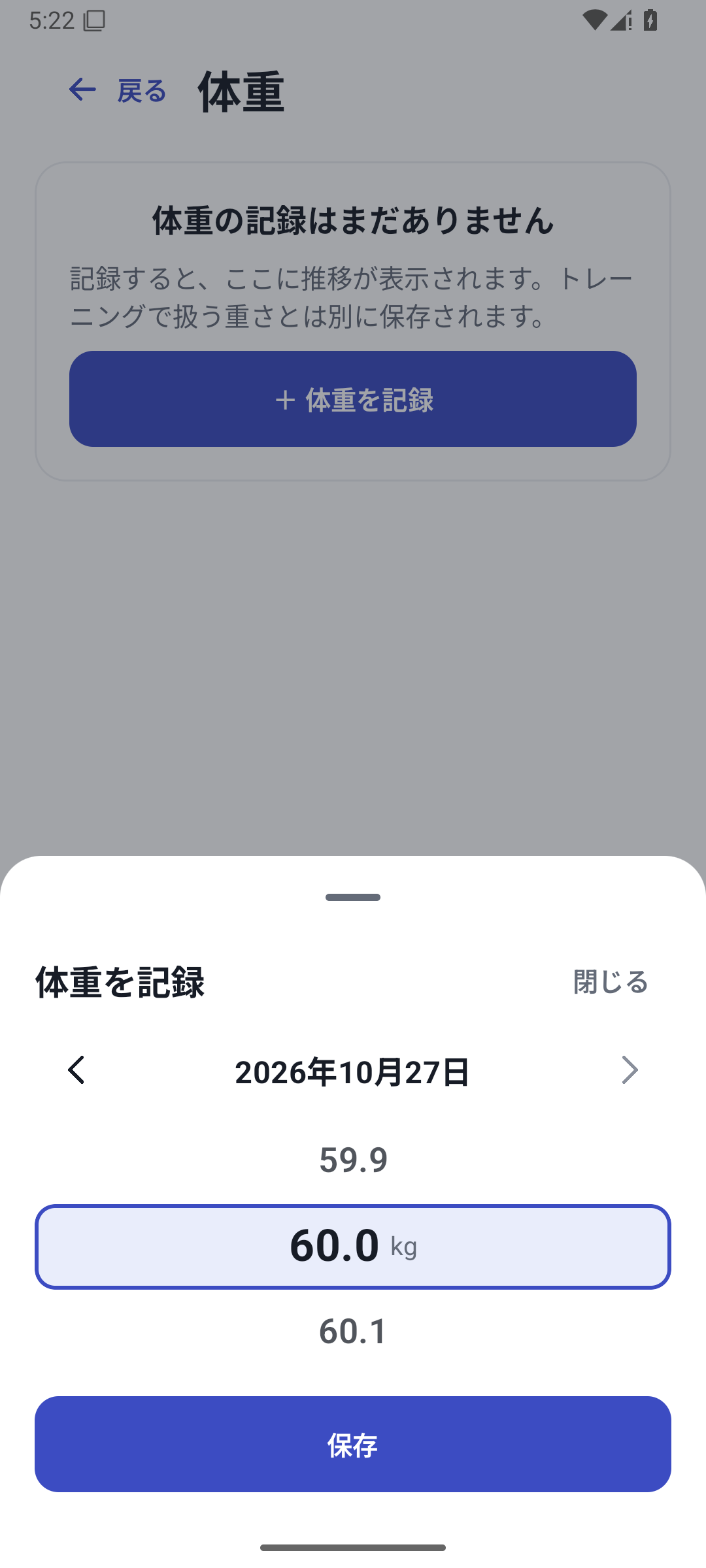
Open Add in “More” → Bodyweight and save the measurement date and value. Check the unit before entering.
 Enlarge image
Screen for entering a bodyweight measurement date and value. Correct bodyweight
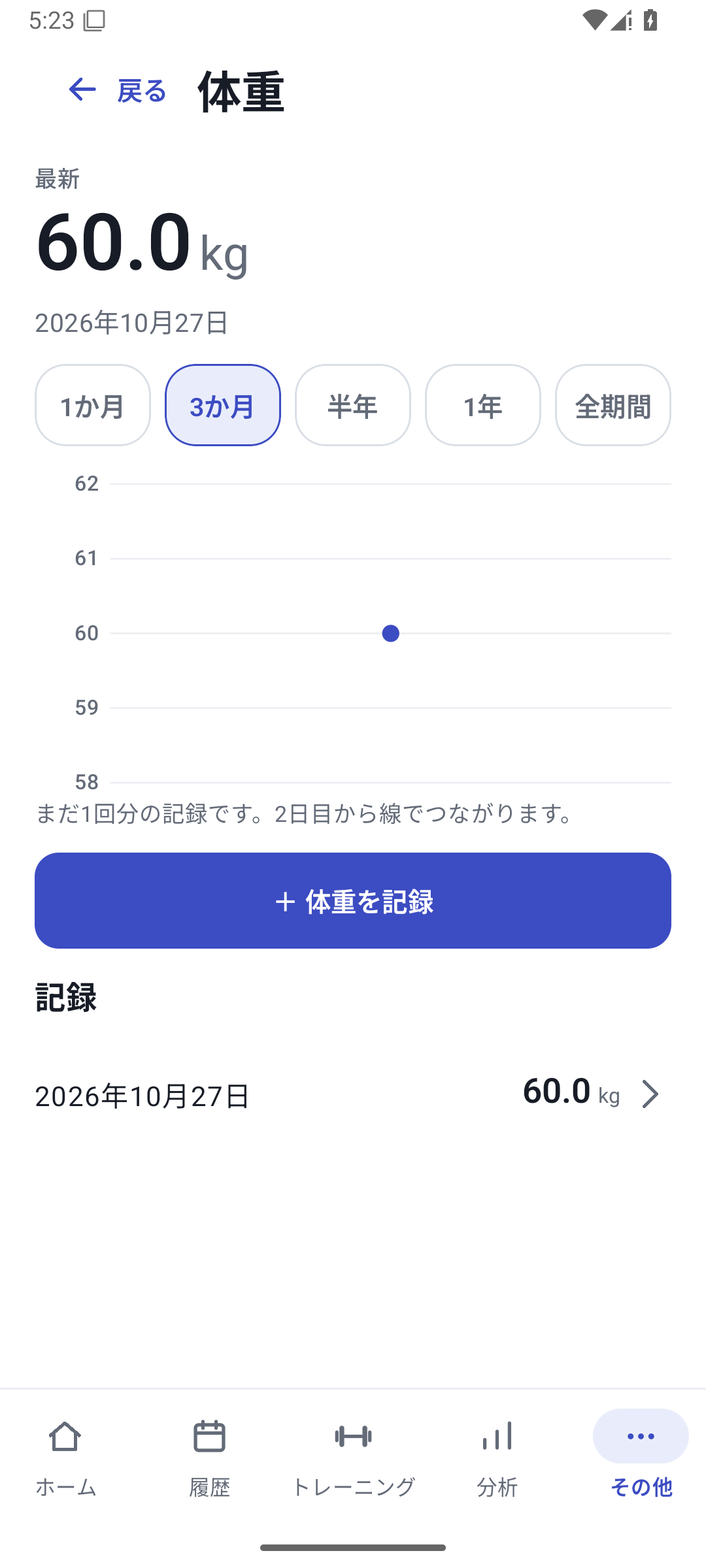
Open the list or relevant day and edit the value or date. Before deleting, check the selected measurement.
 Enlarge image
Bodyweight list and trend. Example measurements. Add photos
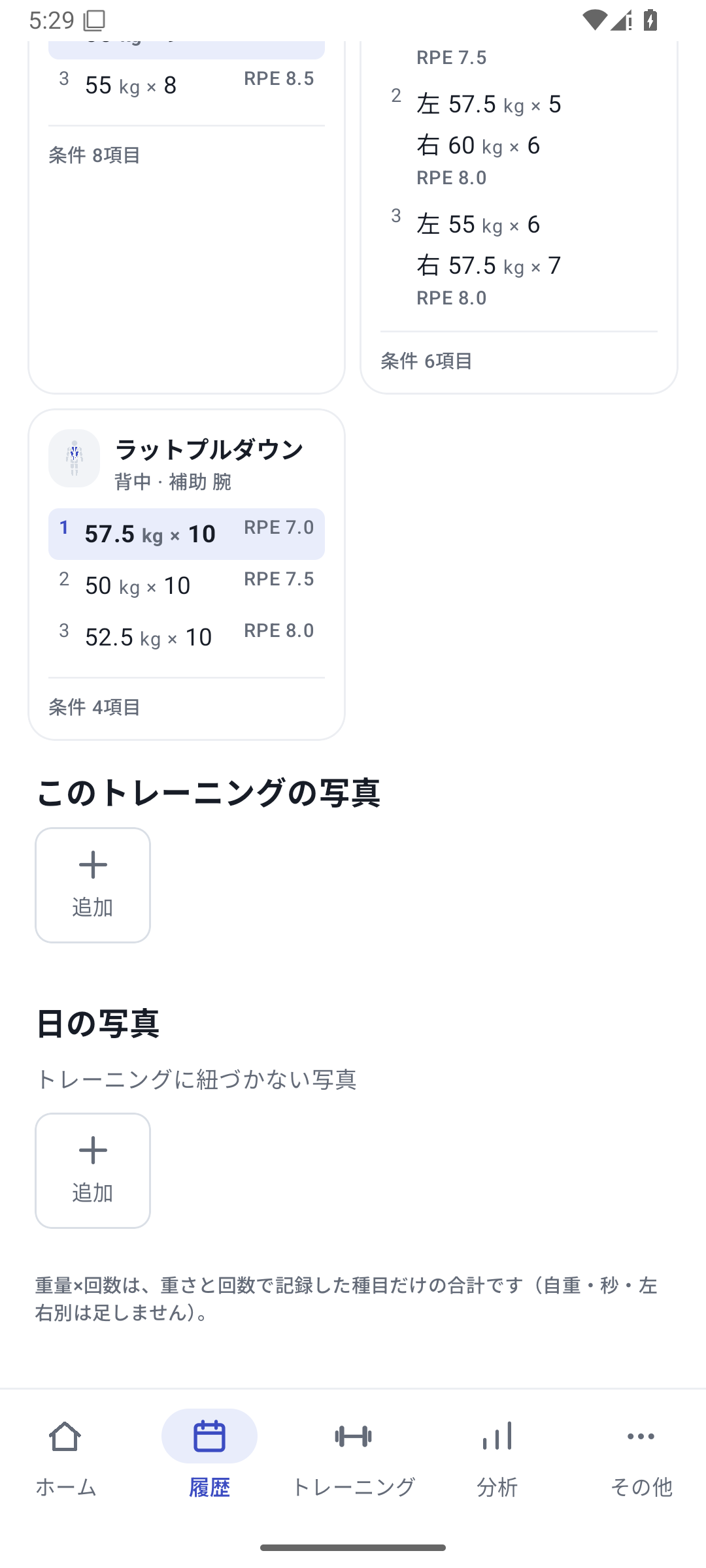
Choose images from the photo section in daily details or another supported screen and add notes as needed. Up to 5 photos per workout, or 5 per day for photos without a linked workout.
 Enlarge image
Entry points for adding workout photos and daily photos without a linked workout. View records and photos
Open a date in History to see the day's exercises, values, and images. Photos from the same angle make progress easier to compare.
Manage storage
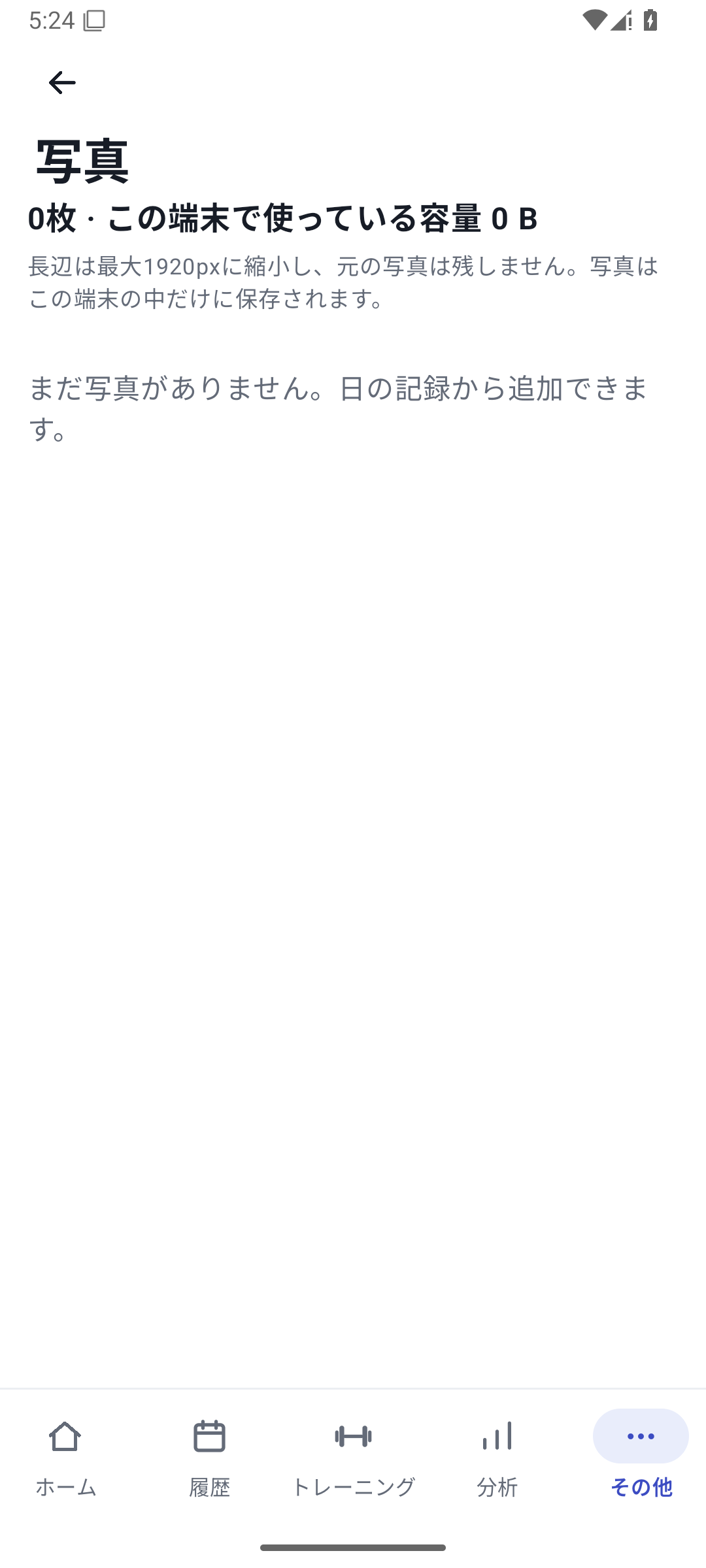
In “More” → Photos, check storage and select unwanted images. In-app images are resized, so keep any originals you need separately.
 Enlarge image
Screen for managing photo storage and the photo list.
Case: morning measurements and weekend photos
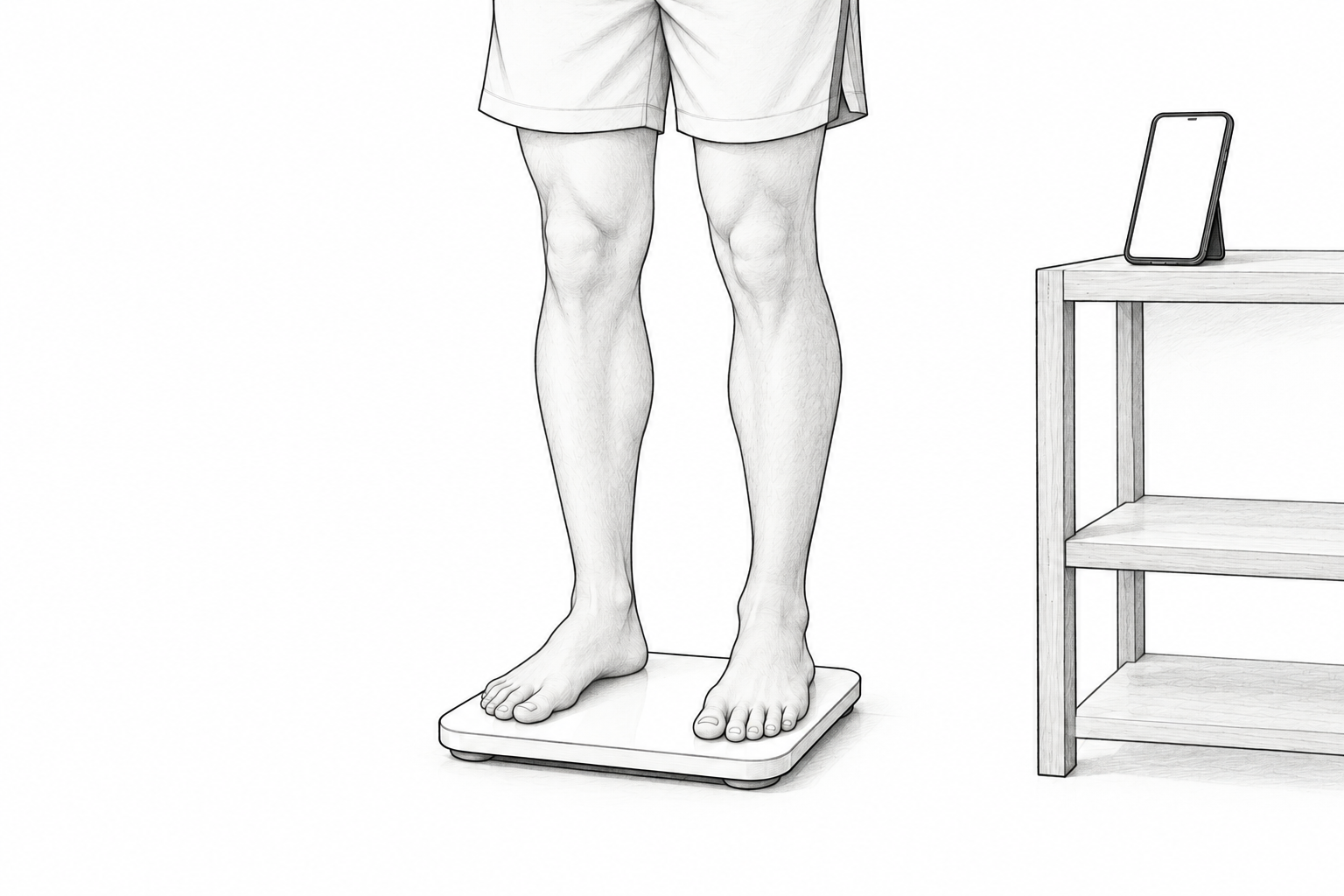
Save morning bodyweight measurements and take a photo from the same angle at the weekend. Review them alongside that week's training. RENMA does not automatically calculate body fat or muscle growth from photos.
Back up before changing phones
To move bodyweight and photos too, use a restore backup. Its contents differ from an ordinary CSV or Bridge migration format. If missing photos are reported, check which ones and whether you still have the originals. Basic bodyweight and photo features are available with Free.
Related features
The screens use sample records to explain the controls.
Updated: October 27, 2026