Steps
Adjust Android's text size
Change text size or display size in device settings. Setting names vary by device, so search Android settings for text size.
Open your usual screens
Open logging, numeric entry, History, and other screens and check that labels and confirmation buttons are visible.
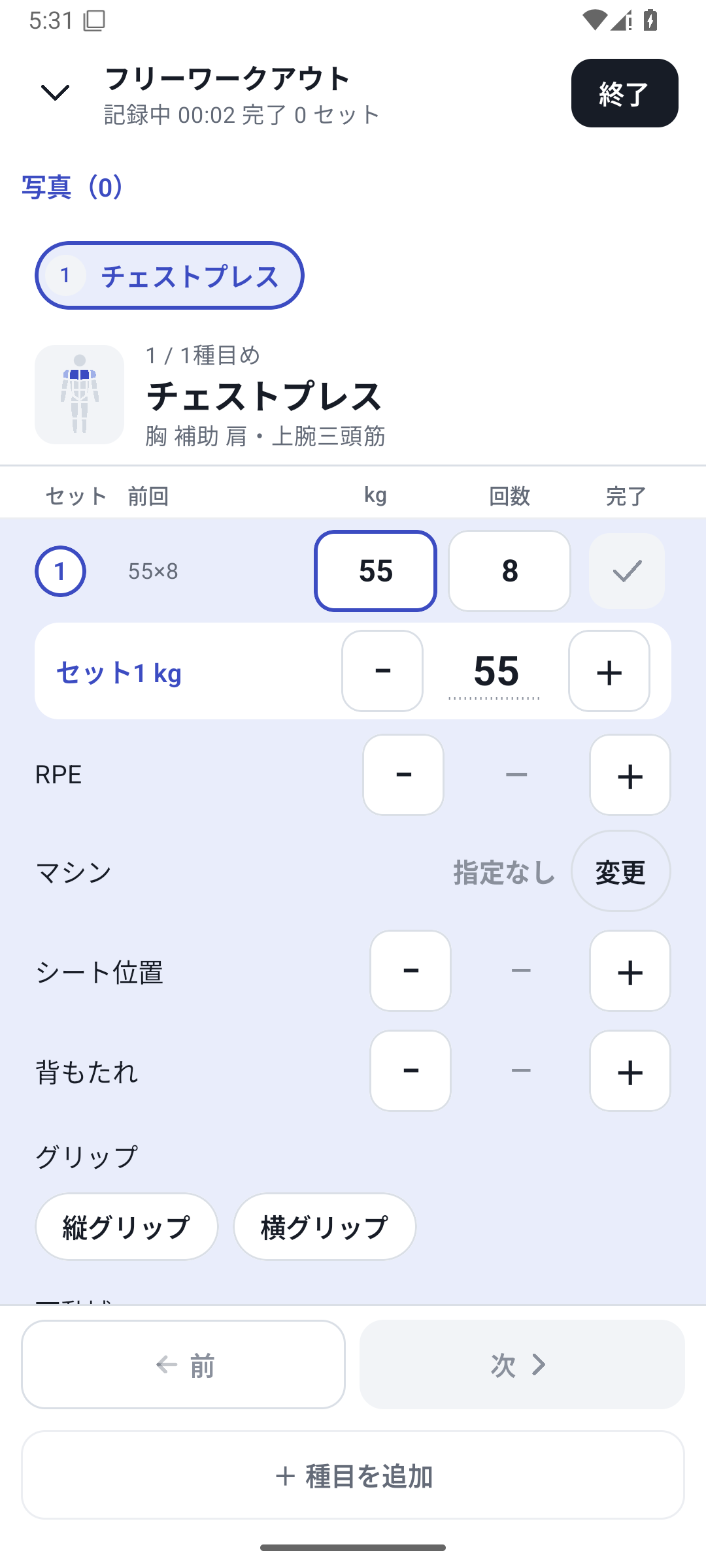 Enlarge image
Chest press logging screen: weight, reps and completion. Match the app display too
Adjust colors and other options in “More” → “Display and theme colors”. Use landscape or detailed views for tables and graphs when needed.
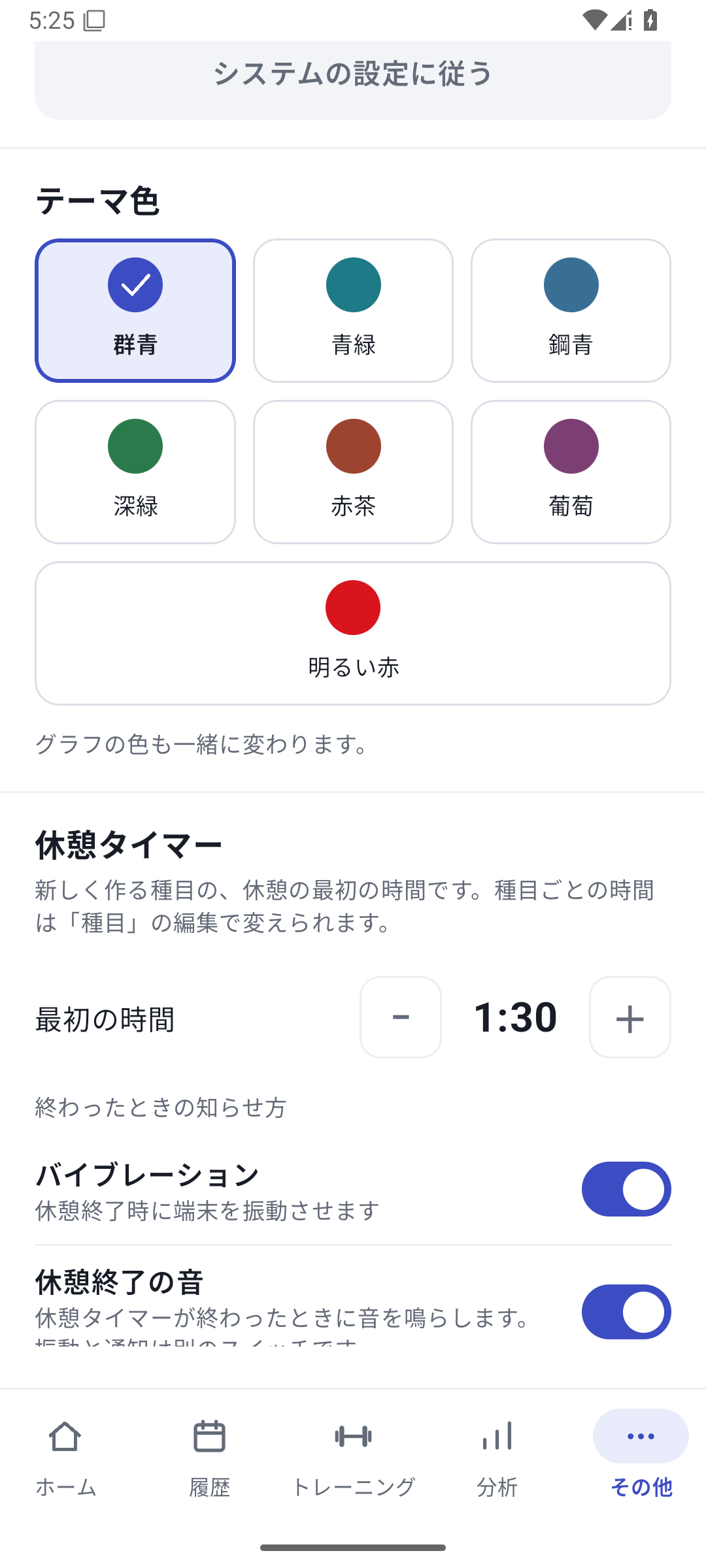 Enlarge image
Appearance settings for themes, colors, and related options. Look up unfamiliar operations
Open official guidance from Help or Data handling under “More”. When contacting support, describe the screen, what you did, and what happened.
Read values together with labels
Check left/right headings, kg/lb or seconds in number fields, and axis names and periods in graphs. When enlarging text, choose settings that keep the meaning visible as well as the value.
When using a screen reader
Try your usual operations on your actual device with Android's reading features. Report difficult controls to support with the screen and configured enlargement level.
Related features
The screens use sample records to explain the controls.
Updated: October 27, 2026