Steps
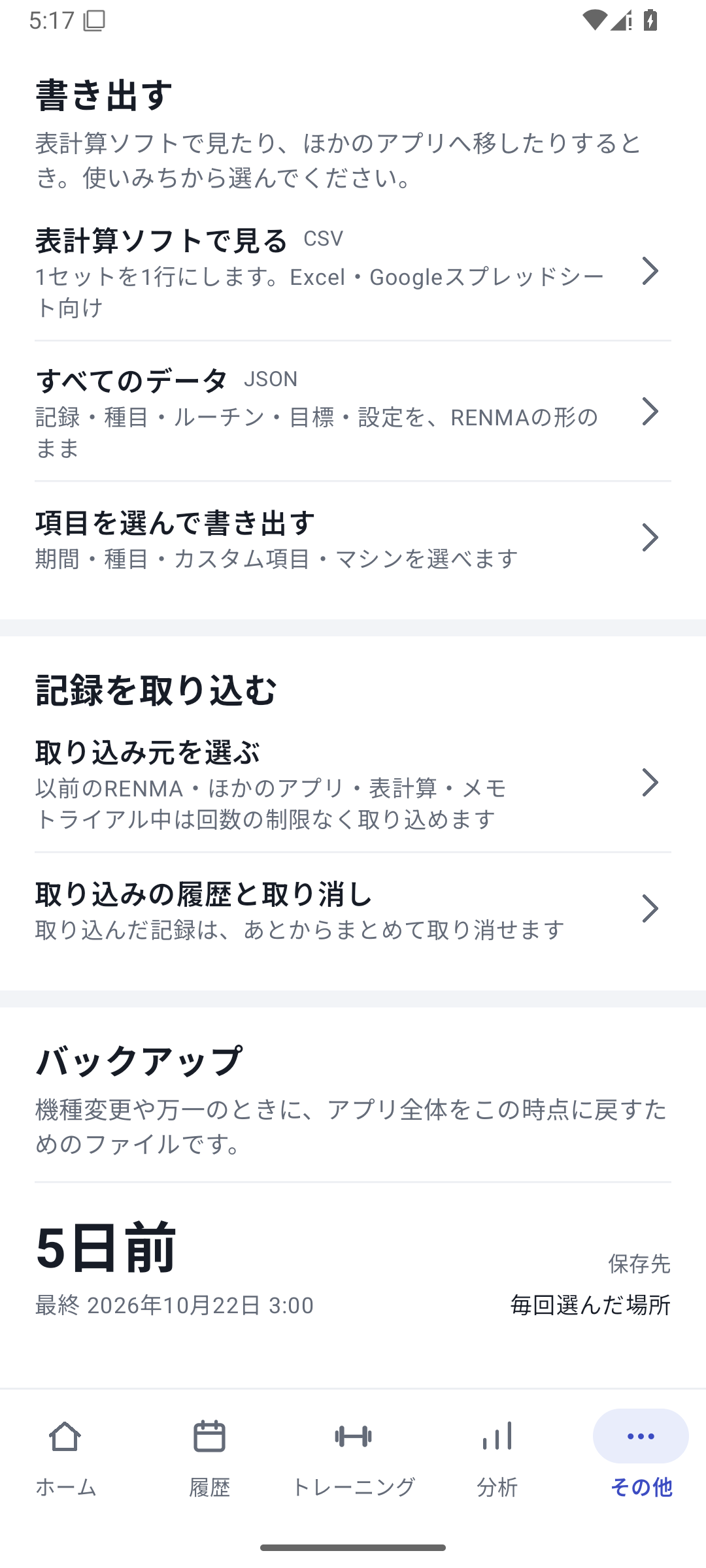
Open Export Builder
Go to “More” → “Export” → “Choose fields to export”.
 Enlarge image
Export screen with CSV, JSON, and field-selection entry points. Choose purpose and format
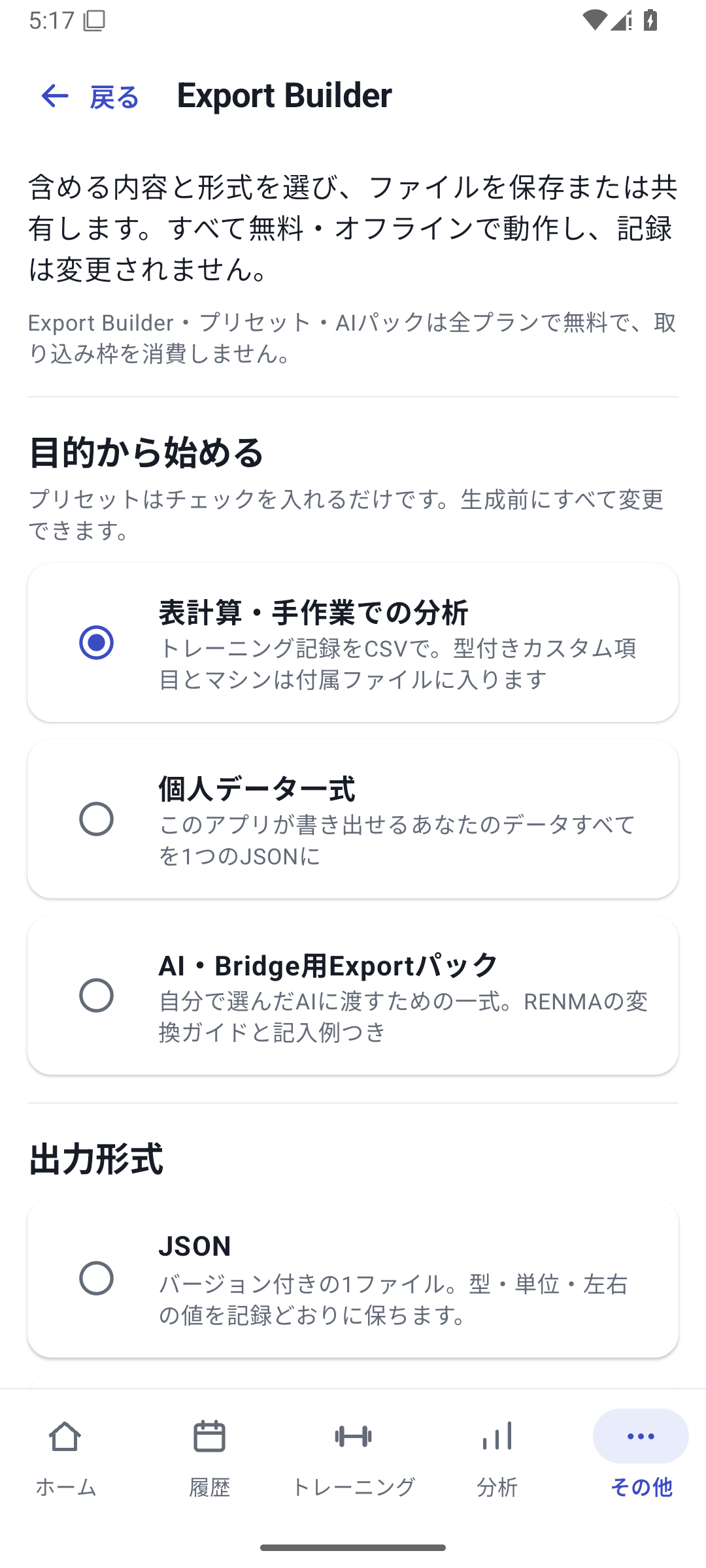
Select a preset such as CSV, JSON, or AI Pack.
 Enlarge image
Purpose presets and output formats in Export Builder. Choose the period and fields
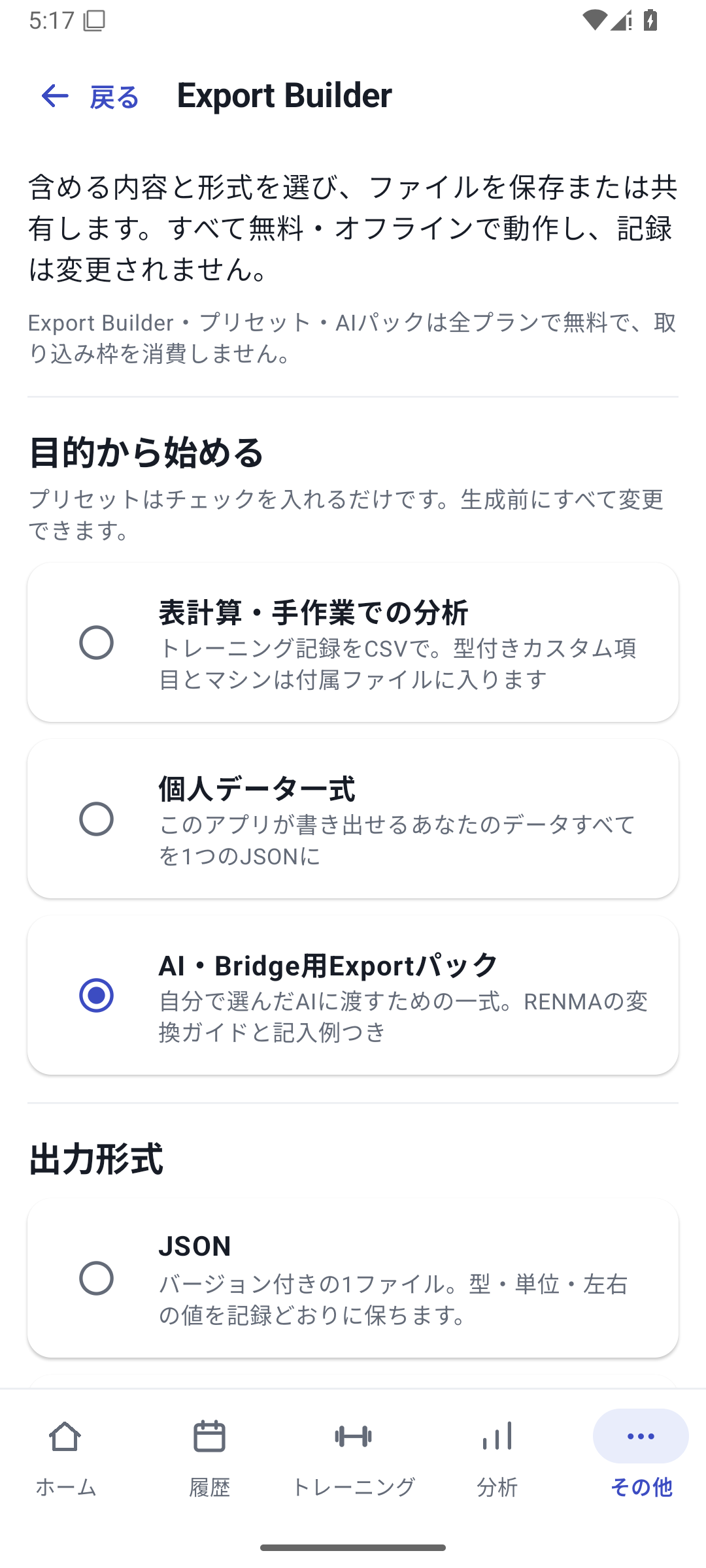
Select the records and columns you need this time. Check what is excluded too. AI Pack has fixed components such as guides.
 Enlarge image
Selecting AI / Bridge Export Pack. Free with every plan. Generate and save
Choose a save destination from the generated result. Remember the file name and where you saved it.
Open and use the contents
Open the CSV in a spreadsheet, or open the documents inside AI Pack to check they suit your purpose. If sharing, choose which fields to give the recipient.
Choose an output format
| Format | When to use it | Purpose |
|---|---|---|
| CSV | Create lists and summaries in spreadsheet software | Take selected records and fields out as a table |
| JSON | Work with structured data | Ordinary data export. The extension alone does not guarantee that it can be reimported |
| AI / Bridge Export Pack | Ask an external AI to convert data or prepare a setup | Conversion guide, examples, selected context, and current setup |
| Backup | Device migration or restoration | A restore file separate from ordinary exports |
Choose outgoing fields to match your purpose. To restore all data including photos and bodyweight, use a backup rather than an ordinary CSV.
Gather the documents for AI
AI Pack gathers RENMA information for an external AI you choose. The conversion guide, examples, and current state help explain how the data relates to existing exercises and definitions.
Current setup information is reference material for the AI. It is not a file to modify freely and then apply directly as settings. Ask the AI to create a supported import file and read it in RENMA's preview.
Export with Free
Ordinary CSV, JSON, and selective export are available with Free. Saved custom values and machine information can also be exported. AI service fees are separate from RENMA, and this feature does not automatically send data to an external AI.
Related features
The screens use sample records to explain the controls.
Updated: October 27, 2026