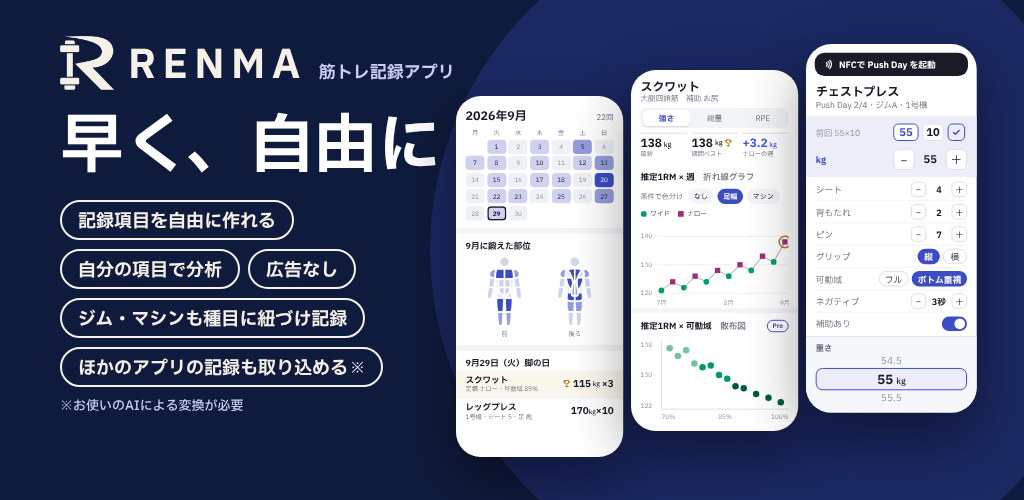
Steps
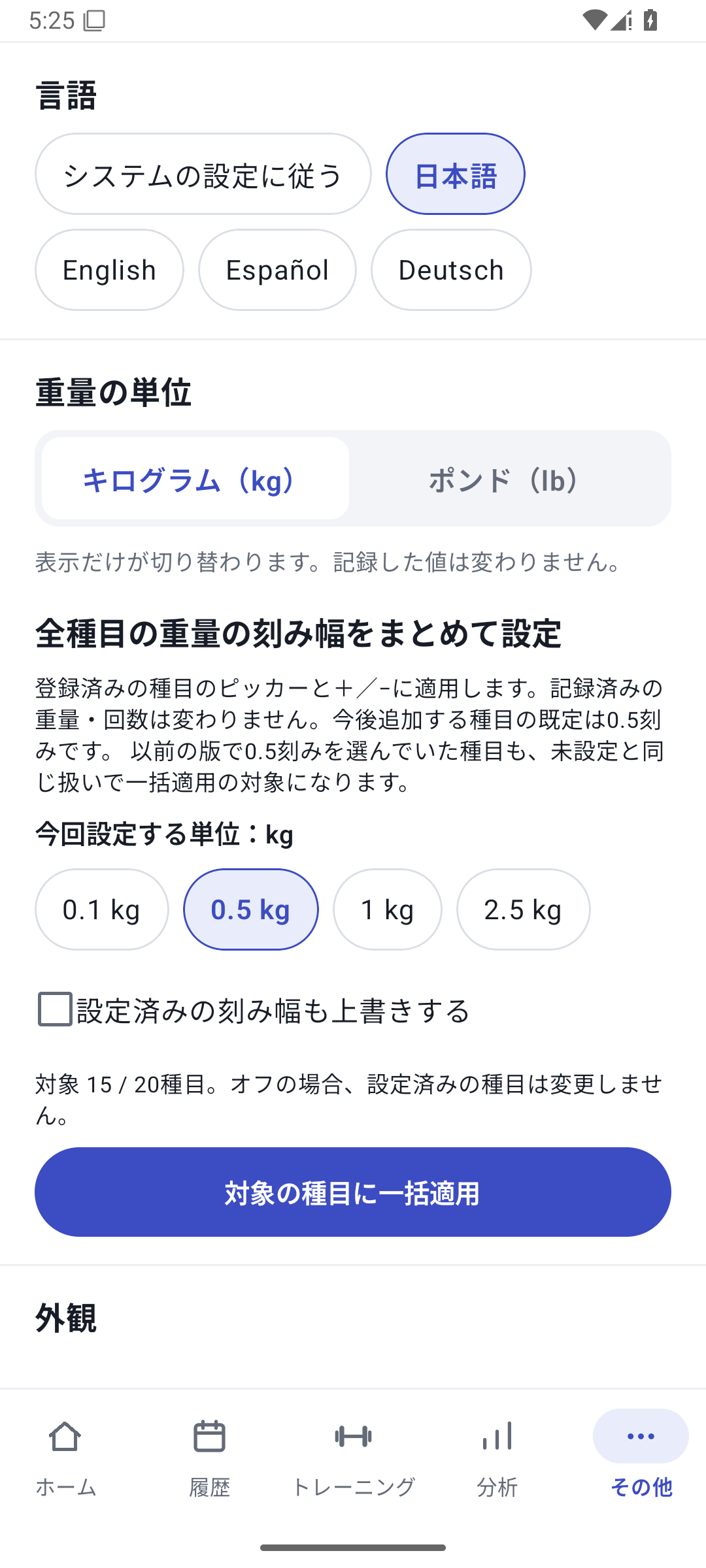
Choose a language
In Language under “More”, choose Japanese, English, Spanish, German, or the option to follow the device language.
 Enlarge image
Language settings for Japanese, English, Spanish, and German. Choose weight units
Select kg/lb in Units and check the unit shown in the logging screen. Before applying bulk weight increment settings, check whether existing settings will be overwritten and how many exercises are affected.
 Enlarge image
Bulk weight increment settings, including whether to overwrite existing settings. Adjust appearance
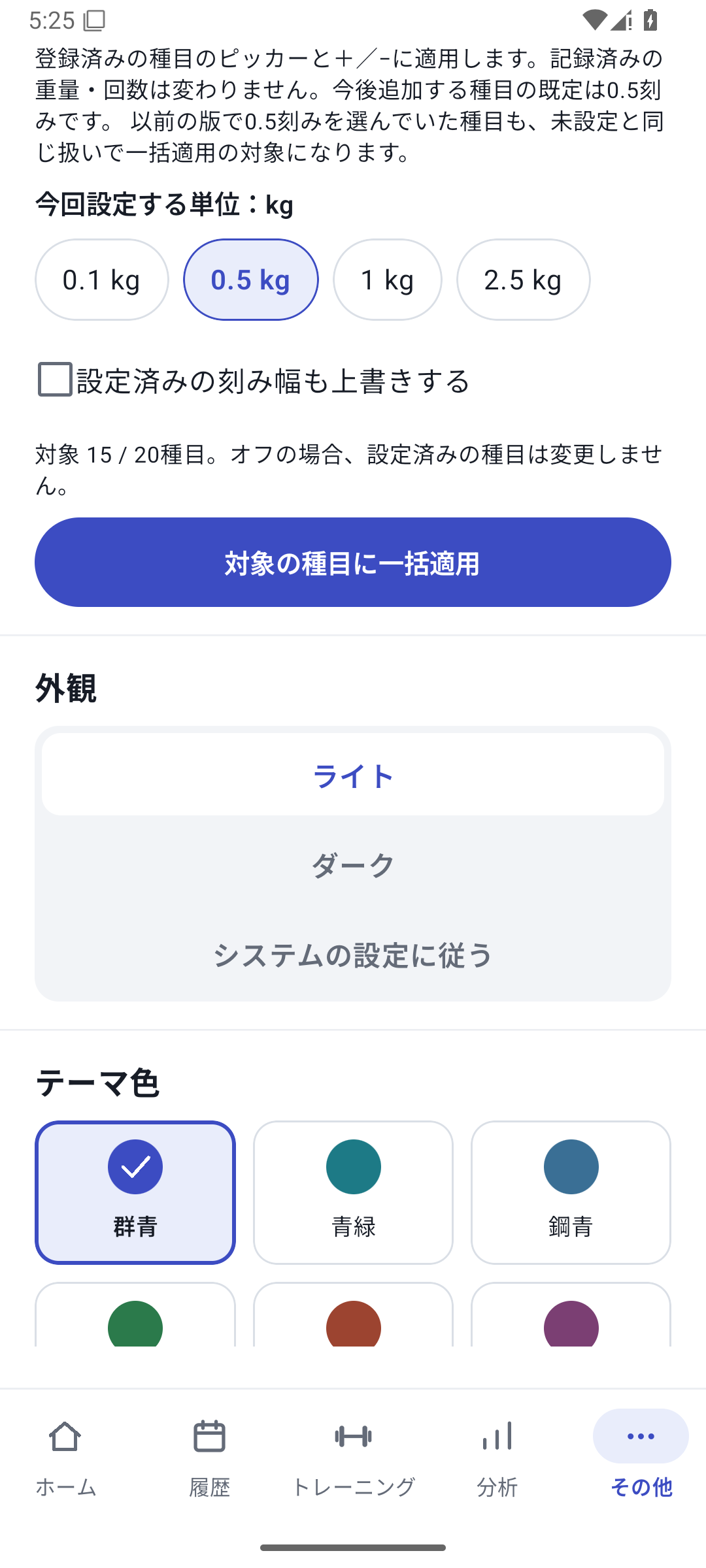
In “Display and theme colors”, choose a theme, colors, muscle icons, and other options. These change presentation without rewriting saved weights or reps.
 Enlarge image
Appearance settings for themes, colors, and related options. Set rest time and notifications
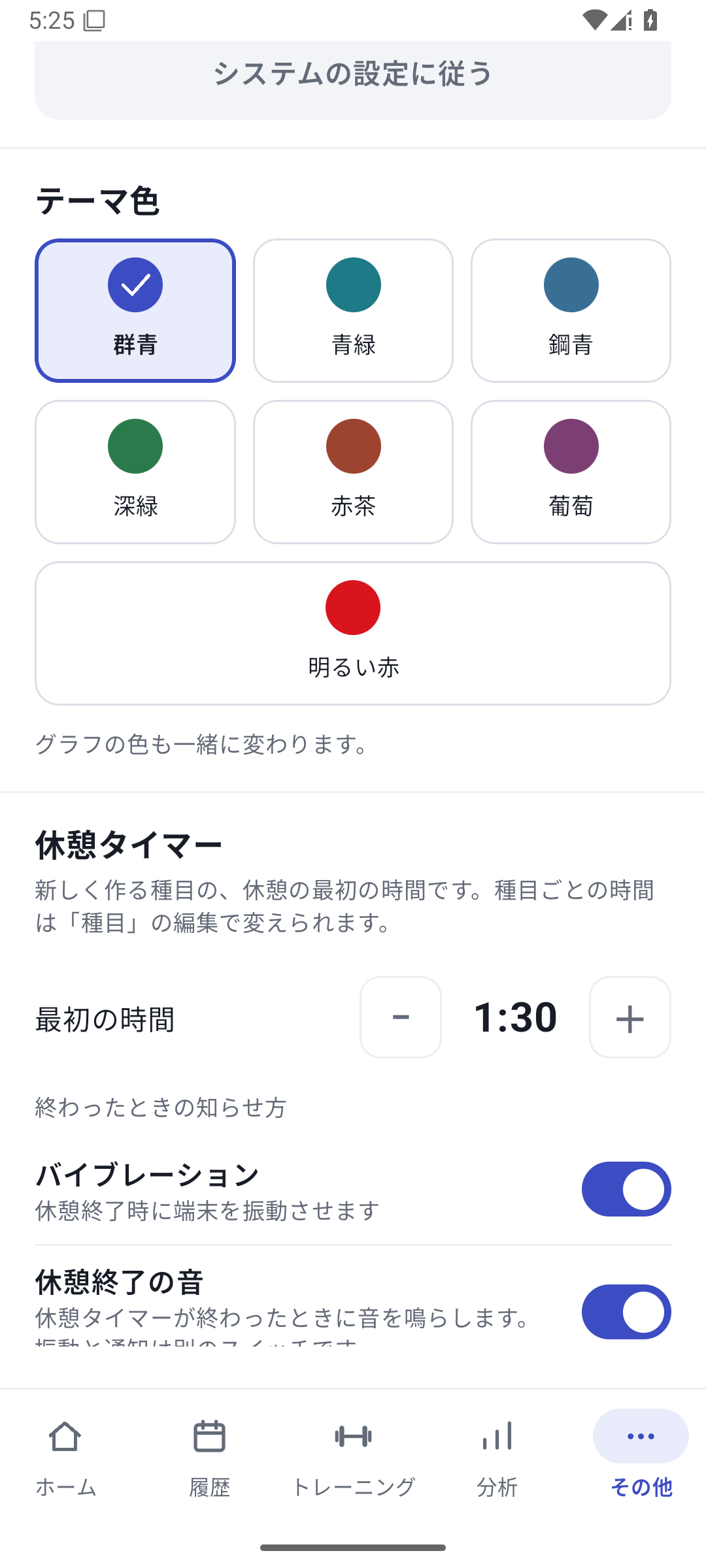
Choose rest time and the sound, vibration, and notification switches. If you need notifications, also grant Android's notification permission.
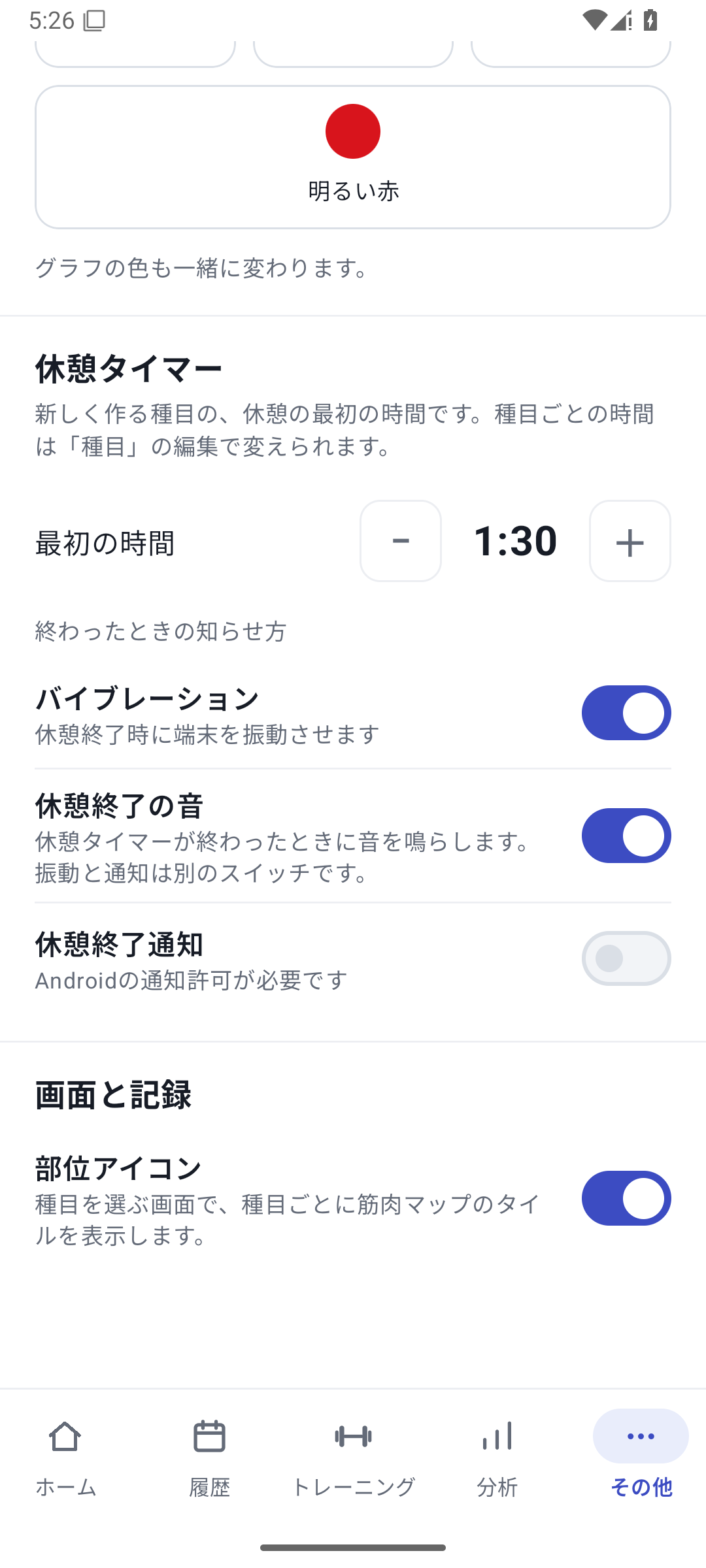 Enlarge image
Rest time, sound, vibration, and notification settings. Choose whether to show muscle icons
Choose whether muscle-map tiles appear in exercise selection. This does not change record data.
Names you enter stay as written
Changing the app language does not automatically translate your exercise names, routine names, or notes. You can use multiple languages while keeping the same records.
If notifications do not appear
Besides the app switches, check Android notification permission, silent settings, and device restrictions. Sound, vibration, and notifications also depend on the operating system's state.
Case: kg at the gym and a comfortable display at home
Use kg to match equipment labels and configure increments for machine exercises. Set your usual rest duration, then extend only the sets that need longer rest while logging. These basic settings are available with Free.
Related features
The screens use sample records to explain the controls.
Updated: October 27, 2026