Describe the routine you want in words
“I train 3 times a week using this gym equipment and want separate chest-and-back and leg days.” Once you know the exercises, order, and planned sets, give them to an external AI along with RENMA's setup guide. Keep plans in routines and completed work in History.
 Enlarge image
How to use it in a workout
Prepare RENMA's setup documents
Generate AI Pack from Export Builder and give the external AI the setup guide and example. Include current-state information if using existing exercises.
Describe the workout
Explain the equipment, exercises, order, and planned sets. Separate previous results from future plans.
Ask for a file
Read the AI's proposed structure, correct any wrong exercises or fields, then receive the RENMA-format file.
Read the preview
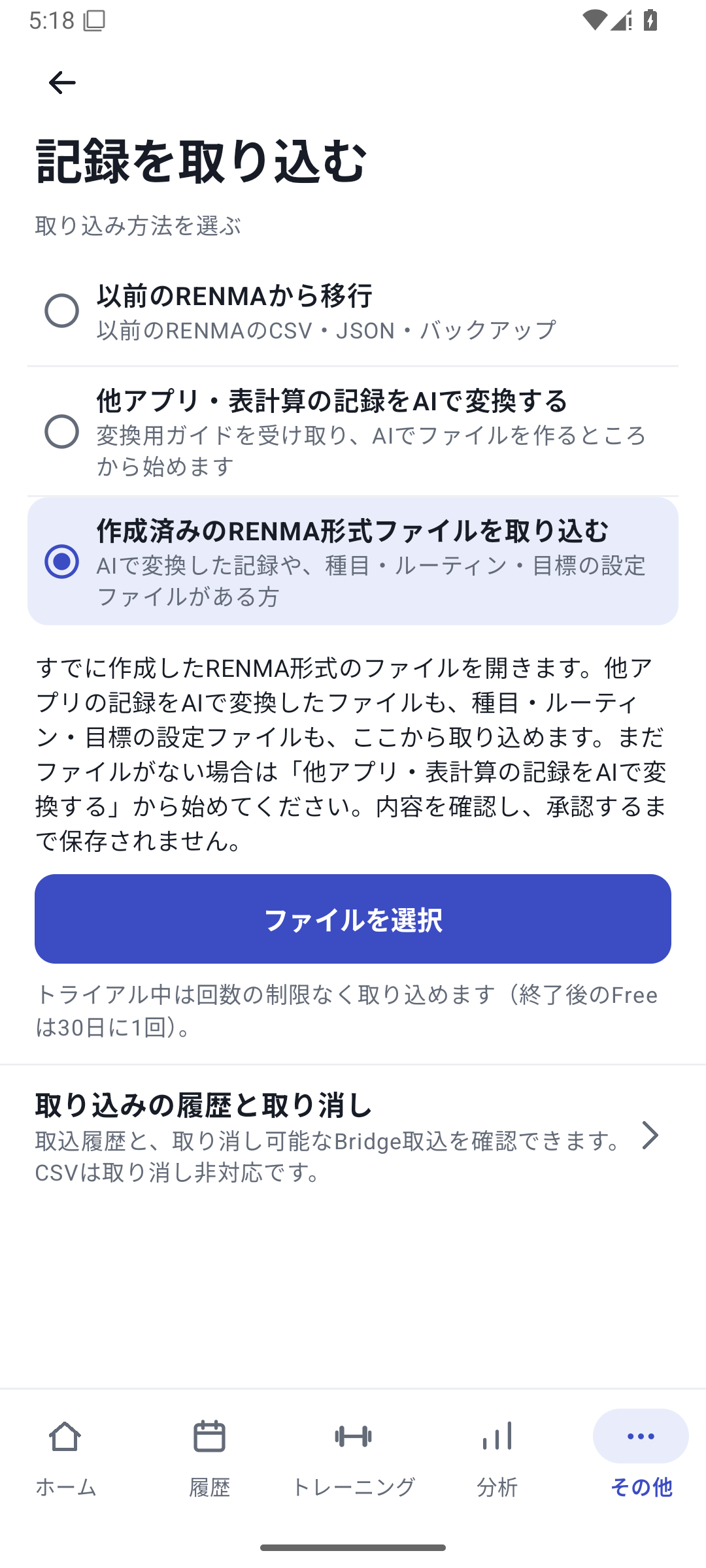
In “More” → “Import records”, choose “Import a prepared RENMA-format file”, open it, and read what will be created or changed and the counts.
Apply and check the management screens
After approval, open the exercise, routine, and goal lists. Check planned values and exercise order before using them in your next workout.
What you can create together
- New exercises, plus routines and set templates that use them.
- Supported weekly exercise and muscle-group goals.
- Supported custom field and machine definitions, and history in the same file.
This import format does not include app appearance, language, or notification settings, photos, bodyweight, or weight goals. “Setup” does not mean every app setting.
When using existing exercises
Generate AI Pack in Export Builder and give the AI the actual current state. Check that it uses the intended exercises and definitions without merging similar names or inventing identifiers absent from the device. A single new exercise can be referenced consistently in history, routines, and other records.
Read the plans and changes in one review
Before importing, the preview shows new, existing, and modified exercises, fields, machines, routines, goals, and history counts. A file containing setup is approved and applied as a whole, or not applied. Opening the preview alone does not save it.
Avoid losing changes you make after import
Undo may become unavailable if you edit imported records or use a new exercise in other records. Do not assume you can always undo an import; keep a backup before reorganizing.
The required plan depends on what you create
Free allows 1 successful Bridge import every 30 days from the last success. Pro, Lifetime, and the initial free trial have no import-count limit. Creating or changing custom field or machine definitions also requires Pro access. Basic routine creation itself is not paid-only.
Related how-to guides
The screens use sample records to explain the controls.
Updated: October 27, 2026