Save daily records on your device
Workout values and history are stored on the device. Ordinary logging and history viewing work without a connection. Operations such as checking purchases or sharing with an external AI you choose may need connectivity.
 Enlarge image
How to use it in a workout
Keep your records
Finish an ordinary workout and check what was saved in History.
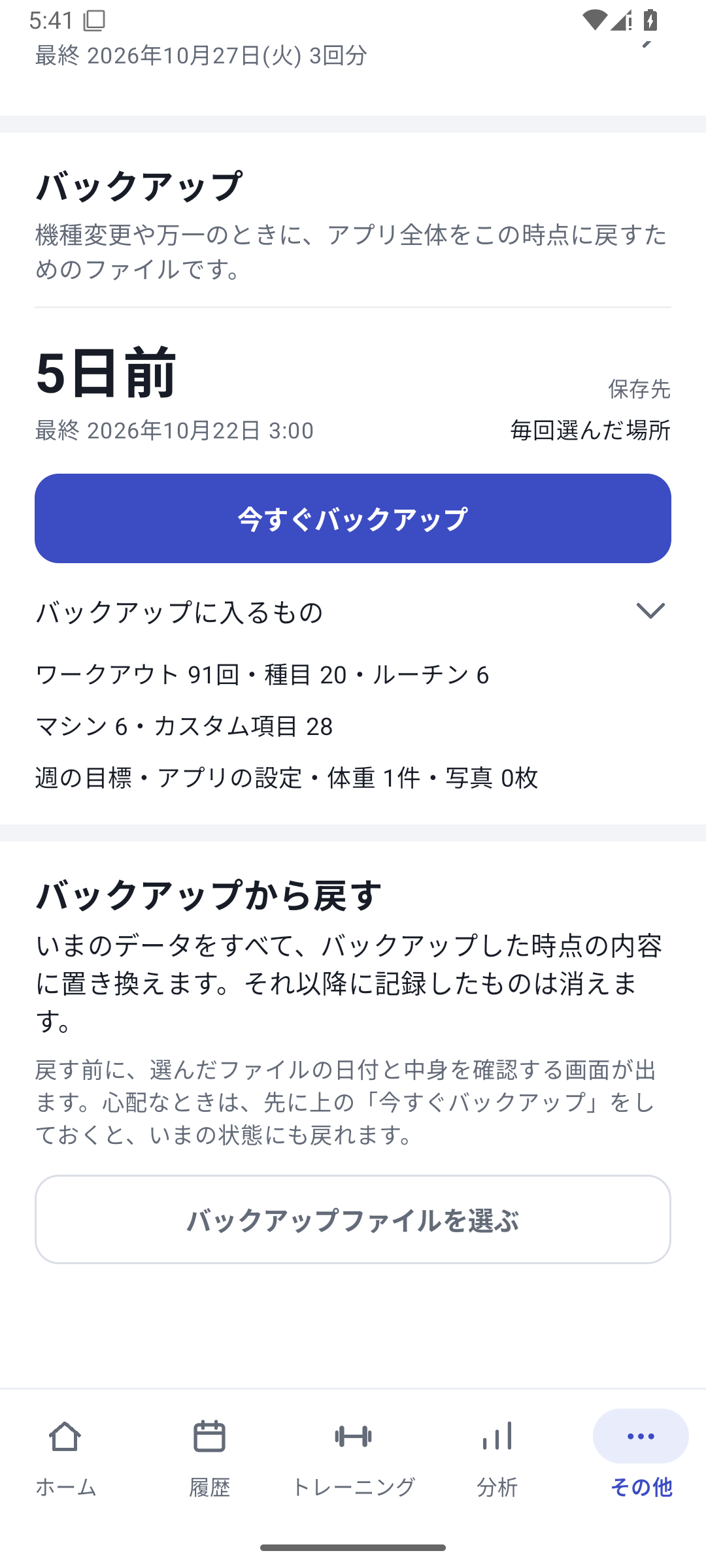
Create a backup
In “More” → Backup and restore, open Save and choose a destination.
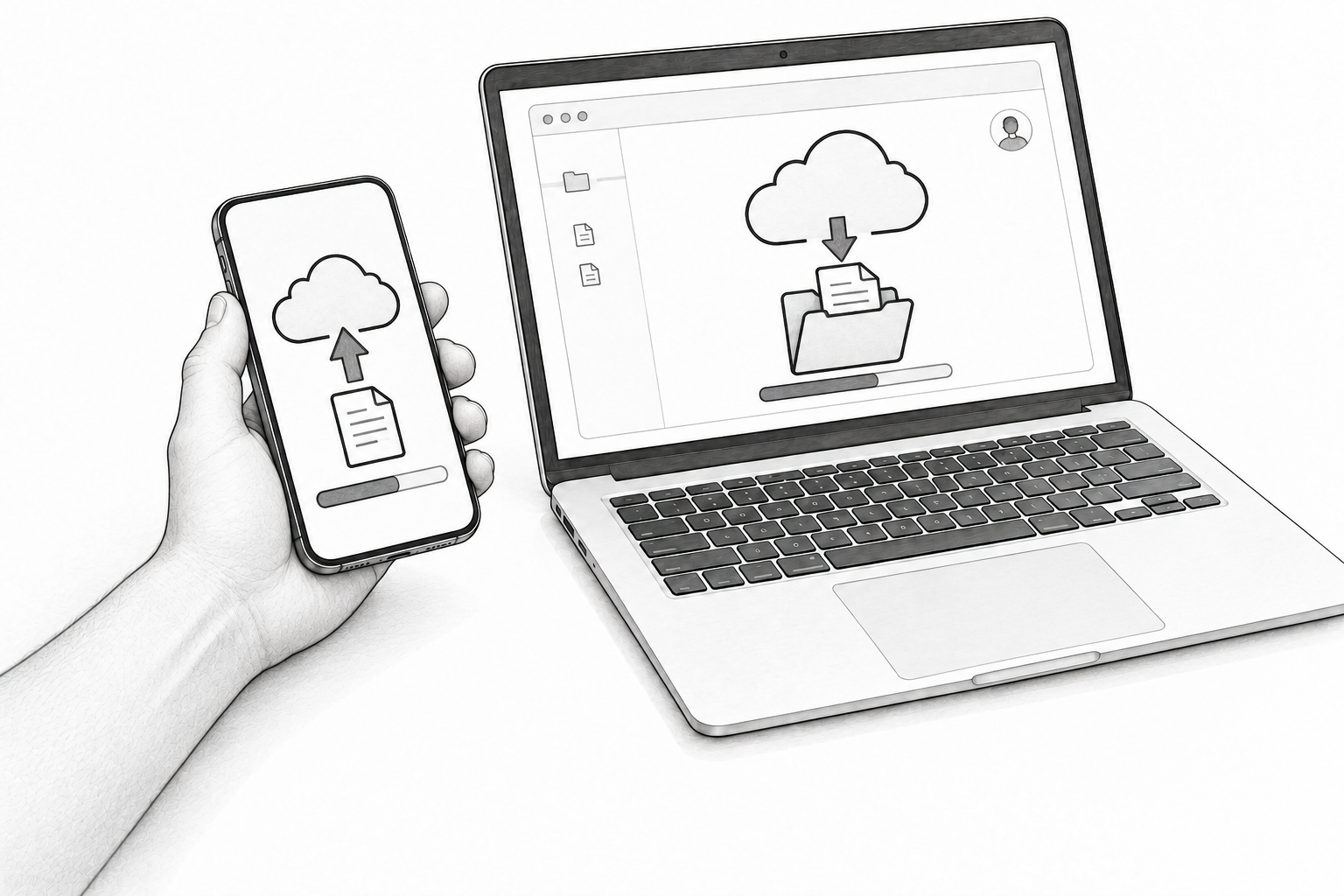
Keep a copy outside the device too
Store the saved file on a PC or elsewhere too. A copy only on the phone does not protect against device failure.
Saving an ongoing workout and saving for restoration
Changes to an ongoing workout are saved so you can continue when you return to the app. However, autosave is not a backup against device failure or app removal.
Three ways to take data out, depending on your purpose
| Purpose | What to use | What it keeps |
|---|---|---|
| Prepare for device failure or replacement | Backup | History, settings, photos, and other data for restoration |
| Read records in a spreadsheet | CSV / JSON export | Selected records and fields |
| Convert or organize with an external AI | AI / Bridge Export Pack | Conversion instructions and selected information |
Do not treat an ordinary export as a complete restore backup. Check not only that the destination was writable, but also that the saved file exists outside the device.
Case: log at the gym, protect your data at home
Log in a basement gym with weak reception and review History after returning home. At the end of the week or before major changes, create a backup and save it in a folder in your own cloud account. To restore, select the saved file.
Related how-to guides
The screens use sample records to explain the controls.
Updated: October 27, 2026