Steps
Save your current records too
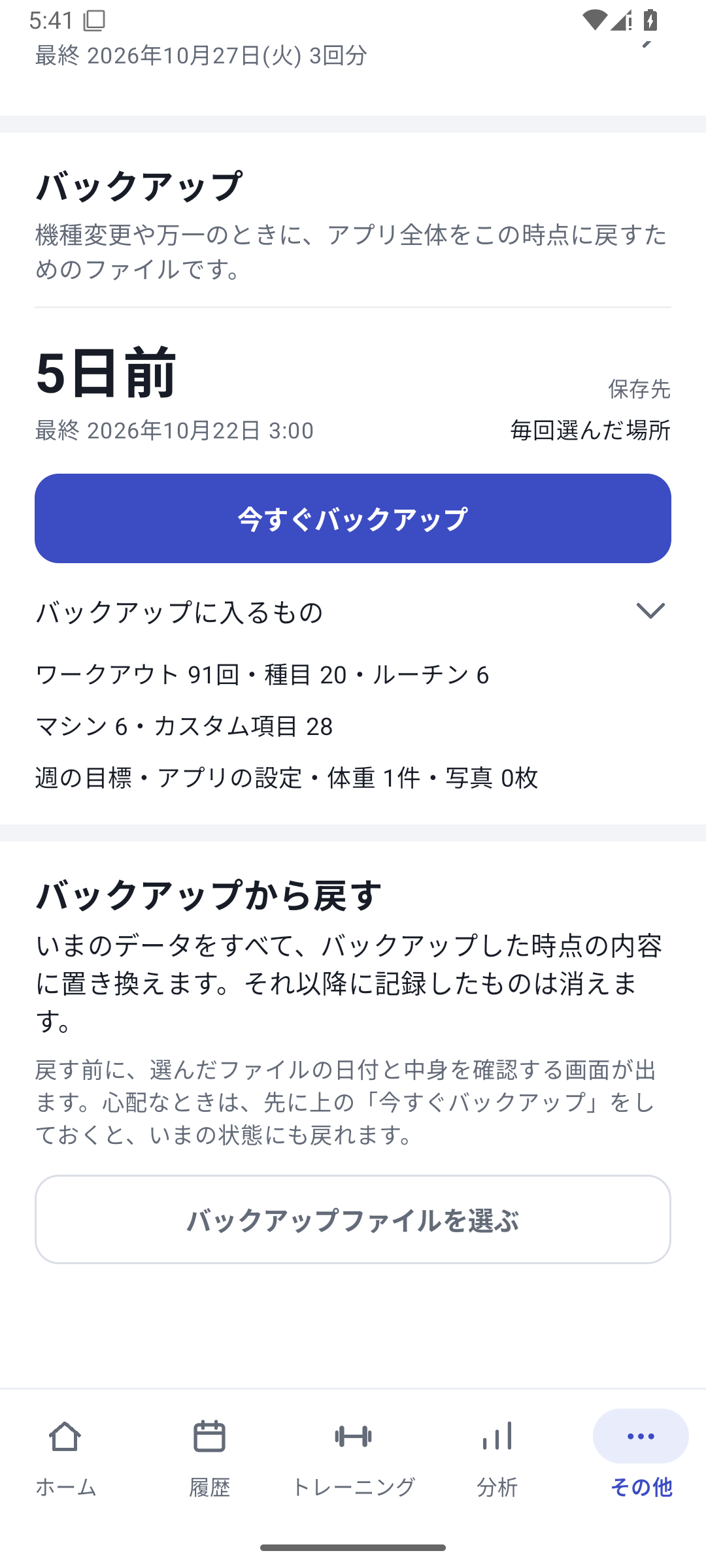
Before restoring, back up your current data in “More” → Backup and restore.
 Enlarge image
Saving a restore backup and its contents. Choose the restore file
Open Restore and select the backup you want with the file picker.
Read what will be replaced
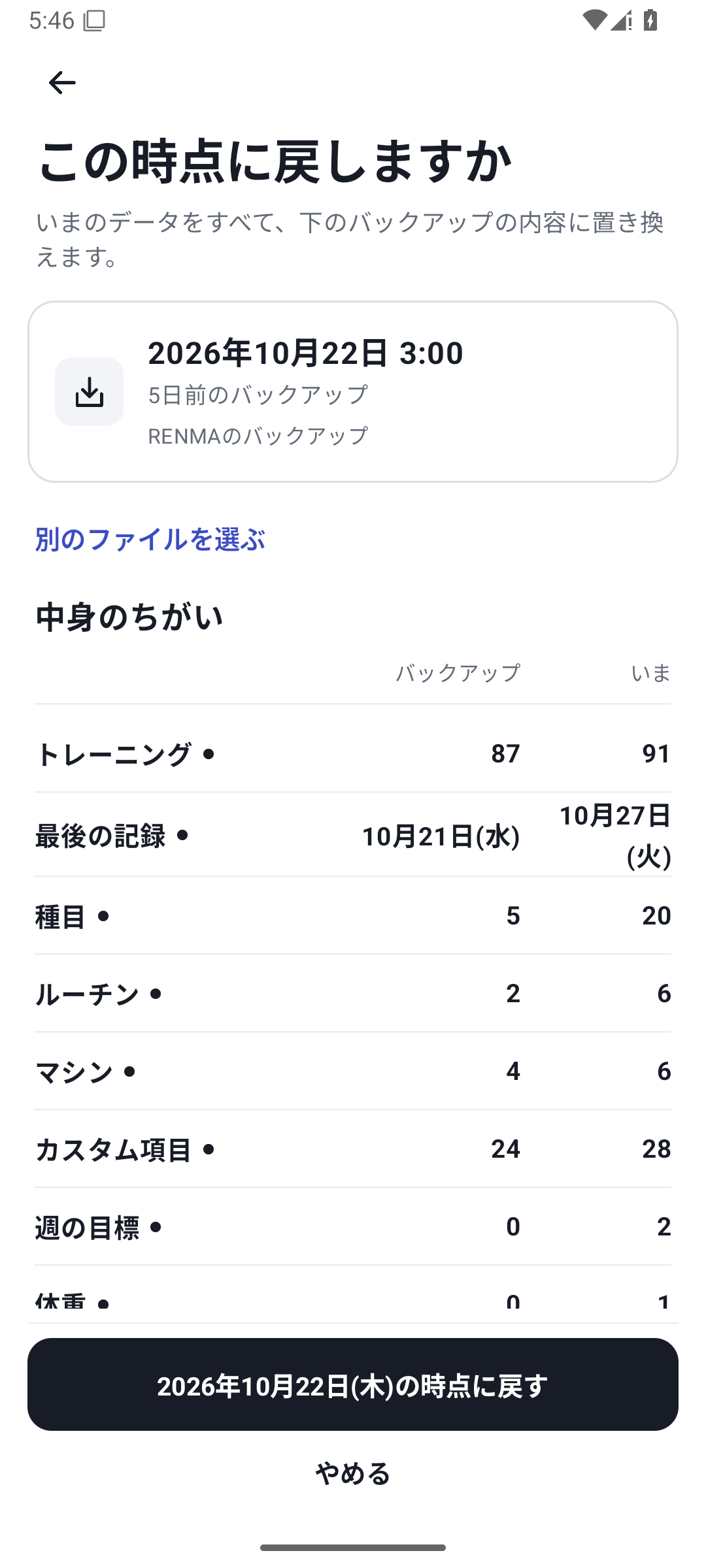
Review the contents in the preview. Check that the records and photos you need are included before restoring.
 Enlarge image
Pre-restore screen comparing the backup contents with current data. Check the result and records
Read the completion result and recovery report, then open and compare history, photos, and settings from representative dates.
 Enlarge image
Actual restore completion screen. The pre-restore state was saved as a backup too.
Restoring replaces current data
Restoration differs from an ordinary import that adds some external records. Back up current history first, then review the selected file, counts, photos, and other contents in the preview before proceeding. If a workout is in progress, follow the screen instructions.
After restoring, inspect representative records
- Early, middle, and recent dates, with set counts, weight, and reps.
- Left/right values, saved custom fields, and machines.
- Exercises, routines, bodyweight, and photos.
- Any items named in reports of missing photos or other problems.
Restoration does not invent information absent from an older file. It may remove information needed to undo previous imports, making those imports no longer reversible.
Save and restore with Free
Saving and restoring backups is available with Free. You can protect your records after returning to Free too. Restoring saved custom values and creating new fields or entering new values have different plan requirements.
Related features
The screens use sample records to explain the controls.
Updated: October 27, 2026