Steps
Open the relevant exercise
From “Custom fields” or “Exercises” under “More”, open the editor for the exercise you want to add fields to.
 Enlarge image
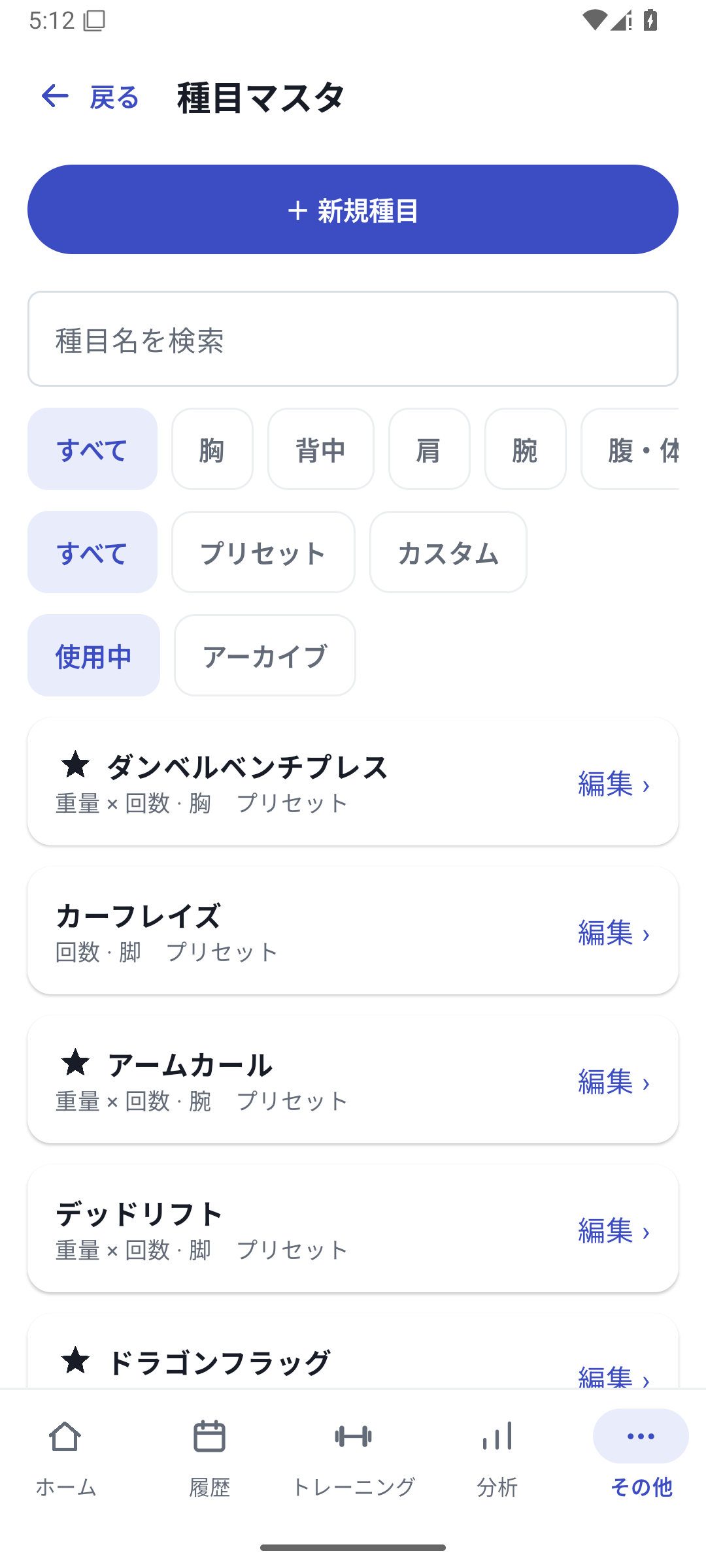
Exercise search, muscle-group and type filters, favorites and editing. Choose the field name and type
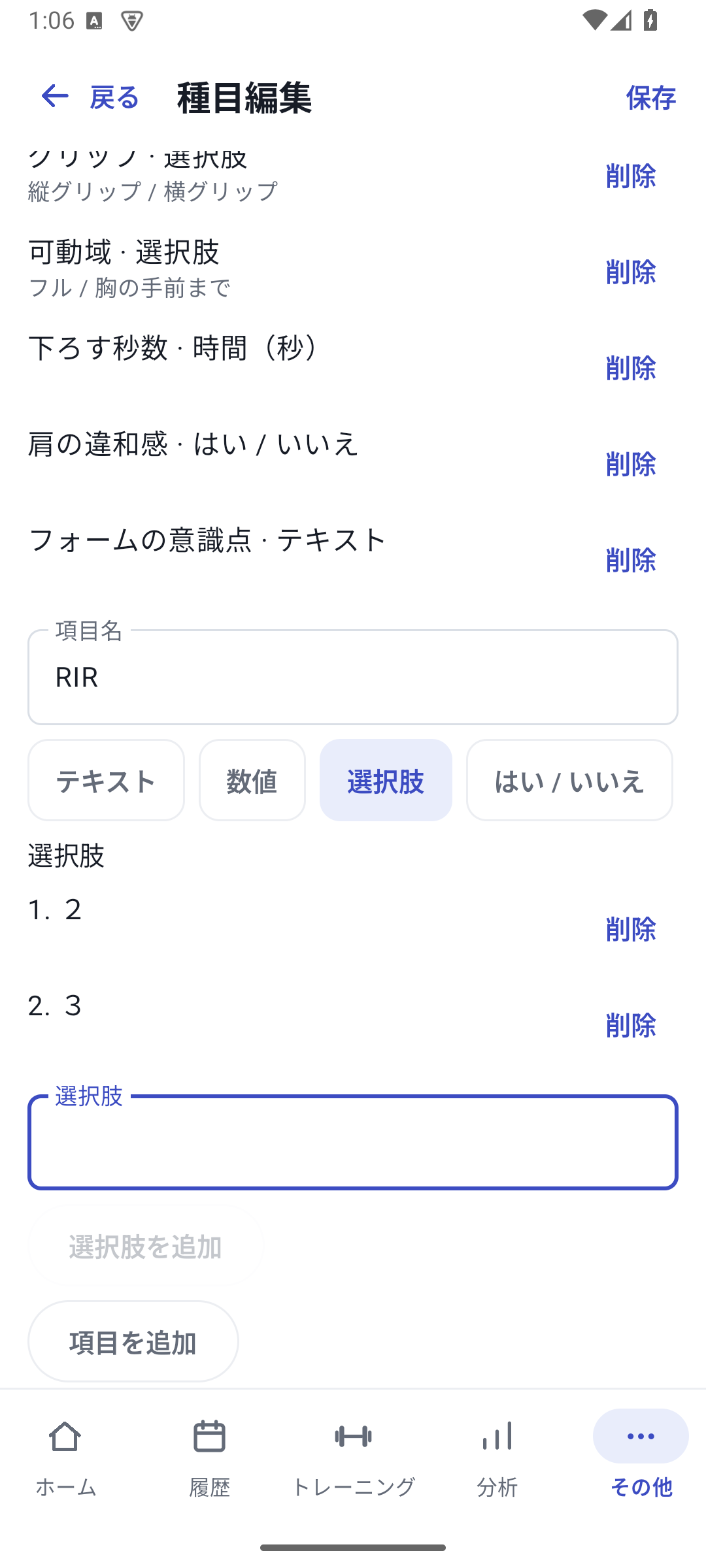
For example, create “RIR” and choose single select. Choose Text for free-form writing, or Number, Duration, or another suitable type for numeric comparison.
 Enlarge image
Screen for setting the RIR field name, type, and options. Add options one at a time
For RIR, prepare options such as 1, 2, and 3. Add each entered option and check it appears in the list. For a number with a custom unit, enter the unit name too.
Add the field
When the name, type, and options are ready, press Add field. The created field appears on the exercise.
Save the whole exercise
Do not finish editing just because the field was added; press Save at the top of the exercise screen.
 Enlarge image
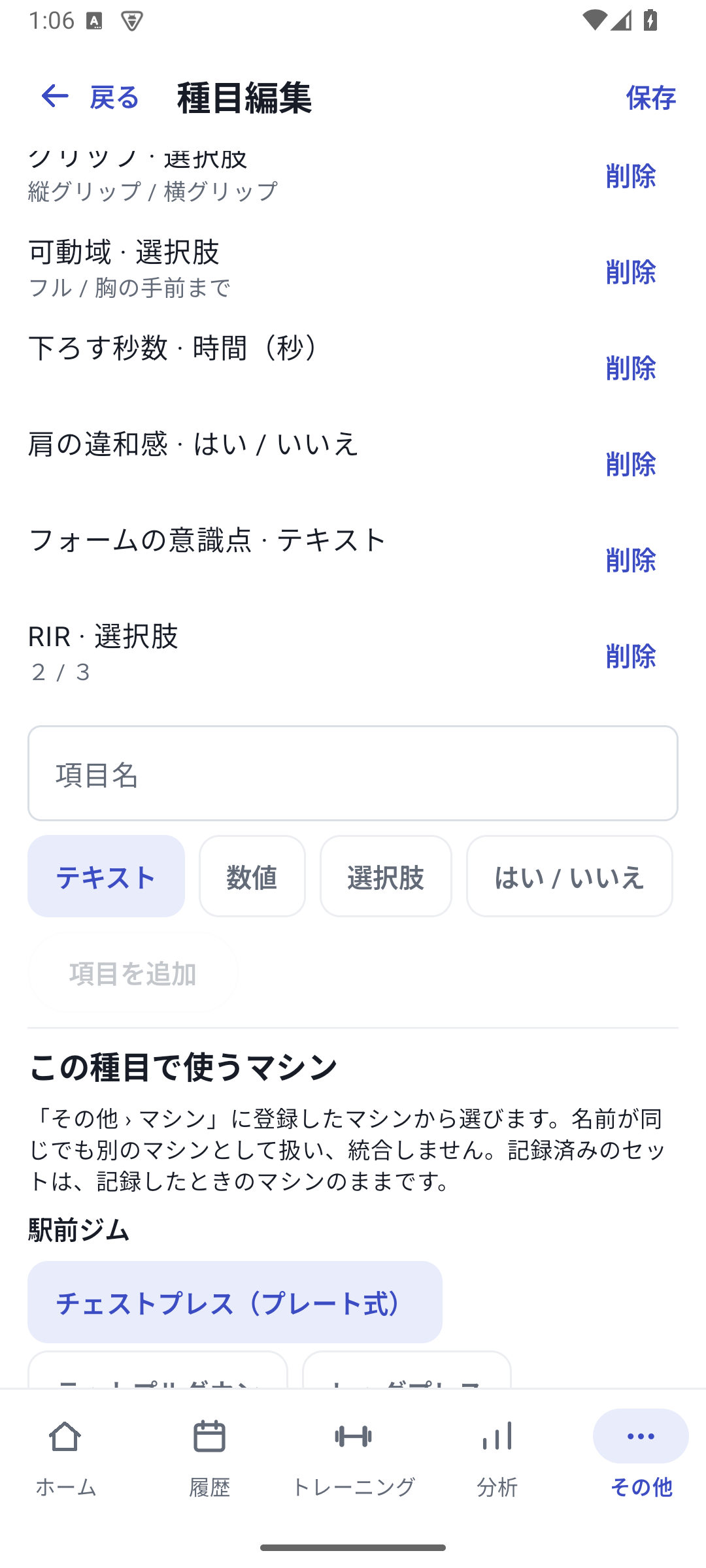
Exercise editing after adding a field. Save at the top right saves the whole exercise. Enter values during a workout
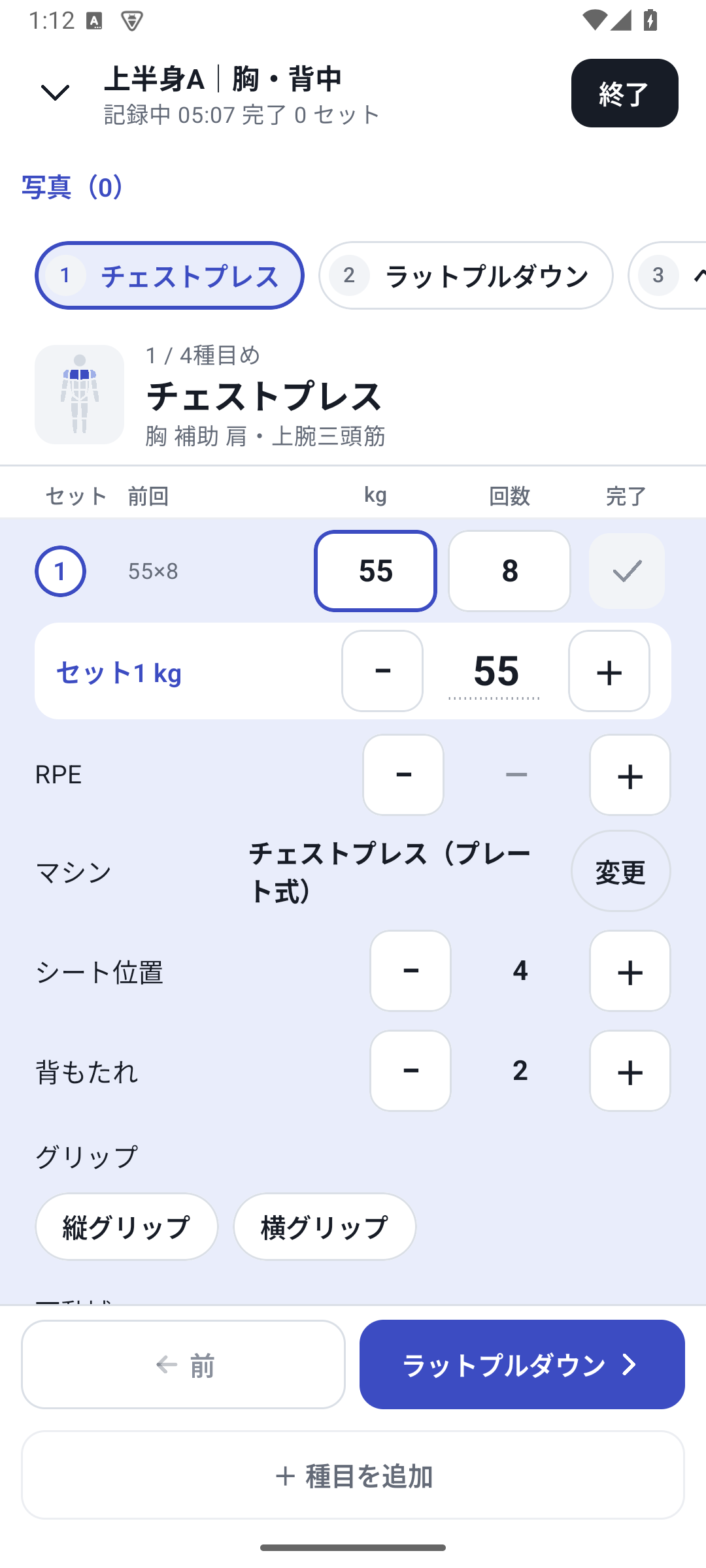
Open conditions from the exercise's logging screen and choose the RIR value. Save it as a set condition and check the value in the next set too.
 Enlarge image
An ongoing set with conditions such as seat and grip entered. Read History after finishing
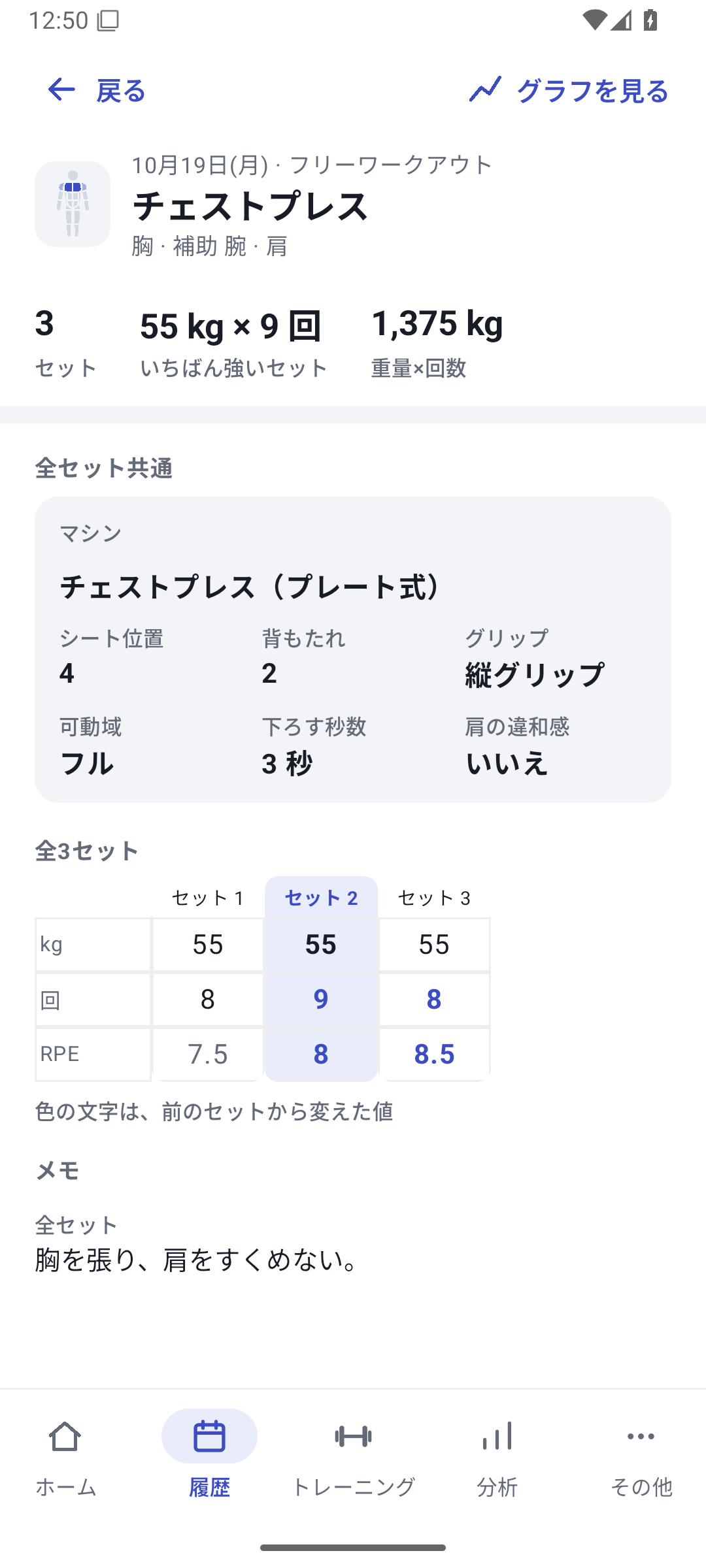
Open that day's exercise and check each set's values. Review numeric fields and selected conditions in their supported analysis views.
 Enlarge image
Saved history. Read the custom values for each set again.
Choose from 10 types to suit the value
| Type | Example |
|---|---|
| Text | Technique cues |
| Number | Seat position 4 |
| Single select | Vertical grip / horizontal grip |
| Multiple choice | Several technique cues |
| Yes / No | Belt use |
| Weight | A weight to record separately |
| Time | 3-second lowering phase |
| Distance | Distance traveled |
| Percentage | A percentage on your own scale |
| Number with custom unit | A value in a unit you define |
Up to 20 fields per exercise; up to 20 options of 40 characters each; custom units up to 24 characters. Text values allow up to 500 characters. Unrecorded is distinct from 0 or No.
Changing fields for future records
Exercise editing does not let you directly rename existing definitions, change their types, or edit their options. Add a new definition and delete the one you no longer need. Completed history retains the original names, types, and values and does not automatically merge with the new field.
Creation, new entries, and analysis require Pro
Available with Pro, Lifetime, and the initial 14-day free trial. After returning to Free, you can view and export past custom values. Continuing to enter values in new sets is a paid feature.
Related features
The screens use sample records to explain the controls.
Updated: October 27, 2026