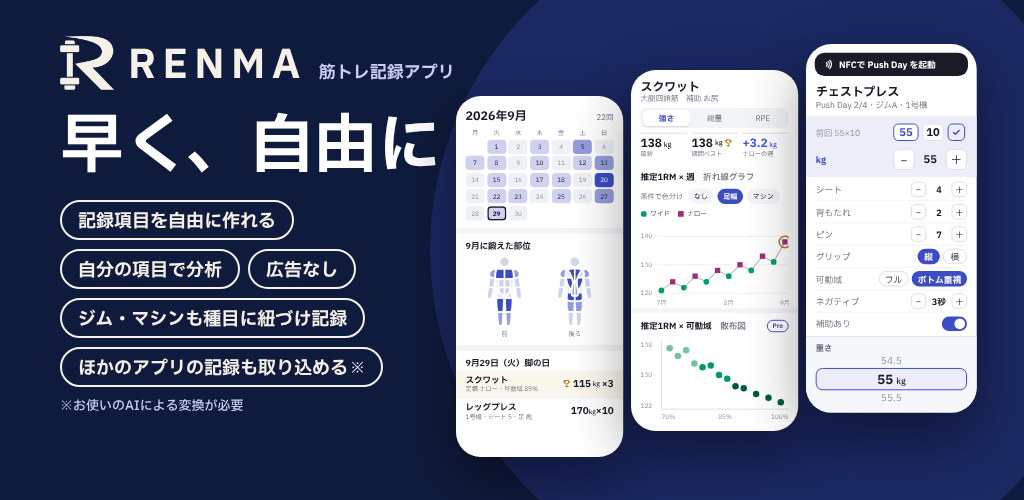
01 / The idea
Find out later why
the same weight felt different.
Different machine settings or grips change the context of a 55kg set. Custom fields add the conditions you need alongside basic weight, reps and other values.
Name what you want to record
Use a number for Seat position, choices for Grip, and text for Form cues. Create the fields on the relevant exercise.
Record actual values for each set
Seat 4 for set 1, seat 3 for set 2. Save separate values when settings change.
02 / Choose a type
Ten field types.
Choose the one that fits your information.
Add a written note, select consistent conditions or compare numbers. Think about how you want to review the information later. These are the types shown in the app.
Text
Example: form cues
Keep shoulders down and chest up
Open Write a note, enter your text and save. Up to 500 characters. Read it as a note in history; the text is not automatically scored or converted into a numeric chart.
Number
Example: seat position
4
Tap the number to enter it directly, or adjust it with +/−. Decimals and negative values are supported. A custom upper limit, such as a machine's number of seat levels, is not set automatically.
Choice
Example: grip
Vertical grip / horizontal grip
Add options when creating the field, then tap one while logging. Tap the same option again to return to unrecorded. Useful for conditions you want to name consistently.
Multiple choice
Example: technique cues used
Shoulders down + drive through feet
Tap several options to select them, and tap again to deselect. Unrecorded clears the selection. The selected values are treated as a combination.
Yes / No
Example: belt used
Yes
Choose one of two buttons. Tap it again to return to unrecorded. This keeps No distinct from forgot to record.
Weight (kg)
Example: assistance weight used
2.5 kg
Enter a weight of 0 or more. It uses kg or lb according to display settings. This is separate from the exercise's basic weight and is not automatically added to total load.
Time (seconds)
Example: lowering time
3 seconds
Enter a whole number of seconds, 0 or more, to record your own tempo or hold duration. This is not automatic timing and is separate from the exercise's basic time field.
Distance (m)
Example: carry distance
20 m
Enter a nonnegative number in meters. Decimals are supported. This does not measure distance with GPS or convert custom units automatically.
Percentage
Example: assistance setting percentage
30%
Enter a value from 0 to 100 for a percentage you define yourself. It does not automatically calculate a percentage of 1RM from recorded values.
Number + unit
Example: distance from front foot to bench
65 cm
Set a unit name of up to 24 characters when creating the field. Decimals and negative values are supported. Units such as cm are labels; they are not converted automatically to m or other units.
Up to 20 fields per exercise. Field names may contain up to 80 characters. Choice fields need 1–20 unique options, each up to 40 characters. Every type can be left unrecorded. A blank is neither 0 nor No.
03 / Create a field
Example: create an RIR field.
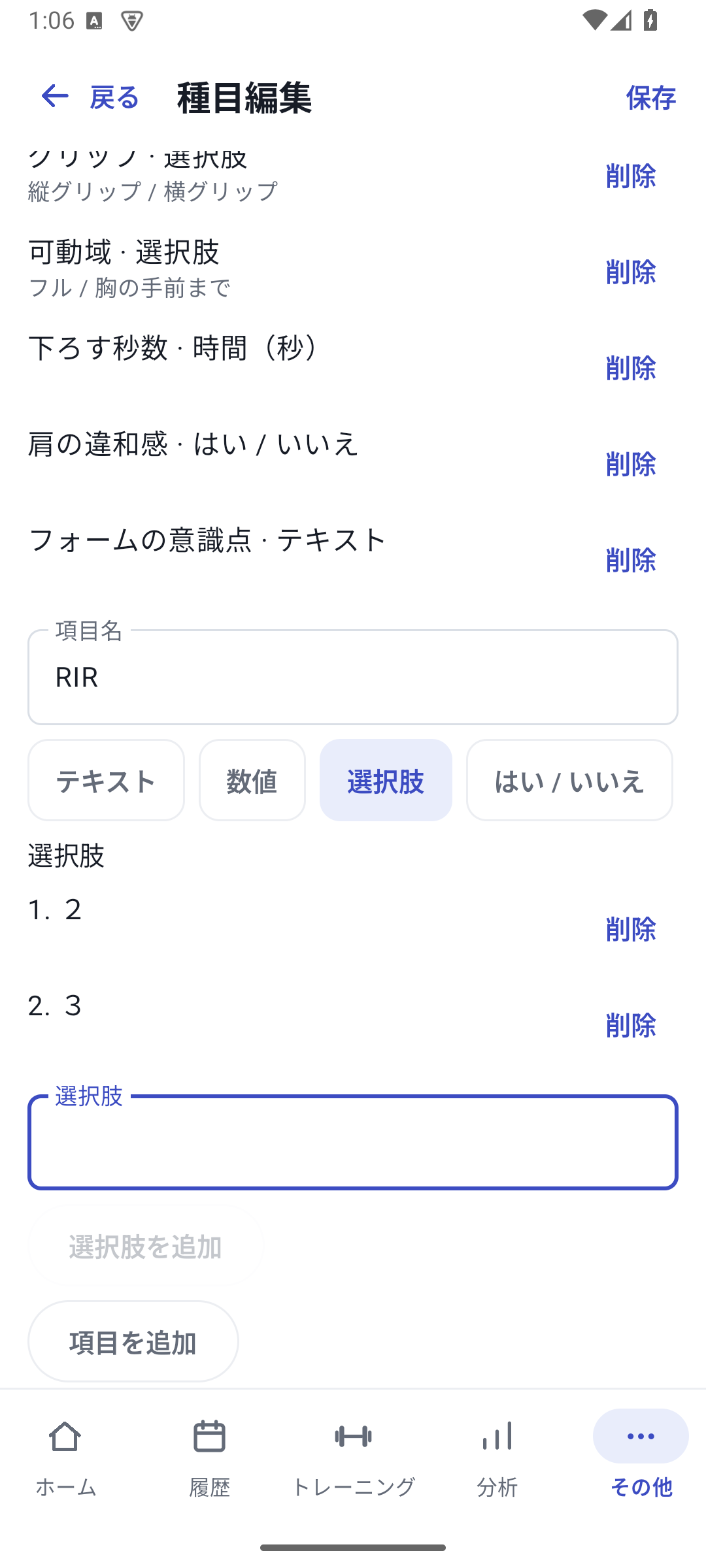
First define what you want to record on the exercise. Here, estimate how many more reps you could perform and record that as a custom RIR field with options 2 and 3. You are not entering the actual set values yet.
- Open More → Custom fields
Select the exercise. You can also open its editor from exercise management. This example uses Chest press.
- Scroll to Your own logging fields
Enter RIR under Field name. Scroll the row of type buttons sideways and select Choice.
- Add options one at a time
Enter 2 under Options and choose Add option. Add 3 in the same way. Text entered but not added is not yet registered as an option.
 Enlarge screen
- Choose Add field
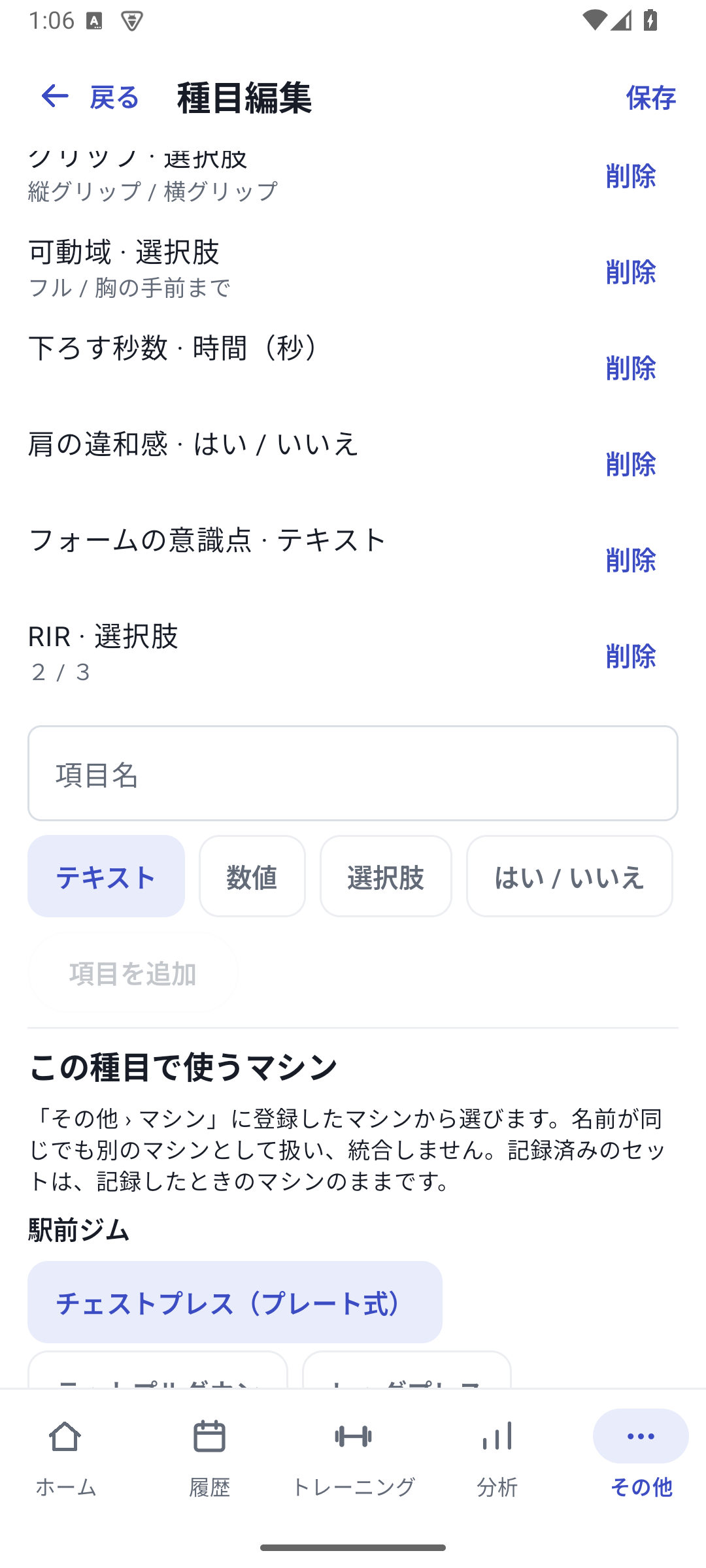
Check that the field has appeared in the list. For Number + unit, enter the Unit name first too. A field cannot be added if required options or a unit are missing.
- Choose Save at the top
Save the exercise settings. Do not simply close the screen after adding the field; return to the list and check the saved settings.
- Start logging this exercise
Start a free workout or a routine containing the exercise. Enter that day's values in your new fields.
For Seat position, choose Number; for a form note, choose Text. Neither needs options. Prepare fields before starting a workout to make logging easier. This RIR example uses Choice for condition-based coloring. Choose a numeric type if you want numeric comparisons. It is a custom field separate from basic RPE.
 Enlarge screen
04 / Log values
Enter the conditions used for that set.
- Check the set you are entering
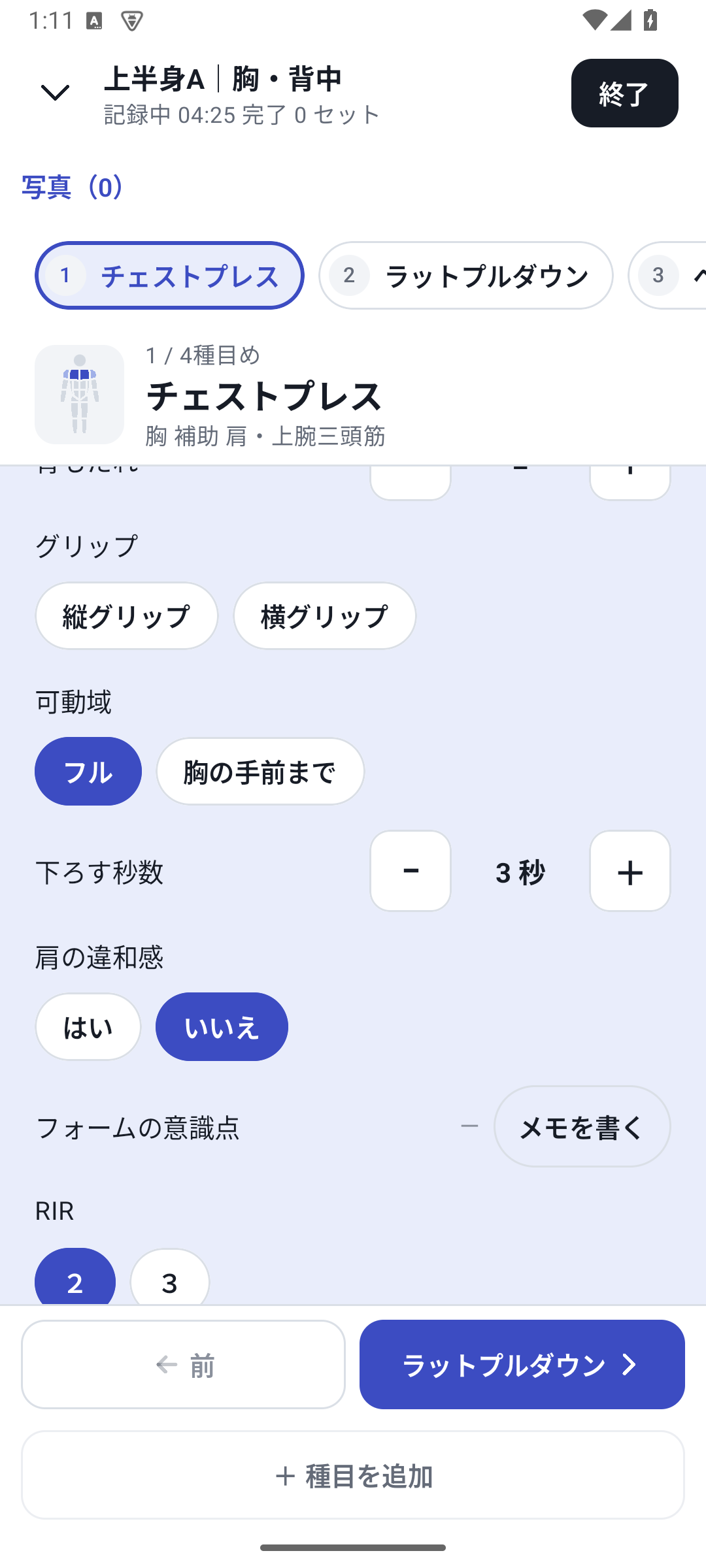
Check the exercise and set number on the logging screen. Machine and custom fields appear below RPE for the set being entered. To enter another set, select a value such as weight in its row. Scroll vertically to reach the fields you need.
- Enter or select values
For Seat position, tap its number and enter 4. For Grip, tap an option. For text, open Write a note, enter it and Save. Save and close numeric input dialogs too.
- Check the applied values and complete the set
Selections and confirmed values are applied to the record as you make them. Check the displayed values and any save errors, enter weight and reps, and complete the set.
- Review conditions in the next set
Check whether the conditions stayed the same or changed. Carry over set 1 conditions applies them to later planned sets that have no conditions yet. It does not overwrite sets that already contain values.
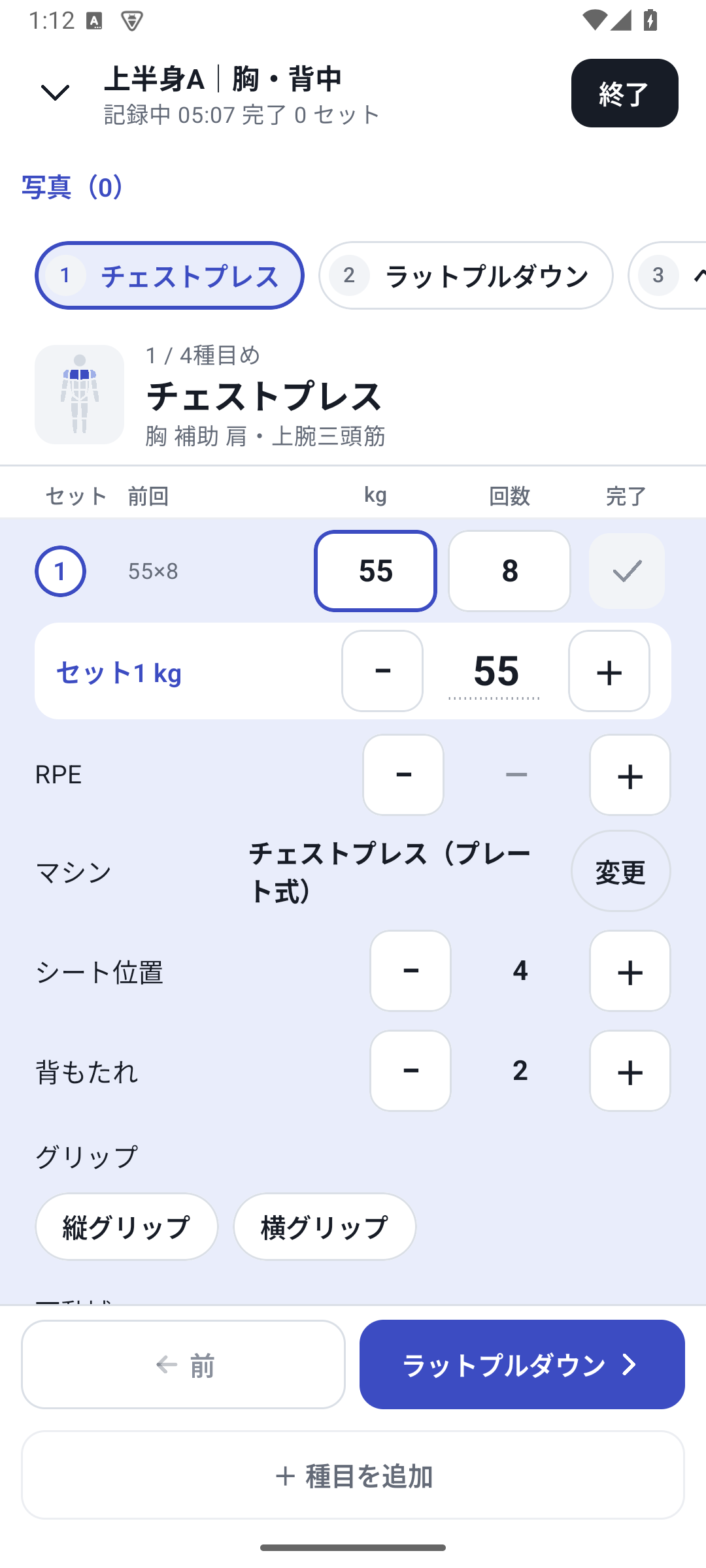 Enlarge screen
05 / Adapt it to your training
Three practical examples.
The following are examples of setting up fields. Their values do not guarantee correct form or a training effect.
Case: Bulgarian split squat
Keep foot placement and technique cues consistent.
If your stance changes each time and makes comparison difficult, create the following fields on the exercise.
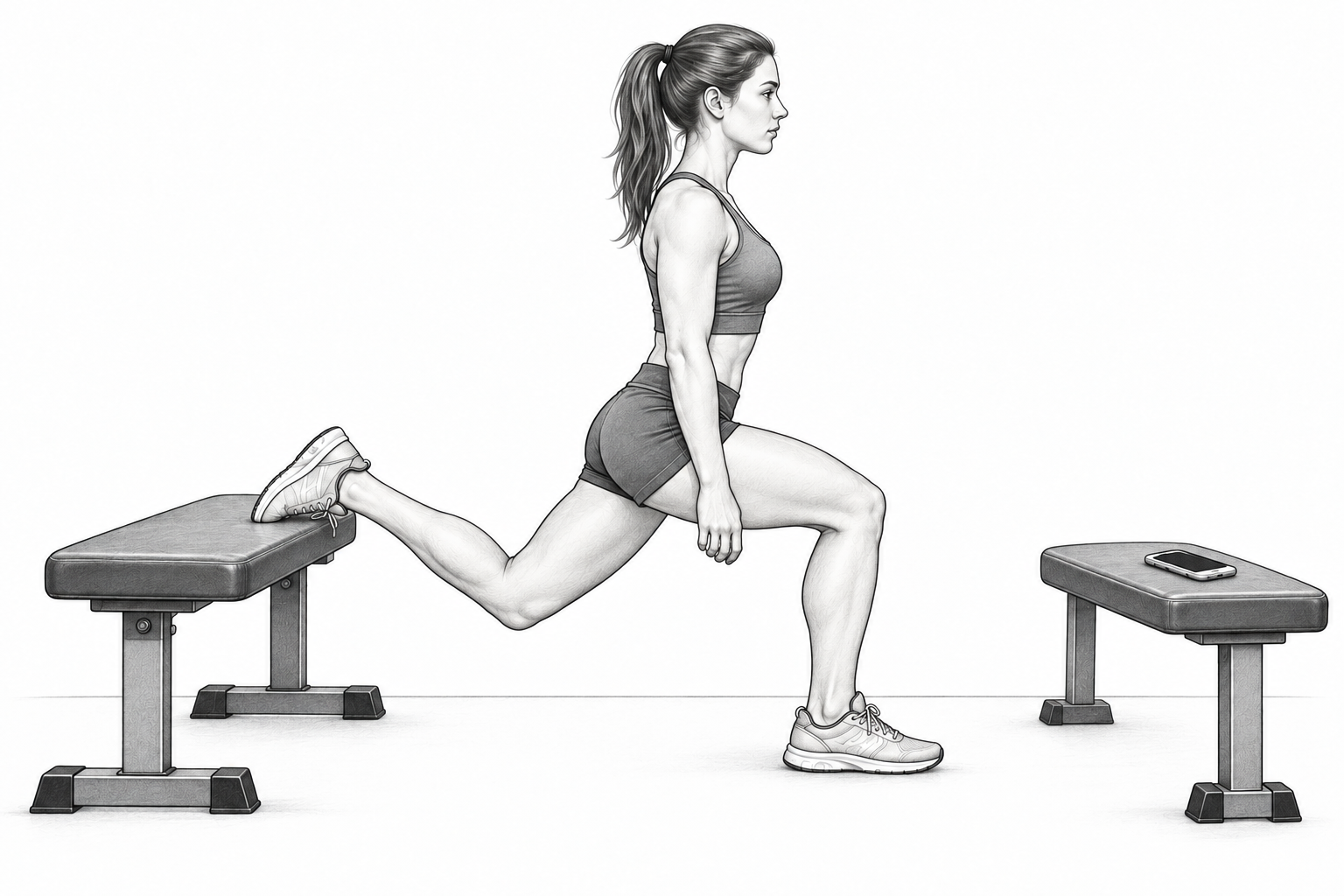 EnlargeEnlarge
- Distance from front foot to bench
- Number + unit cm → 65 cm
- Knee cue
- Text → Keep knees tracking toward toes
- Muscles you focused on
- Multiple choice → Glutes and quads
Later: Read your stance and notes in history when preparing next time. Muscles you focused on records your own perception, not measured muscle activity. Compare distance values separately from rereading form notes.
Case: machine chest press
Start with the same machine and settings as last time.
If different equipment or seat positions change how the same exercise feels, use the dedicated machine selector to choose Chest press (plate-loaded).
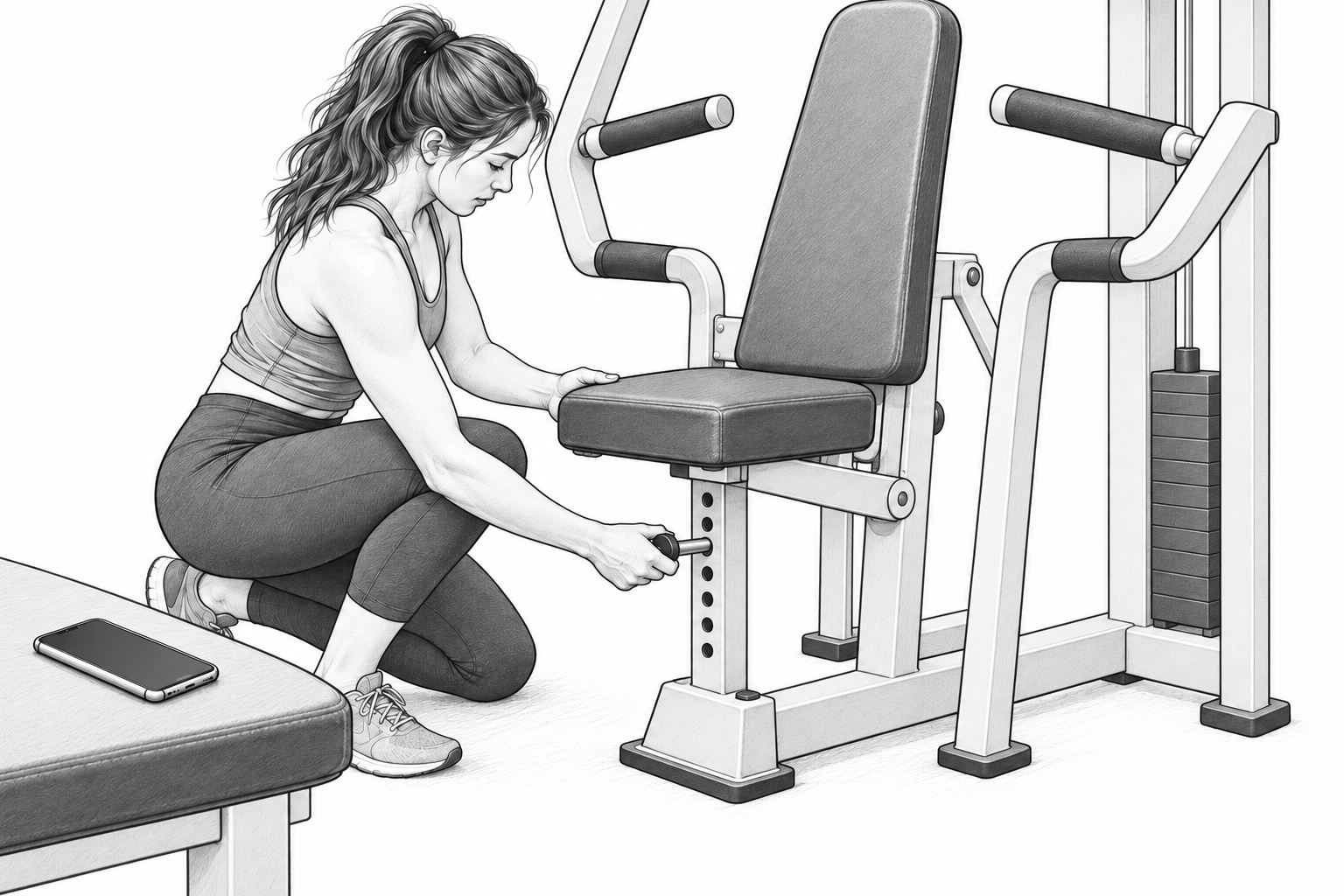 EnlargeEnlarge
 Enlarge
- Seat position / backrest
- Number → 4 / 2
- Grip / range of motion
- Choice → Vertical grip / Full
- Lowering time
- Time (seconds) → 3 seconds
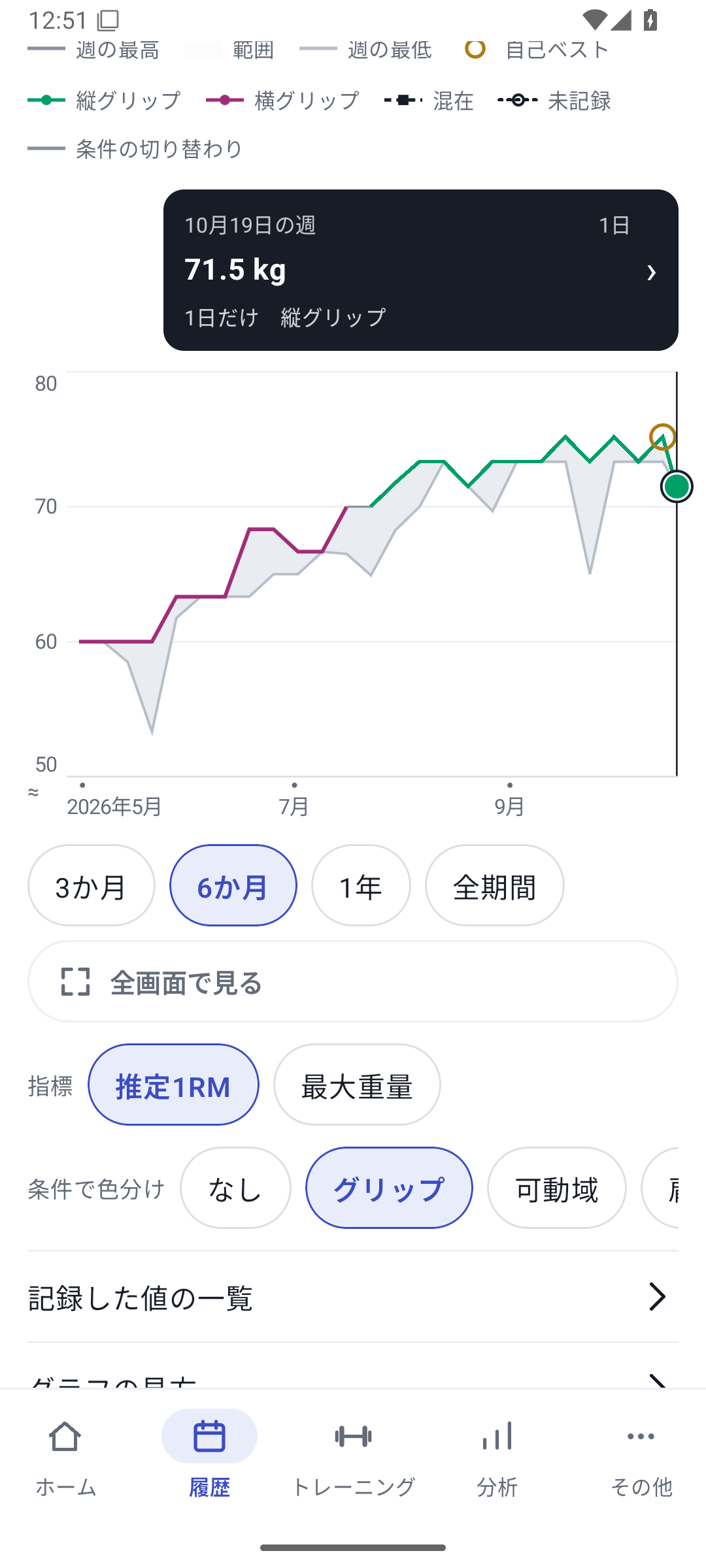
What remains: 55kg × 8 reps with these conditions attached. Next time, use history to adjust the machine. In analysis, select the same machine and color by grip to review weight trends alongside changes in conditions. Enter seat position yourself; it is not detected or switched automatically.
Case: how you felt that day
Review performance changes alongside how you felt.
To keep context for days when weights feel heavier than usual, add these fields to the exercise you record. They are not automatically copied to a diary shared across all exercises.
 EnlargeEnlarge
 Enlarge
- Fatigue at the start
- Choice: Low / Normal / High → High
- Shoulder discomfort
- Yes / No → No
- Condition notes
- Text → Short sleep; difficult to concentrate
Later: Color the chart by fatigue condition and read the notes in that day's history. For exercise intensity alone, you can use basic RPE. If creating your own numeric rating, define a scale and enter it consistently. The records cannot determine the cause of your condition.
06 / Review and analyze
Read what you recorded.
Compare it in a way that fits the field type.
Start by checking the set in history
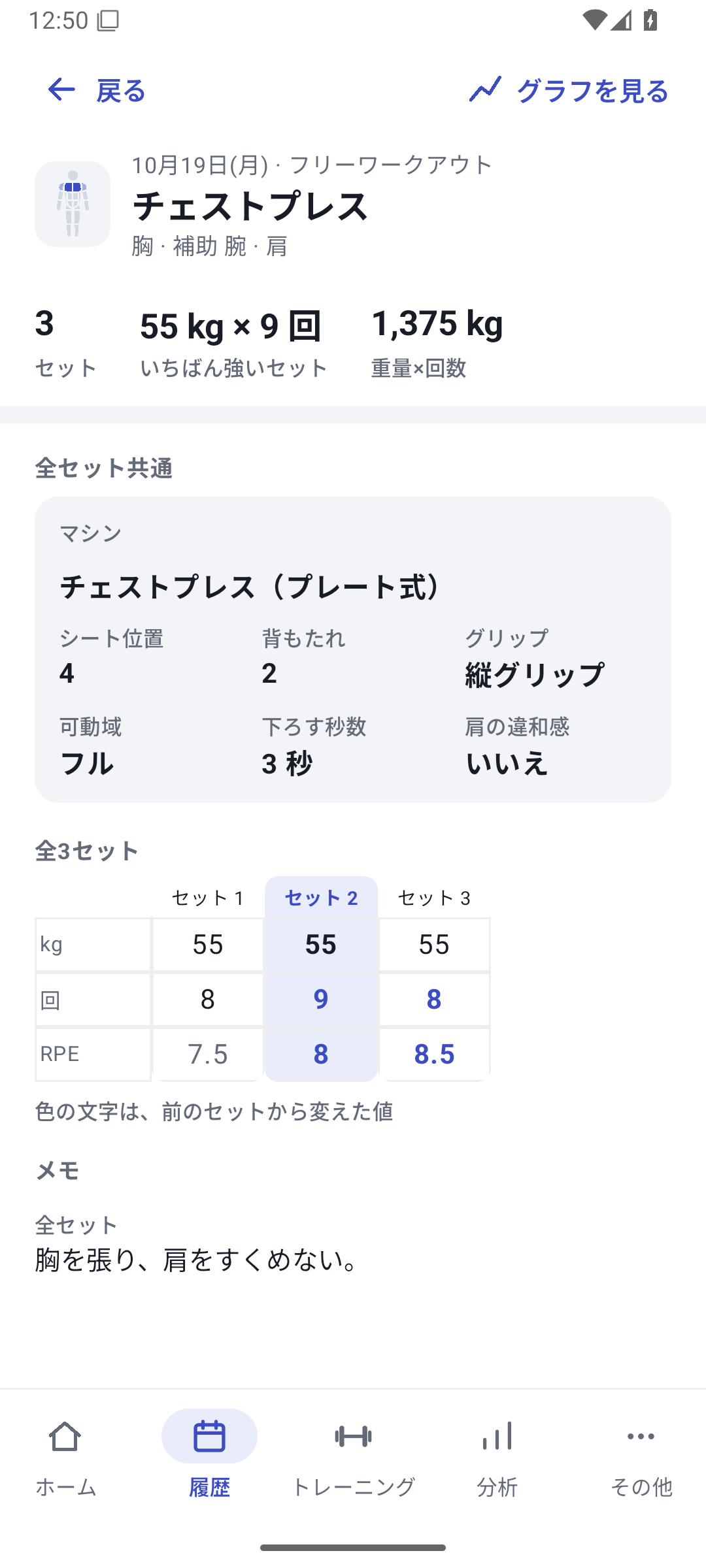
Select the recording date in History, open workout details and choose the exercise. Exercise details show set values and conditions shared across sets or different between them. Text appears separately as notes rather than in the numeric conditions table.
The example shows 55kg for 8, 9 and 8 reps. Seat 4, backrest 2 and vertical grip are common to all sets. Read the form text under Notes below. Find the settings needed for your next workout on one screen.
Choose View chart from history to see trends for that exercise. Move between records and analysis to check context that numbers alone cannot explain.
Enlarge screenChart capabilities depend on field type
Six numeric field types
View two values together
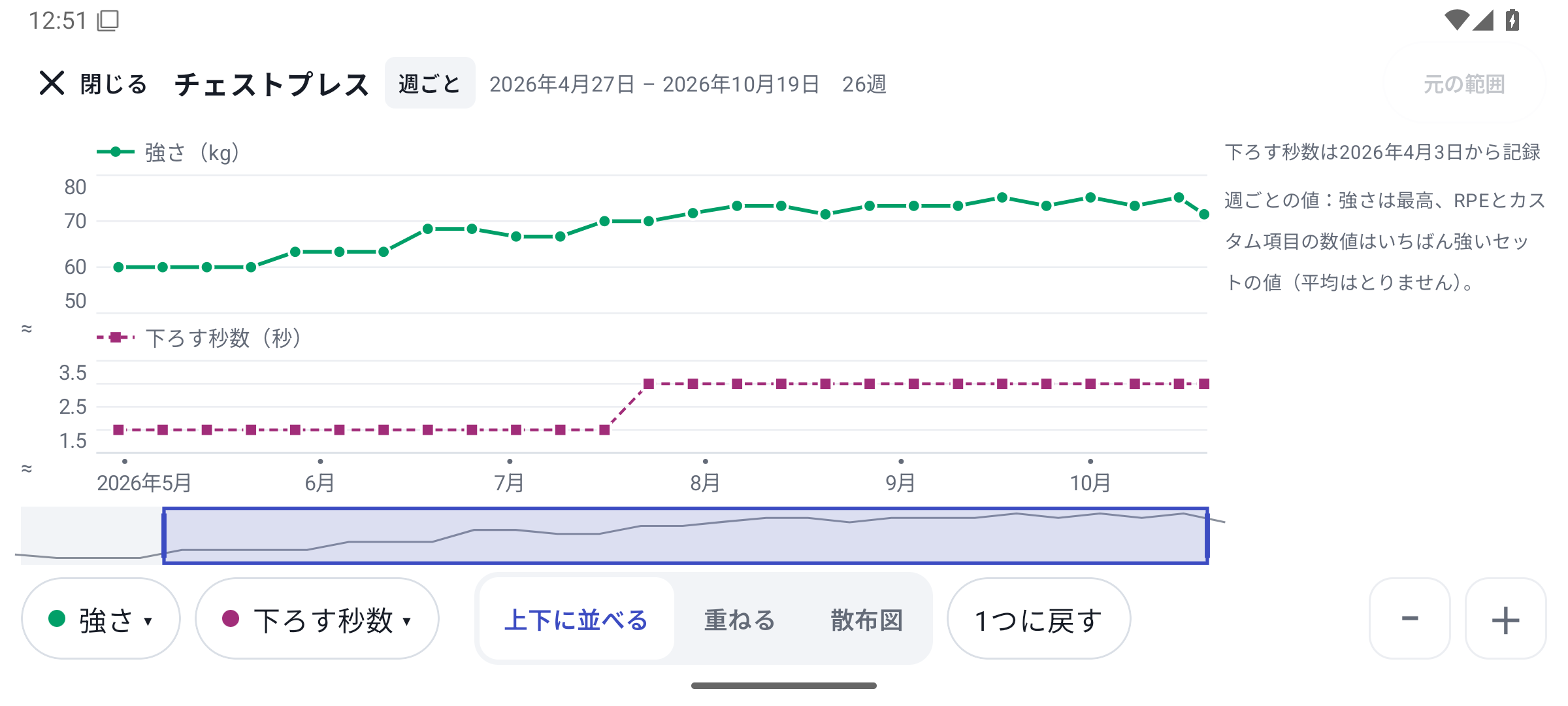
Supported types are Number, Weight, Time, Distance, Percentage and Number + unit. Open an analysis chart in landscape full screen and select the metrics under Two values. Stack, Overlay (dual axes) and Scatter plot let you compare numeric fields with metrics such as estimated 1RM.
For example, compare Lowering time with estimated 1RM. Ordinary numeric fields use the value from the strongest representative set for the day or period, not the average or maximum across all sets. Rep-count fields with a custom unit such as reps use a total. Check the units and aggregation method.
 Enlarge screen
Choice, Yes/No and Multiple choice
Use colors to check different conditions
In the exercise's analysis, open Color by condition and select a field such as Grip. Keep the machine and date range consistent, then compare periods with different grips against the recorded trend.
Multiple-choice selections are treated as a combination. Different values within one displayed period are marked Mixed; missing values remain unrecorded. The app does not automatically calculate each option's independent effect.
Enlarge screenText
Reread your words from that day
Check form and condition notes in history. This feature does not provide text search, sentiment analysis or automatic scoring. Open a recording date from a chart point to check the context behind the numbers.
07 / Access conditions
Free / Pro and changing fields
Free / Pro
Pro is ¥300/month, or ¥200/month with the annual plan.
Create, enter and analyze custom fields, and configure gyms and machines.
Free
0 JPY
Basic logging, history and basic analysis, free of charge.
Pro monthly
300 JPY / month
A monthly subscription.
Equivalent to ¥200/month
Pro annual
2,400 JPY / year
Save ¥1,200/year compared with 12 monthly payments.
Lifetime
7,800 JPY / one-time purchase
Pro features without recurring payments.
Includes an initial 14-day free trial. The trial does not charge you automatically when it ends. These are reference prices for Japan. Check the price and renewal terms shown in Google Play inside the app when purchasing.
Free
View saved custom fields and values in history and export them. You can continue basic workout logging.
Creating or changing field definitions, entering or changing new custom values, assigning new machines and analyzing custom fields are not included.
Pro / Lifetime / free trial
Create and delete fields, enter and change values, assign machines and use supported custom-field analysis.
The initial free trial lasts 14 days and includes the same eligible features. Its end alone does not trigger an automatic charge.
Saved history is not deleted when Pro or the free trial ends. After returning to Free, you can read existing data, but cannot keep filling new sets with past custom values.
Distinguish field definitions from recorded values
- In the exercise editor: Existing fields cannot be renamed, have their type changed or have their options edited directly. To change future fields, add a new definition and delete the one no longer needed.
- What deletion affects: Deleting a field from an exercise and saving leaves its original name, type and values in completed history. A new field is separate and is not automatically merged into old records.
- Before changing: Use consistent names, options and units for conditions with the same meaning, so history and comparisons stay understandable. Create a backup before major reorganization.
08 / Frequently asked questions
Questions before you start.
How many fields can I create?
Up to 20 per exercise, using 10 supported field types.
Why can't I press the button after entering a field?
Check your plan, field name and the 20-field limit. Choice and Multiple choice need at least one added option; Number + unit also needs a unit name. Then choose Add field and Save the exercise.
Can I change values or options along the way?
On an eligible plan, you can change the current set's values while logging. This is separate from directly editing existing options in the exercise editor. Read the notes above before recreating a definition. Past custom values are not rewritten in bulk.
Can I move free-form spreadsheet fields too?
They can be migration candidates when correctly mapped to Bridge-supported types, units and options. RENMA does not directly import arbitrary columns unchanged. Check the supported format for multiple choice and references to existing fields, and review the preview before applying. See the migration steps.
Why is a field missing from my chart?
Check the plan, exercise, machine, date range and whether values were saved. Numeric comparisons support numeric types only and appear in landscape full screen. Condition coloring supports choice-type fields and similar types. Text and independent left/right types have the limits explained above.
Content checked: October 27, 2026. Screens and values are sample records.
Go further with your recordsReading history and analysis
Practical ways to read strength and RPE, scatter plots and equipment-specific trends.
Read →