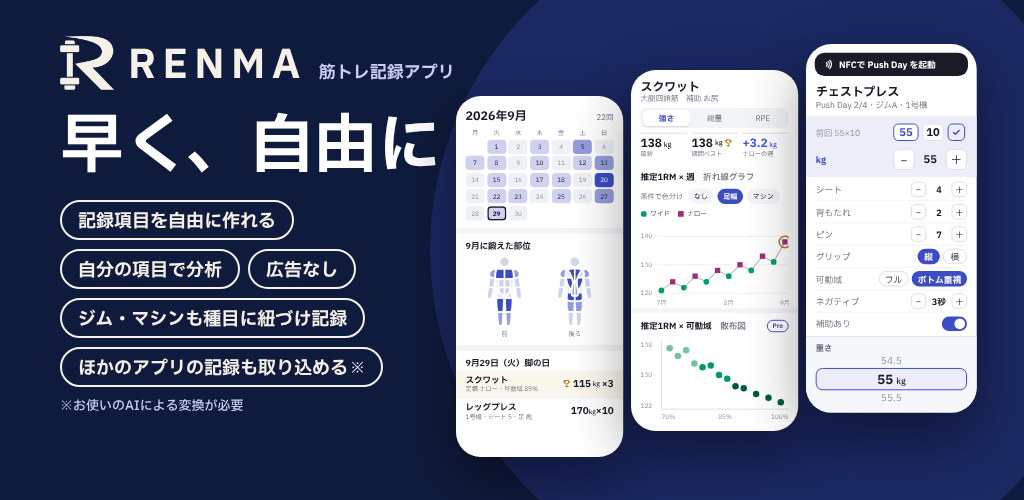
Steps
Find an exercise
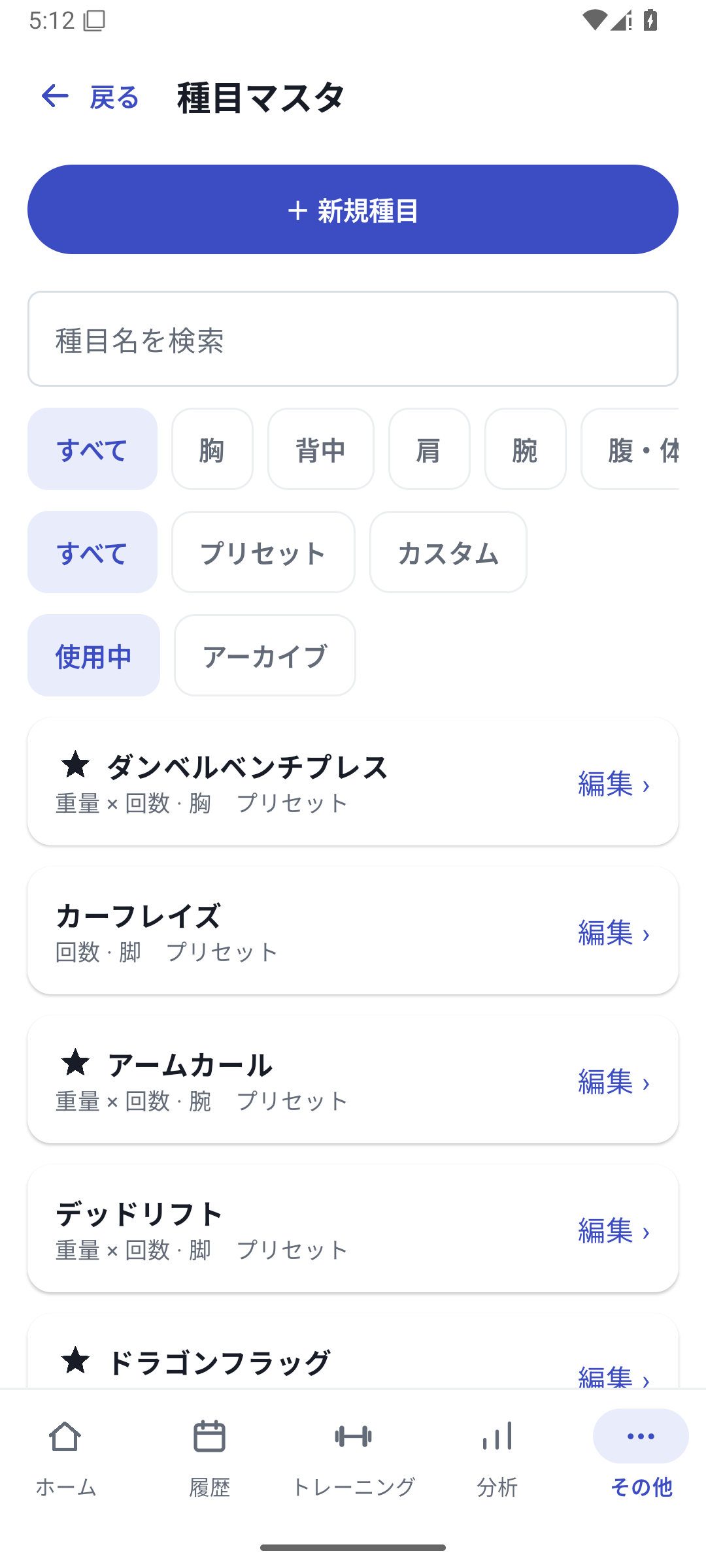
Search for its name on the add-exercise screen, filter by muscle group if needed, then select it.
 Enlarge image
Exercise search, muscle-group and type filters, favorites and editing. Create it if it is missing
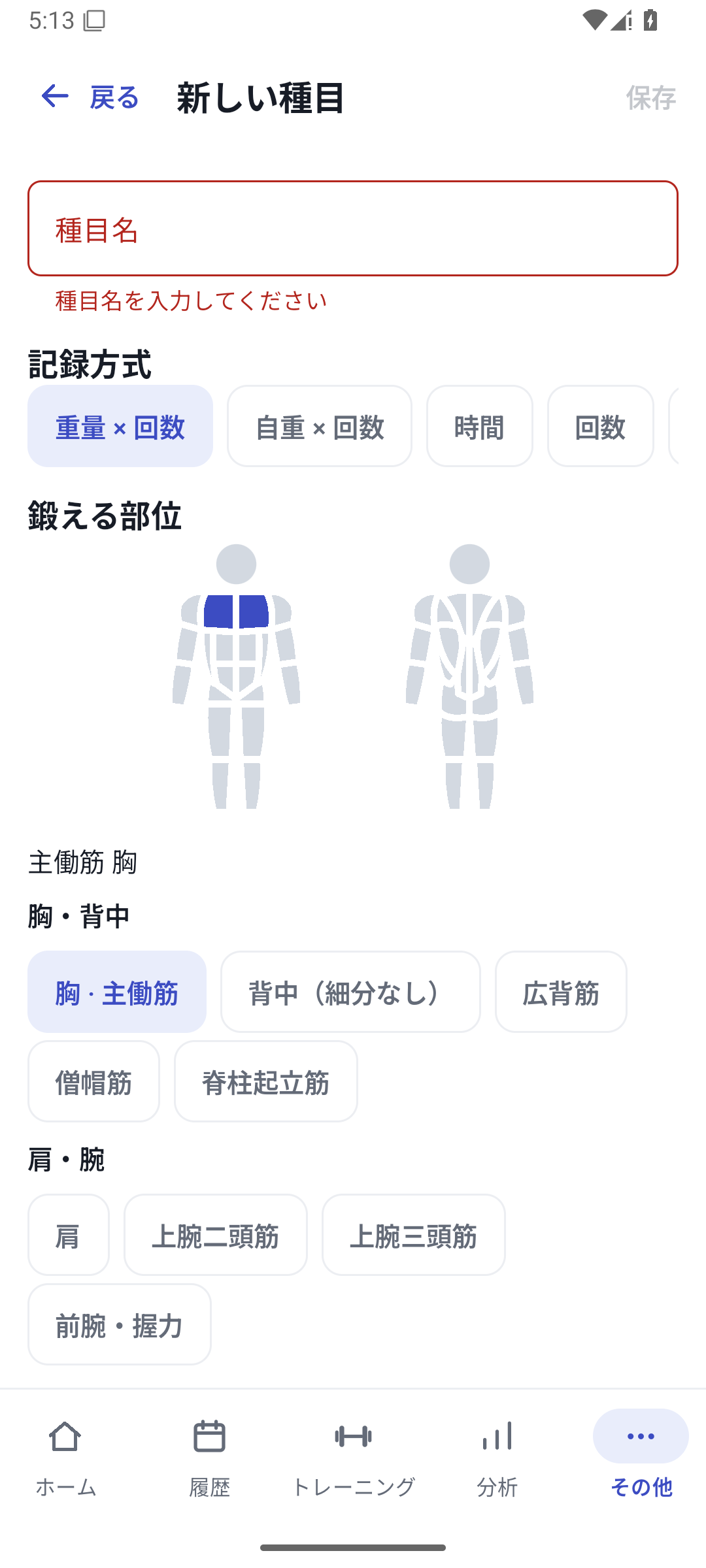
Open Add from More → Exercises, then enter the name, tracking type and muscle groups.
 Enlarge image
New-exercise screen for choosing its name, tracking type and muscle groups. Enter defaults and save
Set weight, reps and increments, then save. If you also add custom fields, continue through saving the whole exercise.
Organize the selection list
Favorite exercises you use often and archive ones you do not need. Restore them from management when needed.
Defaults and drafts
Set your usual weight, reps and increments to give input a consistent starting point. These settings do not create completed results. If you leave the exercise editor midway, distinguish resuming a draft from formally saving it.
Archive exercises you no longer use
Archive an exercise you are not using instead of deleting its history. Remove it from new selections and restore it when needed. This organizes your list while retaining past records.
Case: separating different equipment
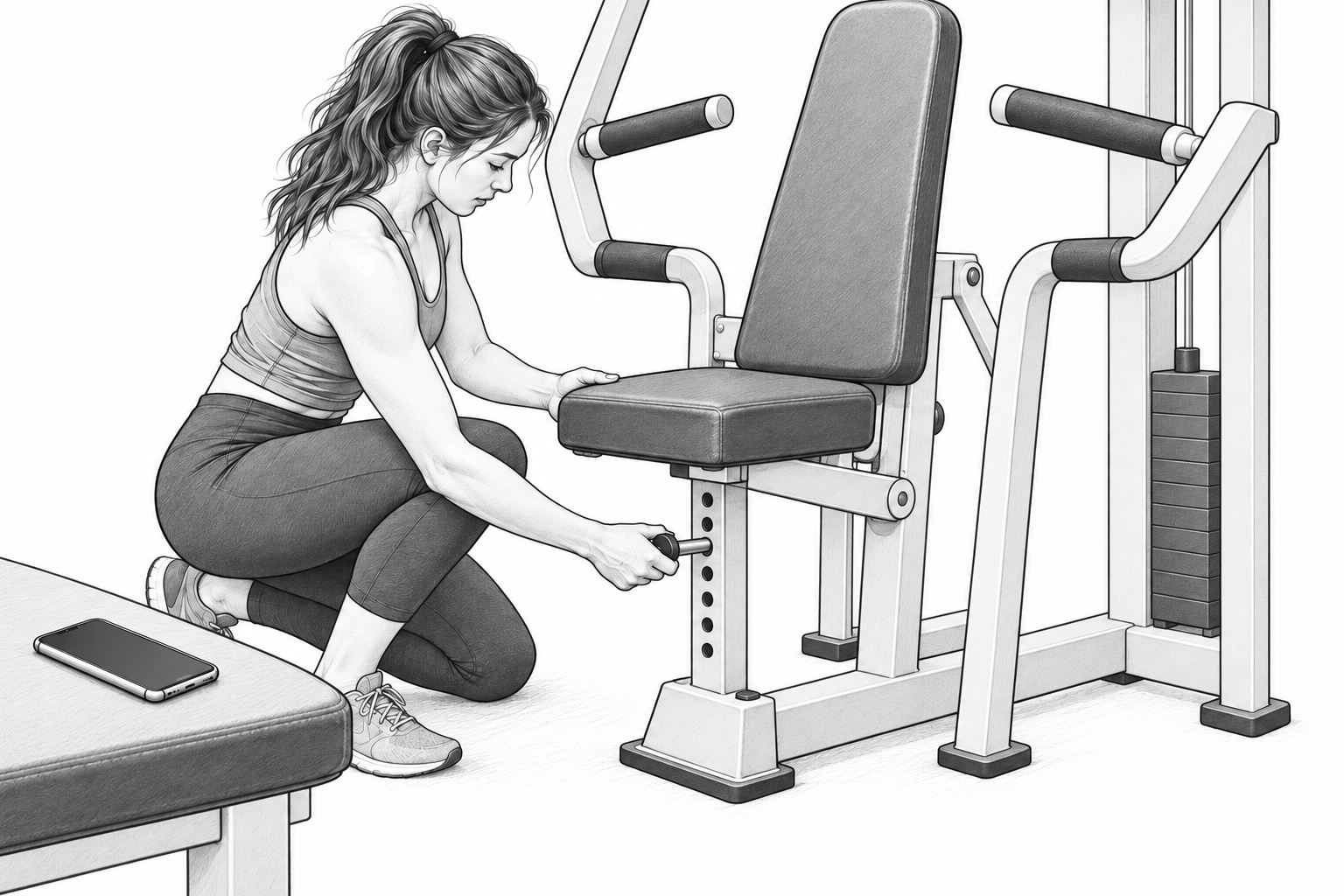
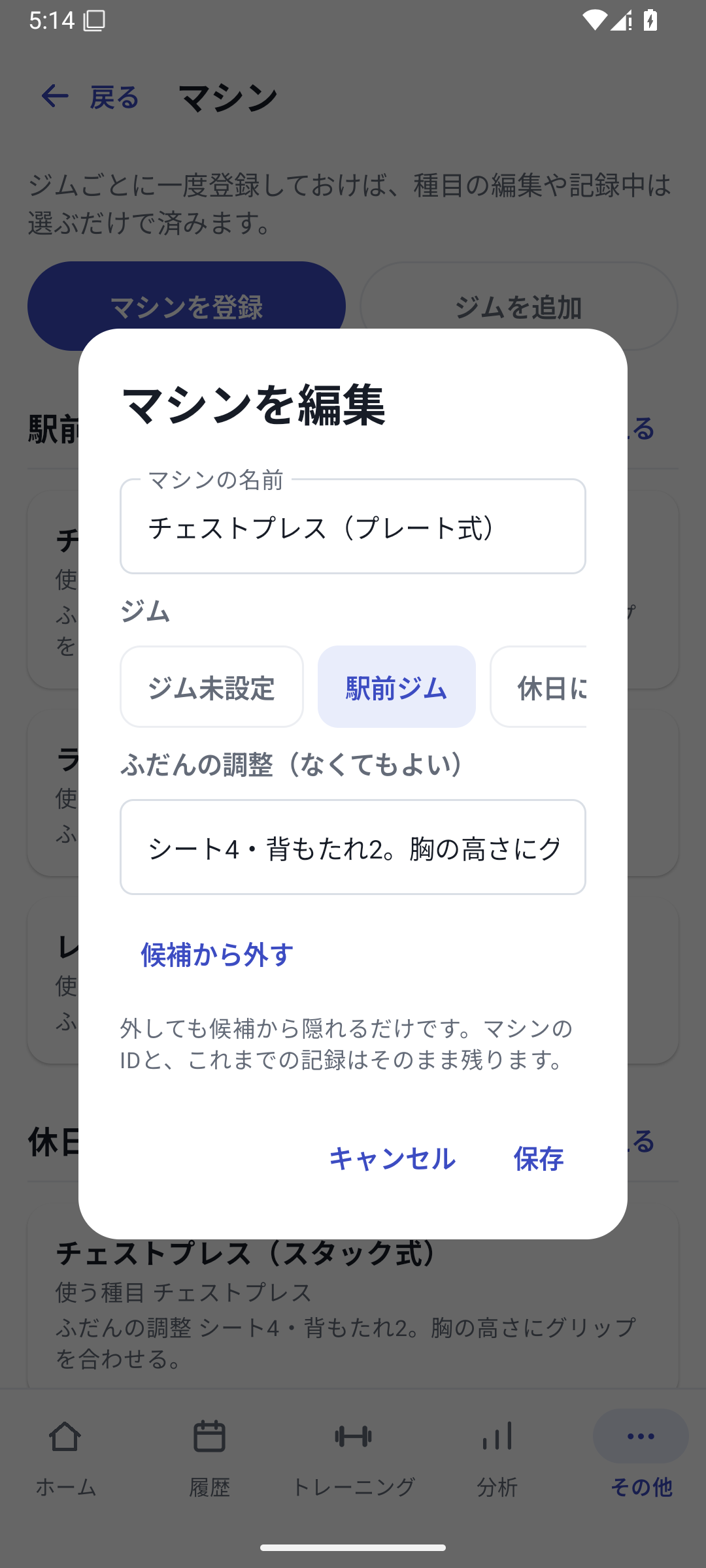
If only the equipment differs within Weight × reps, distinguish it through machine registration. If changing the tracking method to Weight × time, create a different exercise. Keeping tracking types consistent and separating equipment through machine settings makes the same exercise easier to follow in analysis.
Related features
The screens use sample records to explain the controls.
Updated: October 27, 2026