Steps
Open Add past record
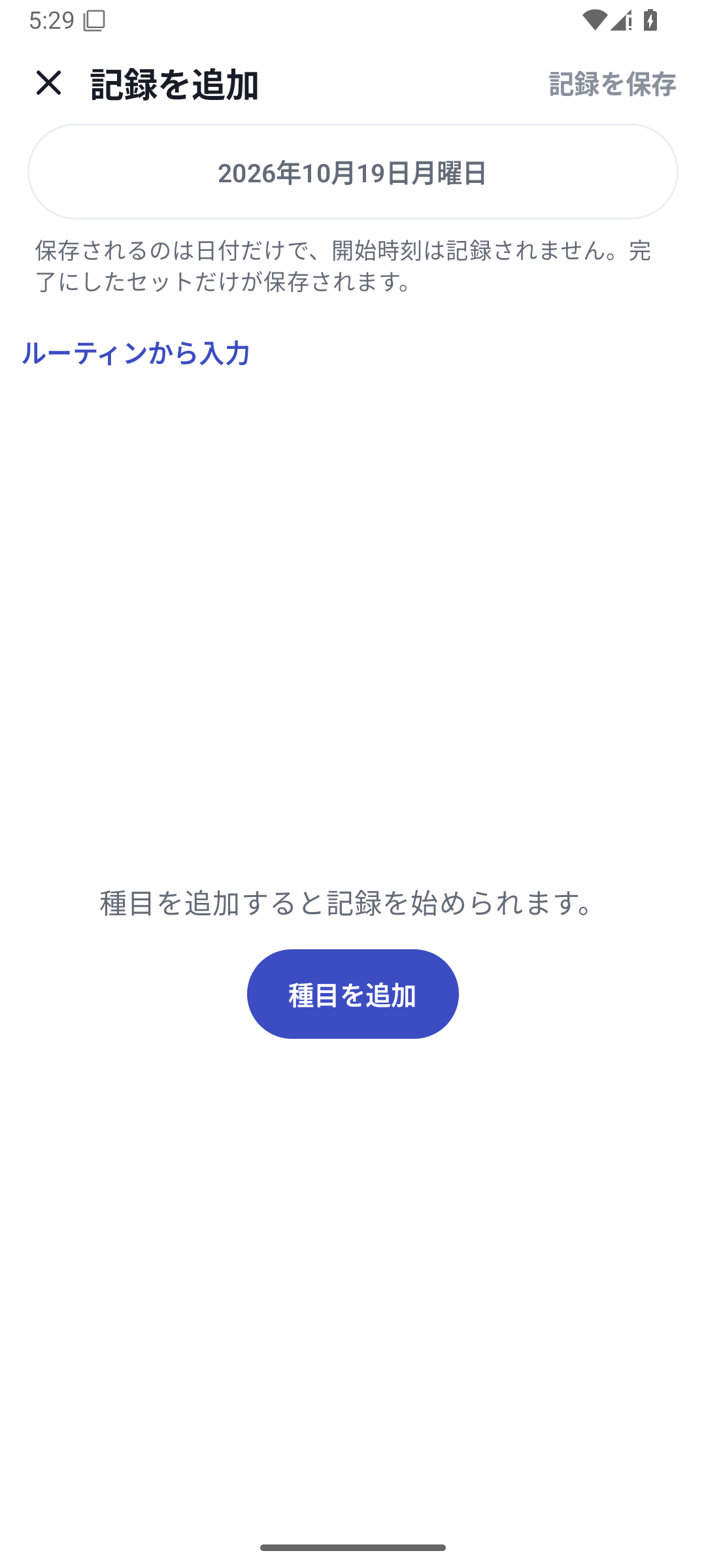
From History, open the screen for adding a past record and choose the training date. Future dates are not allowed.
 Enlarge image
Adding a record to a past date and choosing a template. Enter exercises and values
Choose the exercises you performed and enter actual weight, reps, and other values. If using a routine or recent record as a template, choose how to copy its structure and values.
Adjust to the actual results and save
Template values are plans or results from another day. Change the date and values to match this record before saving.
Correct a saved record
Open the record's editor from daily details in History, change basic values or the date, and save. This does not let you freely rebuild every part of the structure or custom values on the same screen.
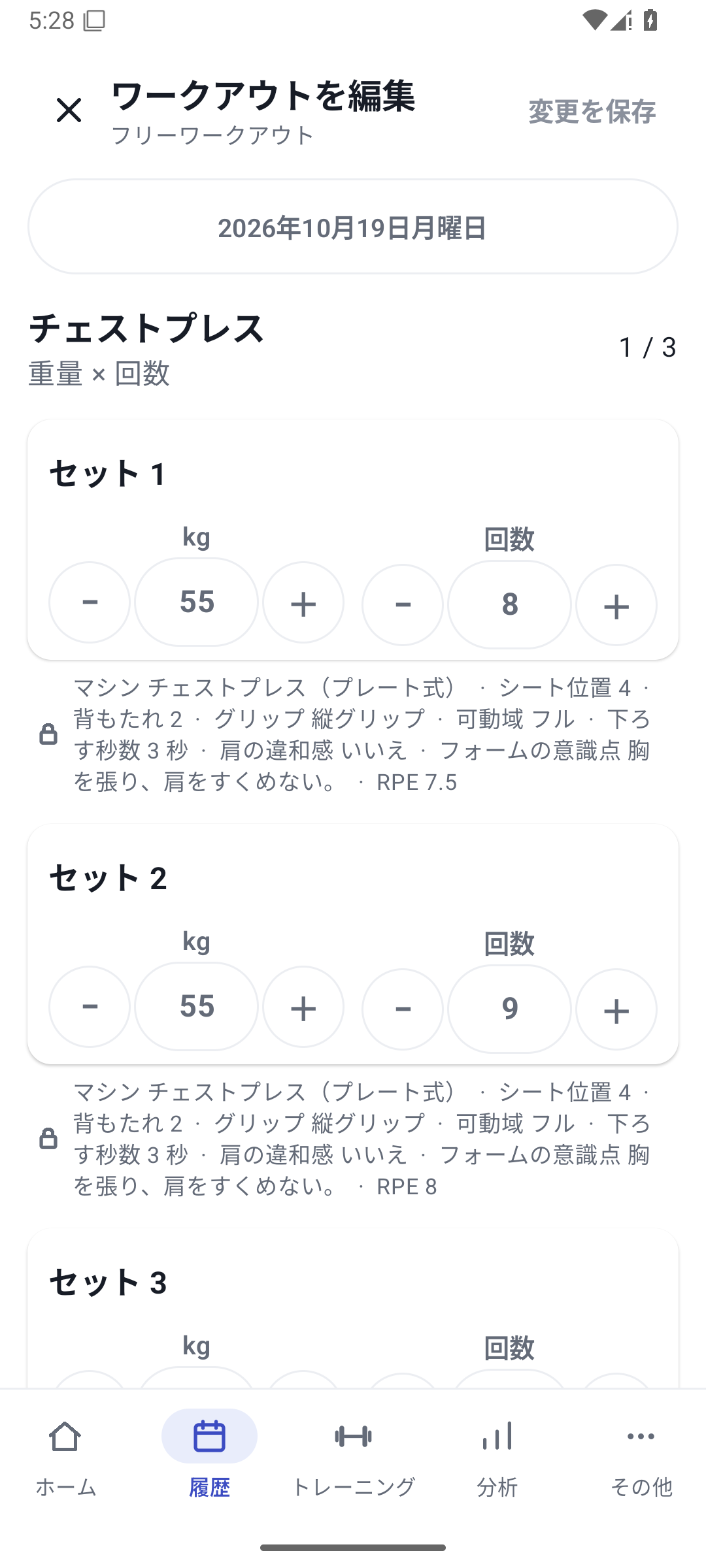 Enlarge image
Editing a saved record's date and basic values. Check the target before deleting
Choose the record, check it in the confirmation screen, and delete. Back up any records you need beforehand.
Case: reduce entry with a template
You forgot to log yesterday's Upper Body A. Load the routine's structure and change the chest press weight to yesterday's value. Using a template should not turn unperformed sets into actual results.
After changing a record's date, check the new day
After correcting a date, open both the new day and the original day. If there are multiple sessions, such as morning and evening, do not confuse the selected record with other sessions.
Corrections available with Free
Editing basic values and dates and adding basic past records are available with Free. Entering new custom values or machines is subject to each feature's Pro requirements.
Use a file for extensive past records
If you have a long history in another app, a paper notebook, or screenshots, an external AI can convert it to RENMA format. Instead of typing each record again, review the converted contents in the preview and import them.
Related features
The screens use sample records to explain the controls.
Updated: October 27, 2026