Six tracking types
| Tracking type | What you record | Example exercises |
|---|---|---|
| Weight × reps | The weight used and number of repetitions | Chest press, squat |
| Bodyweight × reps | Reps and, when needed, added weight or assistance | Pull-ups, dips |
| Time | Seconds | Plank |
| Reps | Number of repetitions | Bodyweight repetition tracking |
| Independent left/right | Weight and reps for each side | Bulgarian split squat, one-arm row |
| Weight × time | Weight held and duration in seconds | Farmer's hold |
Choose a tracking type when creating an exercise. Once it has history, its tracking type cannot be changed. Create a separate exercise if you want a different recording method, even under the same name.
 Enlarge image
How to use it in a workout
Choose how to start
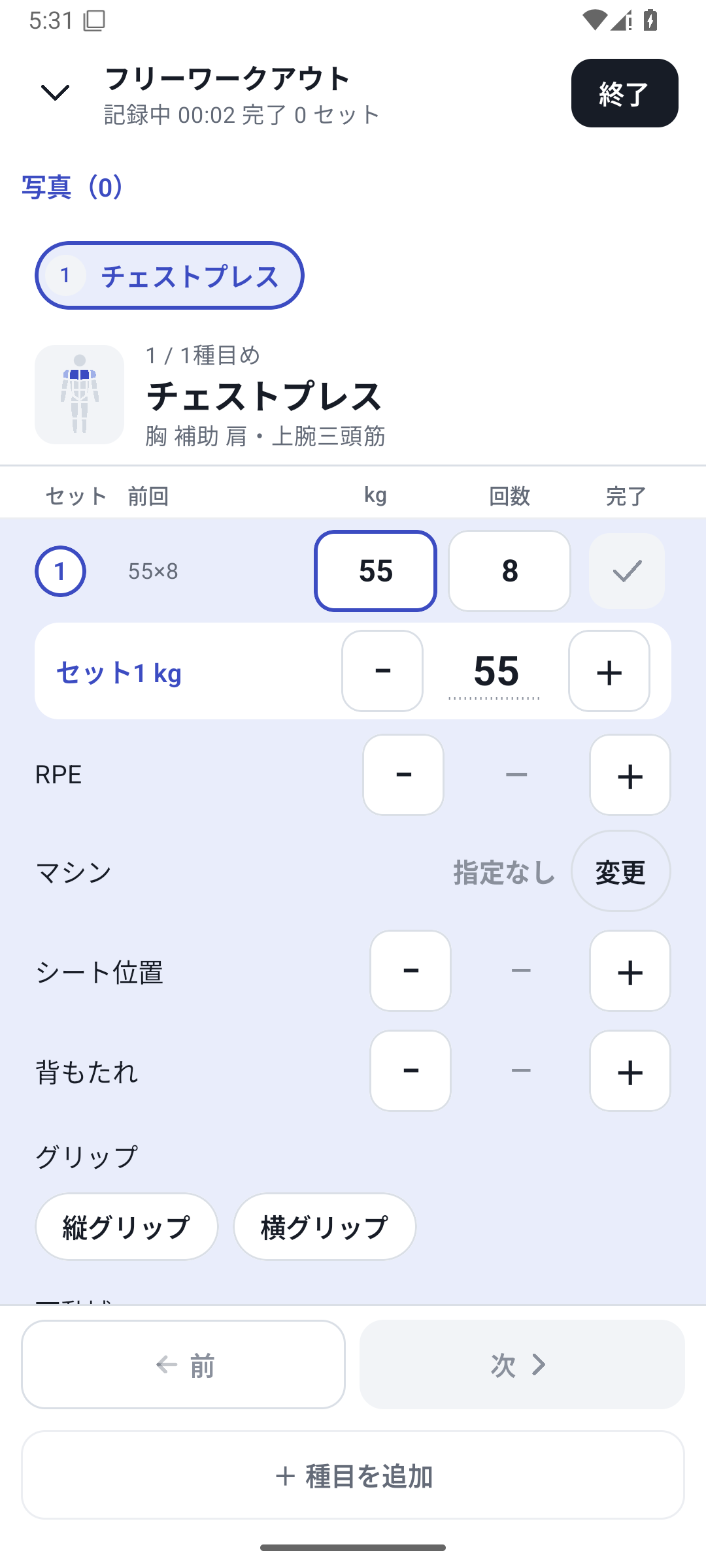
Open Training at the bottom and choose Select exercises to start, or choose Start on a routine.
Check the exercise and previous values
Switch to the exercise you are logging and refer to its previous values. You can add exercises during the workout.
Enter values
Open the exercise's weight, reps or seconds field. Use ±, the number wheel or direct entry, and check the confirmed value on the logging screen.
Complete the set
Enter the values you actually performed and mark the set complete. If a required value is missing, return to the highlighted field.
Finish and check history
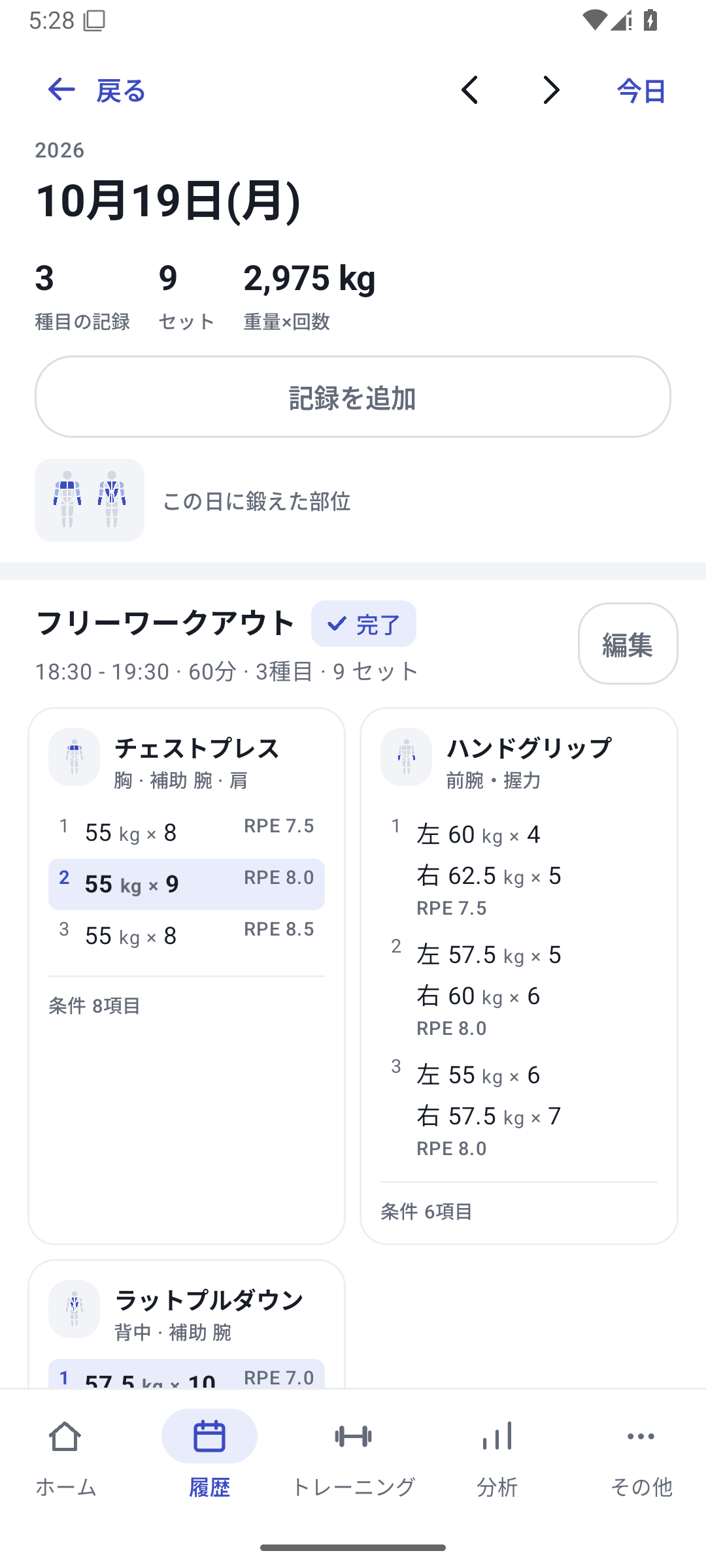
Review any planned exercises or sets left over, finish, and open history from the results. Check the date, exercises and completed-set values.
From previous performance to today's record
Enter today's values while referring to the previous weight and reps. A routine's set template is a plan; the previous-value row shows actual past performance. Loading a plan does not save it as today's results.
After adding a set, check the new row's weight, reps and conditions. Pro can also carry over conditions such as custom values and machines. On Free, you cannot continue entering new paid-feature values unchanged.
After a set, take a rest
Enter the required values and mark the set complete to count it as performed. Use your configured rest timer, extending or skipping it as needed. For timed exercises, use the timer and apply the seconds after stopping.
RPE can be recorded from 1 to 10 in 0.5 increments. It is a different rating from how many more reps you could do. Keep your own scale consistent to make past comparisons useful.
Save the finished workout
Whether you finish every set or only part of the plan, review any remaining exercises and sets before saving. Unfinished rows are not treated as completed work. The results screen shows exercises, sets and values performed, and links to daily history.
Resume an interrupted workout from the workout in progress. Only one workout can be in progress; resuming and starting a new one are different actions. If discarding, read the confirmation carefully so you do not confuse it with finishing and saving.
Case: logging a chest-and-back day
Chest press at 55kg for 8, 9 and 8 reps. If last time was 52.5kg, change the weight, then enter reps and complete each set. Add lat pulldowns next. After finishing, review the three sets and RPE in history.
Weight × time totals use weight × seconds; weight × reps totals use weight × reps. Do not compare totals with different units as if they measured the same thing.
Related how-to guides
The screens use sample records to explain the controls.
Updated: October 27, 2026