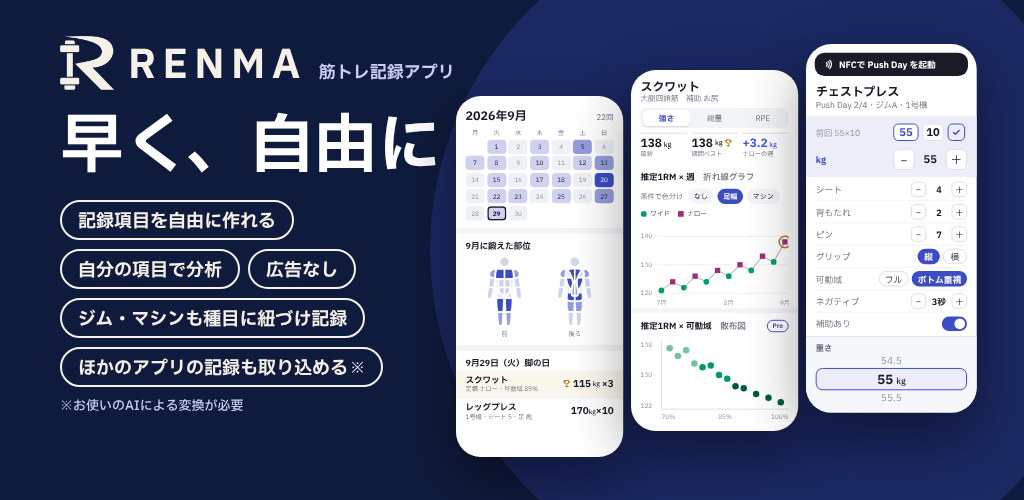
If you still have your records, you have a place to start.
Excel or Google Sheets records, exports from other apps, screenshots of daily logs, or photos of paper notebooks. Ask an external AI to convert them to RENMA format, review the contents in the app, and import them. Records that the AI can read and convert do not need to be retyped one at a time or put into a CSV you create yourself.
From apps with export
Give the exported file directly to the AI. Let it reorganize the columns.
Read →Even without exportFrom logging screens
Prepare screenshots with readable dates and individual sets.
Read →From handwritten recordsFrom paper notebooks
Photograph the pages, check the extracted text, and convert it.
Read →From what you rememberOrganize it in words
Distinguish confirmed results from routines you want to recreate when explaining them to the AI.
Read →Choose an external AI that supports image reading and file generation yourself. RENMA does not automatically recognize the images. The AI's terms and fees are separate from RENMA.
First, give the AI RENMA's conversion guide.
Keep source records
Retain the original app files, images, and notebooks. If RENMA already has records, save a backup too.
Prepare conversion documents from RENMA
In “More” → “Import records”, choose the source and copy the AI conversion guide to give to the AI. To match existing custom exercises, custom fields, or machines, create “AI / Bridge Export Pack” in Export Builder and include its guides and current setup information.
Request conversion along with the records
Copy the request below and attach your record files or images and the conversion guide. Starting with a representative day makes it easier to check the AI's reading.
Request for the AI
Convert the attached records into a RENMA import file following the conversion guide obtained from RENMA.
First show how dates, exercise names, units, weights, reps, and sides map, and ask about unreadable or uncertain details.
Do not add numbers, dates, or times absent from the source. Distinguish unknown, unrecorded, and 0.
Check overlapping screenshots, photographed page order, kg/lb, and differences between machines.
List information that cannot transfer rather than deleting it. After confirmation, create a downloadable renma-import.json.
For long histories, follow the guide's current limits. If splitting is necessary, keep each day within a single file.
Per-set RPE, left/right records, machine names, and supported custom fields can also transfer where the source data and format can represent them. Ask the AI to list unsupported information and review it rather than silently omitting it.
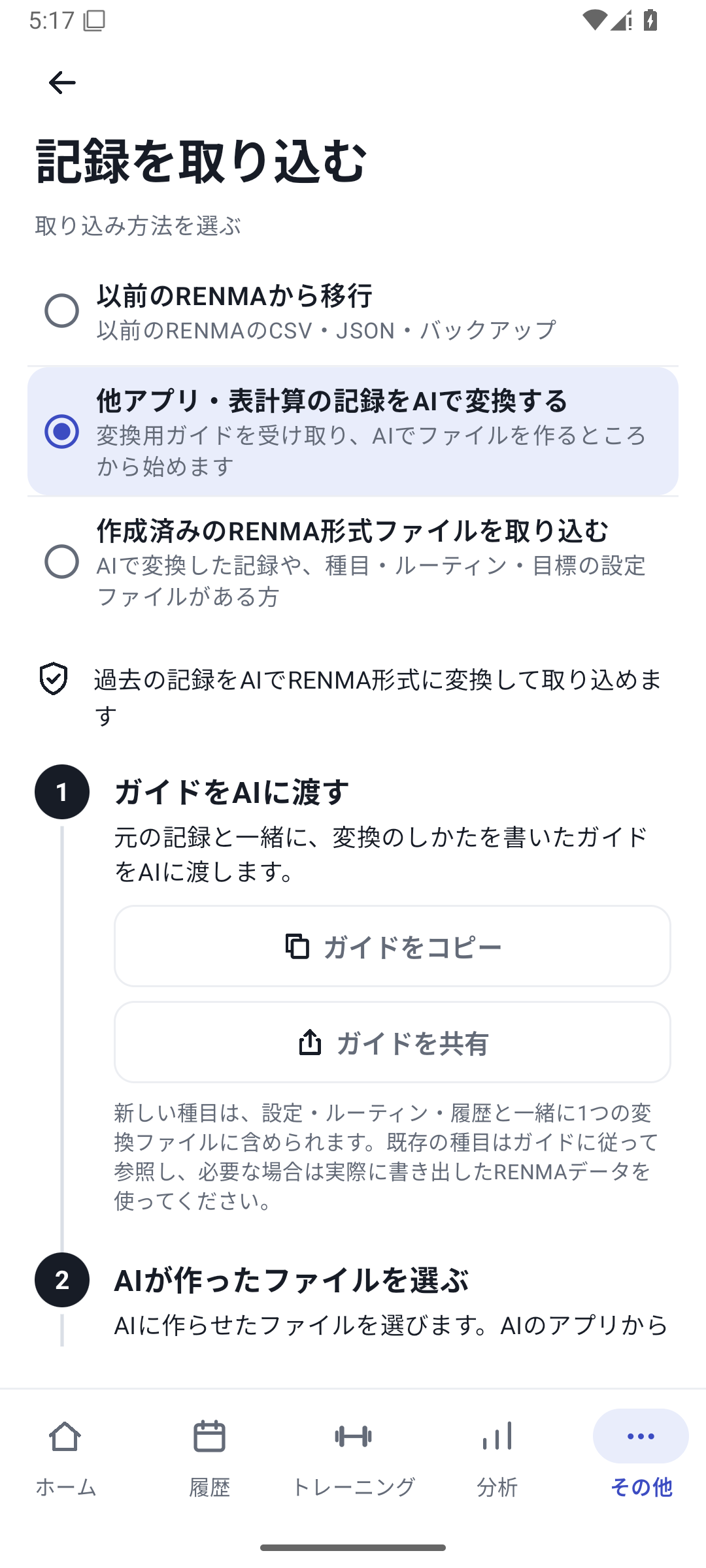 Enlarge image
From Strong, Hevy, and other apps with export.
Export training history from the source app
In Strong, open settings and choose “Export Data” (“Export Strong Data” on iOS). In Hevy, go to Profile → Settings → Export & Import Data → Export Data → Export Workouts. Labels may vary by language and app updates.
Give the exported file to the AI
Attach it with RENMA's conversion guide and ask: “Convert this to RENMA format, preserving exercises, sets, weights, reps, and units.” You do not need to open the CSV and rearrange its columns or build a RENMA table from scratch.
Check exercise mapping and import scope
Even with similar names, a barbell and a machine, or one-hand weight and the two-hand total, are different. Check the AI's mapping before asking for the file, then follow the import steps below.
No export? Use your logging screens.
If you want to move records from an app such as Kintore Memo, screens with readable dates and sets can provide the source for external AI conversion. Not finding an export feature does not mean you have to retype everything.
Capture dates, exercises, and every set
Save screenshots without cutting off weight, reps, or units. For long days, use several screenshots with some overlap to make the order easier to explain.
Give the images to the AI together
Explain image order and the date range, and ask: “Do not count overlapping sets twice; ask about numbers you cannot read.” First ask it to present the extracted contents in date, exercise, and set order.
Check the extracted records, then convert to RENMA format
Look for misread values such as 8 versus 6 reps or 55 kg versus 5.5 kg. Retake unclear images and have the import file generated from confirmed contents.
With readable images, you can leave number transcription and file creation to the AI without making your own CSV. Screenshots are not themselves saved as RENMA history photos, so keep the originals.
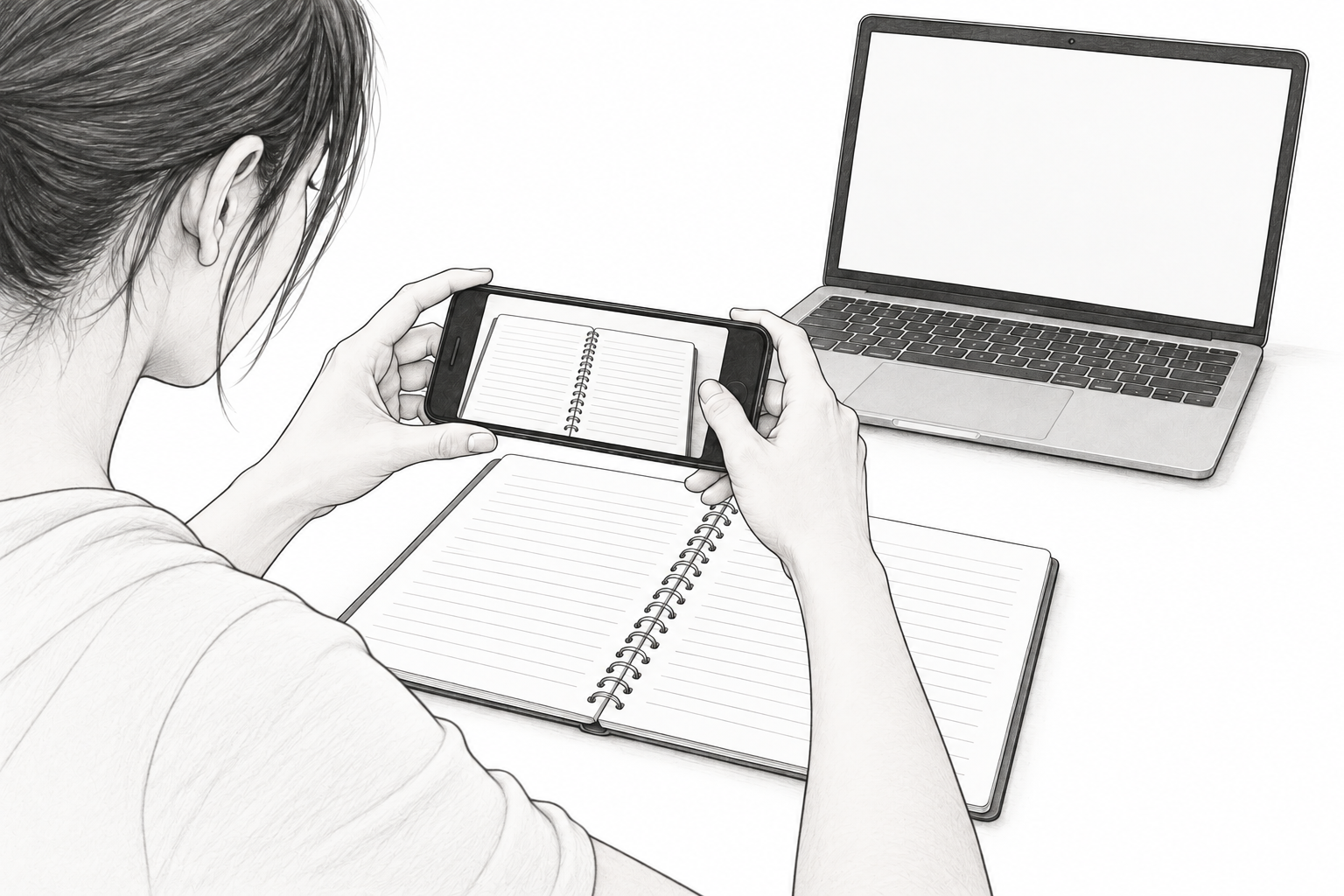
Case: import a paper workout notebook from photos
Photograph the whole page with legible numbers
Use good lighting with minimal shadows and tilt. Keep the date, exercise name, weight, and reps readable in the same photo. Keep page numbers or photo order too.
Explain your notation to the AI
For example: “Circled numbers are set numbers”, “20×10 means 20 kg for 10 reps”, or “I use separate columns for left and right”. Explain whether dumbbell weights are per hand or total and whether other records can confirm missing dates.
Check the extracted records and get the converted file
Ask the AI to question handwritten abbreviations or unreadable numbers and convert only confirmed contents to RENMA format. Records without a time can remain date-only.
Import and compare representative notebook days
Choose early, middle, and final dates and examples such as left/right exercises. Check that dates, exercises, set counts, and values match.
You can also describe the routine you used during a period.
For example: “In spring, I trained 3 times a week: chest and back on Monday, legs on Wednesday, with these exercises in this order.” Give the AI a description to organize your routine from that time. Depending on the external AI's capabilities, you can also use this to prepare a routine for future sessions.
Separate actual history from recreating a routine
Confirm and add to History the parts whose exact dates, sets, and values you remember. Organize remembered frequency or exercise menus as routine proposals. Do not let “3 times a week” cause the AI to invent training dates or weights and import them as completed results.
Date-only records require a known date. Exact daily graphs cannot be reconstructed from memories of only a month or season. Work with the AI to organize uncertain details while leaving them unconfirmed.
Review and import the file you receive.
Save the file on your phone
Download the AI-created
renma-import.json. There is no step where you create a CSV yourself.In RENMA, “Import from file”
Choose “Import a prepared RENMA-format file” → “Select file” and open the saved file. If an explanation says it cannot be read, give that reason to the AI to correct it from the source data.
Check additions and replacements in the preview
Check dates, session, exercise, and set counts, new exercises or fields, units, and sides. If history exists, review whether you will replace matching dates, a specified period, all history, or add records. Choose the replacement scope yourself rather than leaving it to the AI.
Agree to the contents, apply, and view History
Opening the preview alone does not apply anything. After approval, check the result and compare representative dates with the source. You can also read how to review your imported records.
For long histories, follow the current conversion guide
The current format has per-file limits including 4,000 workouts, 20,000 exercise records, and 100,000 total created records. These do not guarantee device processing time. If you need to split the data, keep each whole day within a single file, with no overlap between files. Review, application, and undo are separate for each part.
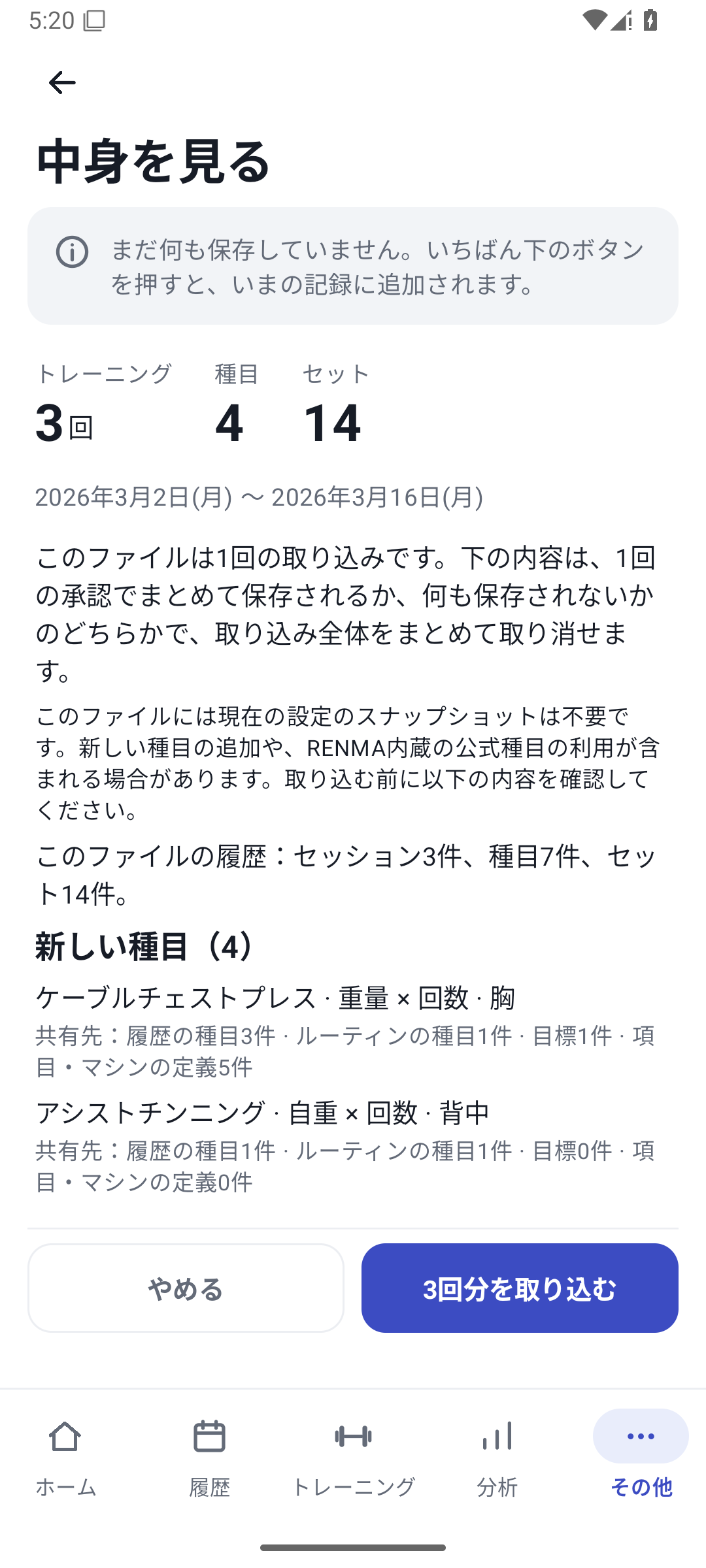 Enlarge image
You can migrate with Free too
Free allows 1 import every 30 days from the last success. Pro, Lifetime, and the initial free trial have no Bridge import-count limit. Creating or changing custom fields or machines also requires Pro access.
This migration format does not import bodyweight, photos, app settings, unfinished sets, or other excluded information. It differs from restoring a backup. Review the list of unsupported or unreadable data and keep source documents.
Undo from “Import history” may become unavailable after edits, dependent records, restoration, or other changes. Undo does not return the Free allowance.
Prices and featuresPro starts at 300 JPY per month
2,400 JPY yearly or a one-time payment of 7,800 JPY. Compare what each plan includes.
Read →The screens use sample records to explain the controls.
Content checked: October 27, 2026. Values on the app screens are example records.