Steps
Choose an exercise
Search and open an exercise under exercise analysis in the Analysis tab. Choose muscle-group analysis for muscle-based summaries.
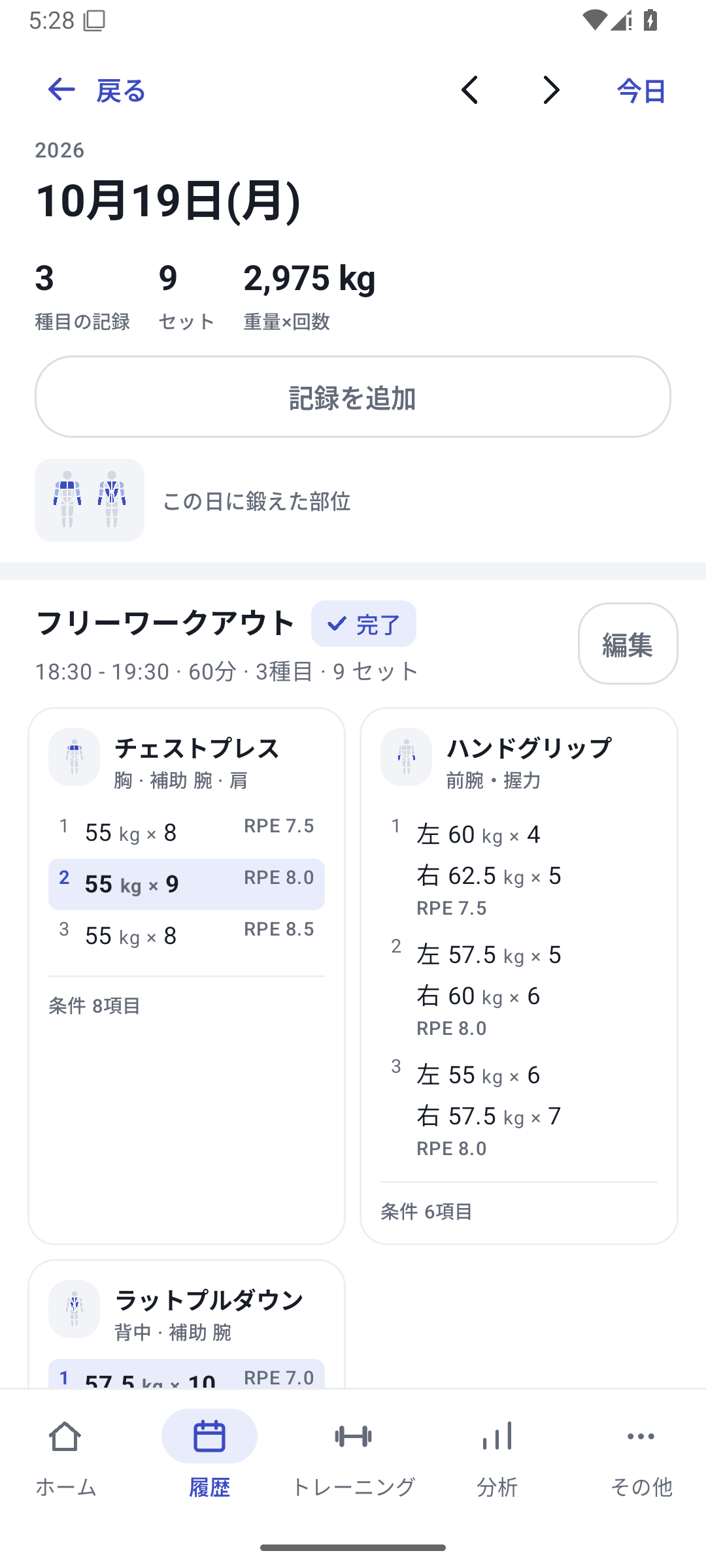 Enlarge image
A day's sessions, exercises and completed sets. Choose period and equipment
Select the machine and period you want to compare under the same conditions. Check whether records without an assigned machine are included.
Switch metrics
Choose strength, volume, RPE, or another metric and read the axis units.
Compare two values in landscape
Choose two metrics under “Two values” and switch between stacked, overlaid, and scatter views. Independent left/right exercises use their own side and difference views.
Return to a record of interest
Select a point or interval in the standard trend graph to open records for the relevant day, week, or month. Read the original sets and conditions.
Use metrics suited to the exercise
| Tracking type and metric | What it shows | How to read it |
|---|---|---|
| Strength for weight × reps | Estimated 1RM using the Epley formula | Follow trends with the same equipment and conditions. This is different from a measured 1RM. |
| Bodyweight strength | A rep-based metric | Also check added weight or assistance in History. |
| Time and reps | Duration or reps suited to the tracking type | Do not treat numbers from different types as the same measure of ability. |
| Volume | Total work according to the tracking type | Do not add weight × reps and weight × seconds as if they shared a unit. |
| RPE | Recorded perceived effort | Compare using a consistent scale without treating missing values as 0. |
Personal-best markers depend on the exercise type and equipment scope. Avoid comparing a best from a different machine as if the conditions were the same.
Relationships between strength, RPE, and numeric fields
Open “Two values” in the detailed landscape graph to view two metrics stacked, overlaid with two axes, or as a scatter plot. Explore questions such as whether RPE decreased at the same strength, or whether strength differed on days with a different movement duration.
The RPE and ordinary numeric custom field values being compared generally correspond to the strongest set of that day. They are not averages across all sets. Fields with custom rep-count units may be summed, so read the field's meaning together with its aggregation method.
Return to original records even across long periods
Trends are grouped by day, week, or month according to the displayed range. The general rule is daily up to 10 weeks, weekly up to 60 weeks, and monthly beyond that. Frequency uses different aggregation rules. Select a point or grouped interval in the detailed graph to open the records behind the values.
Scatter plots use pairs from training days with both values; a missing value is not filled with 0. A correlation coefficient requires at least 8 pairs with variation in both values. A relationship does not establish its cause.
Basic and custom analysis
Basic history and analysis are available with Free. Custom field analysis requires Pro, Lifetime, or the initial free trial. Independent left/right exercises have side, difference, and rep views with different support from two-value comparison and condition coloring.
What if RPE decreases at the same strength?
For example, you use similar weight and reps on the same machine, but used to record RPE 9 and now record RPE 8. With a consistent self-rating scale, this helps you review whether you are achieving similar performance with more in reserve.
Match the exercise, machine, and period
For weight-and-reps exercises, “Strength” uses estimated 1RM. Distinguish it from a measured maximum lift.
Rotate the screen and open “Two values”
Choose “Strength” for one value and “RPE” for the other. “Stacked” makes changes in the same period easier to follow; “Overlay” lets you compare line movement while checking the two axes.
Read the lines and return to the relevant day's sets
Look for periods when strength holds steady or rises while RPE falls. Check condition, technique, reps, and seat position in the original history too.
In two-value comparisons, RPE generally corresponds to the strongest set of the day. It is not an average across all sets. If that set has no RPE, another set's value is not substituted. RPE is subjective, so the numbers alone cannot establish causes of recovery or improvement.
Use a scatter plot to look for possible relationships.
“How do strength and RPE move together?” or “Does the weight I can use change on days with longer movement times?” In landscape “Two values”, choose “Scatter” and use two supported metrics as the axes.
A point is a pair from a training day with both values
A scatter plot generally uses one pair per recorded day. A day missing one value is not added as 0. Read the correspondence between values from the same day, such as strength and RPE or strength and a numeric custom field.
The correlation coefficient appears with pairs from at least 8 days and variation in both values. If there are few points, mixed conditions, or a constant value, review History first rather than forcing a conclusion. Correlation does not show causation.
Example: compare movement duration and strength
The real app screen below compares “Strength” with the custom field “Lowering time”. Switch to Scatter to see the distribution of the two values for the same dates.
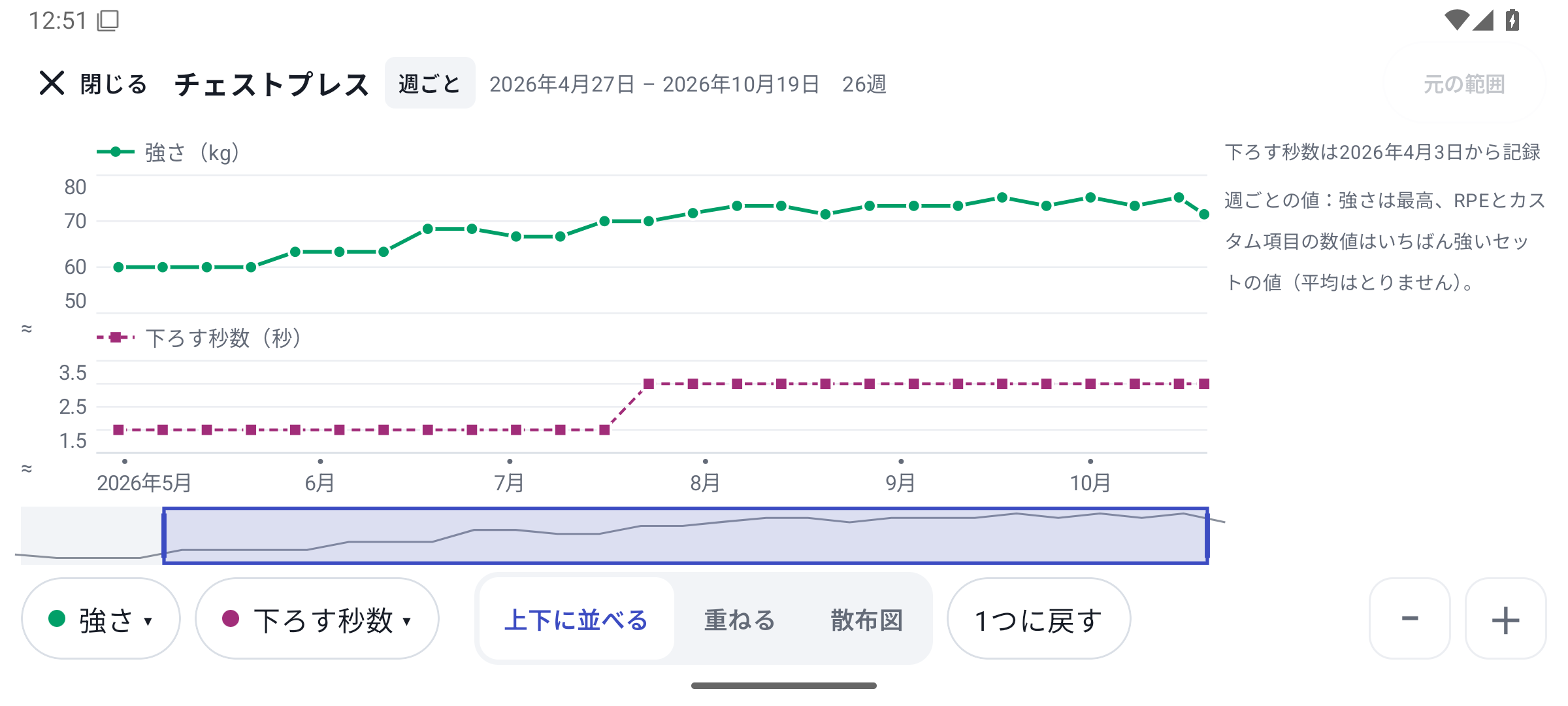 Enlarge screen
Read technique and setup alongside the numbers.
Custom fields supported as conditions can be compared through “Color by condition” in supported exercise graphs. For example, color by grip option and read strength trends on the same machine. Read text notes in History and use numeric types as supported comparison axes.
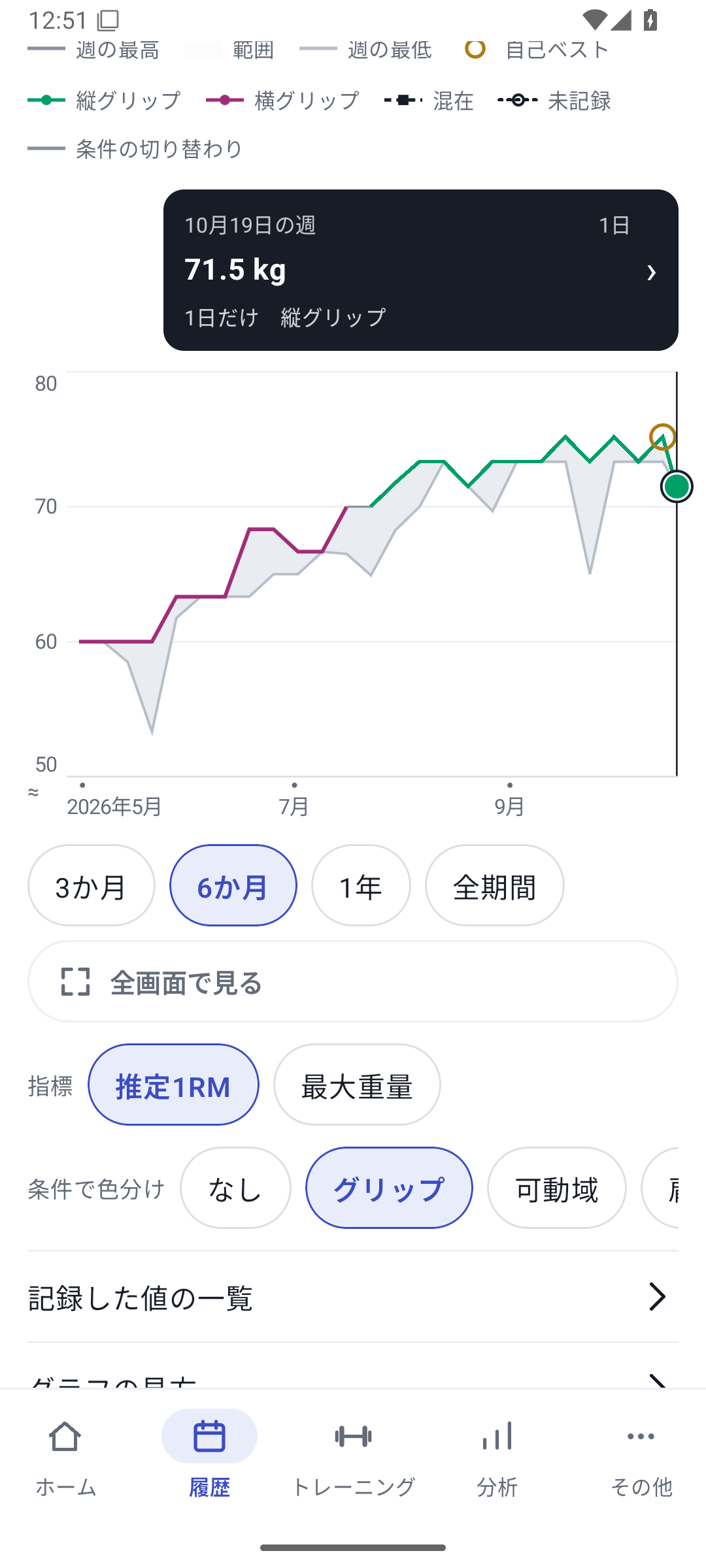 Enlarge screen
Independent left/right exercises let you switch between left, right, difference, and reps. Their graphs do not offer “Two values” or condition coloring in the same way. Not every type supports the same analysis.
Related features
The screens use sample records to explain the controls.
Updated: October 27, 2026